
Image to Video AI
Image to Video AI turns photos into short product clips

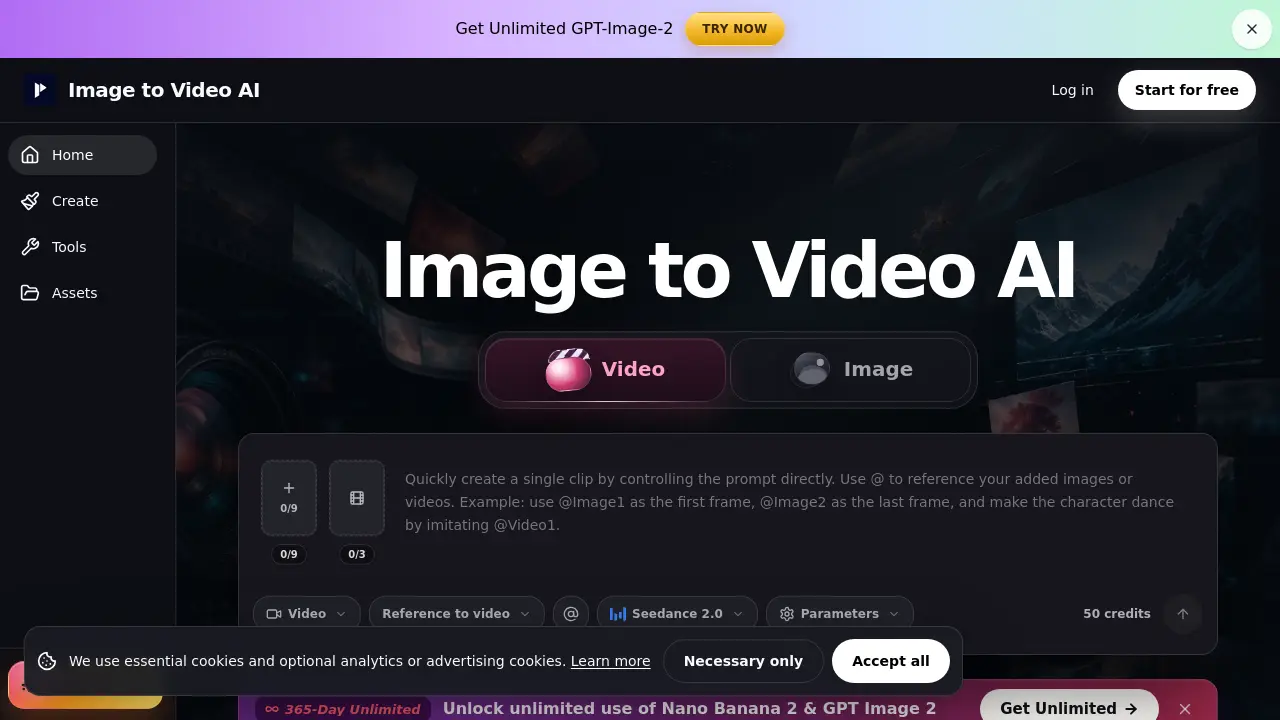
What is Image to Video AI
Image to Video AI is a web‑based platform that converts a single image—product photo, portrait, poster, or AI‑generated art—into a short, motion‑enhanced video clip. Users upload a clean source file (JPG, PNG, JPEG, WebP), enter a concise prompt describing one action and optional camera movement, and select a workflow (text/image, frames, or reference) that best matches the desired control level. The system generates a preview within minutes, allowing creators to verify consistency of faces, logos, or product details before export. Free credits are provided after registration, while paid tiers unlock unlimited generations, watermark‑free downloads, and advanced privacy settings. Ideal for rapid prototyping of e‑commerce demos, social‑media reels, and concept reviews, the tool emphasizes simple motion prompts and aspect‑ratio alignment to maximize stability and reduce drift.
How does Image to Video AI work
Image to Video AI operates as a web‑based workspace that converts a single uploaded image or a pair of start‑end frames into a short animated clip. After the user selects a workflow—text/image‑to‑video, frames‑to‑video, or reference‑to‑video—the system extracts visual features from the source, applies a motion prompt describing subject action and camera movement, and runs an AI video model to synthesize intermediate frames. The generated clip can be previewed, edited for consistency, and exported, with credit consumption shown before generation and optional paid plans providing watermark‑free outputs and privacy controls.
Benefits of Image to Video AI
Image to Video AI enables rapid conversion of product photos, portraits, posters, or AI‑generated artwork into short, shareable clips suitable for ads, Reels, Shorts, and landing‑page demos. By uploading a clean source image and specifying a single motion—such as a push‑in, gentle rotation, or lighting shift—the platform generates a video within minutes, preserving key visual elements like faces, logos, and product details. Flexible workflows (text‑to‑video, frames‑to‑video, reference‑to‑video) let users balance control and speed, while free credits after signup and credit‑based pricing support both testing and higher‑volume, watermark‑free commercial use.
Pros and Cons of Image to Video AI
Pros
- Fast conversion of images to short videos.
- Three workflow options for varied control.
- Free credits available after signup.
- Simple single‑sentence motion prompts.
- Ideal for product demos and social clips.
Cons
- Frame‑by‑frame consistency not guaranteed.
- Complex motions may produce drift.
- Free tier includes watermarks.
- Requires high‑quality source images.
- Longer videos need manual stitching.
Core Features of Image to Video AI
Text/Image to Video Conversion
Transforms a single uploaded image into a short video clip by applying one motion command and optional style or lighting keywords, enabling rapid product or portrait animations.
Frames‑to‑Video Interpolation
Generates motion between a defined start and end frame, producing smooth transitions for product reveals, before‑and‑after showcases, or packaging movements.
Reference‑Guided Video Generation
Uses uploaded images, videos, or audio as stylistic references to steer AI output, allowing finer control over appearance, character direction, and timing.
Preview, Export, and Credit Management
Provides an in‑app preview before download, displays required credits, handles failed jobs separately, and supports watermark‑free exports for paid plans.
Use Cases of Image to Video AI
- E‑commerce managers: Generate product demo clips from static photos, adding push‑in or rotation for landing pages.
- Social media creators: Turn portrait or AI art images into short Reels or Shorts with subtle motion.
- Marketing teams: Animate posters and thumbnails into 9:16 videos for quick ad testing and campaign previews.
- UI/UX designers: Produce frame‑to‑frame transitions to showcase before‑after UI changes in prototype demos.
- Content strategists: Create draft video hooks from single images, enabling rapid A/B testing before final editing.
FAQs of Image to Video AI
What is Image to Video AI?
Image to Video AI is a web‑based platform that converts a single image, a set of frames, or reference media into short video clips. Users upload a product photo, portrait, poster, or AI‑generated image, describe the desired motion in one sentence, select a workflow, and the service generates a motion‑enhanced video for use on product pages, ads, Reels, Shorts, or creative reviews.
Is Image to Video AI free?
The service offers free credits after a new user signs up, allowing several test generations without cost. Failed jobs do not consume credits, but higher‑volume usage, watermark‑free exports, and additional privacy controls require a paid subscription. Credits are deducted only when a generation succeeds.
Do I need to upload an image?
For the core image‑to‑video workflow, an image upload is mandatory. Users may also start with text‑to‑video if no image is available, or generate an image first using a connected AI image model and then animate that result. The uploaded visual serves as the anchor for the motion model.
Which image formats are supported?
Image to Video AI accepts common raster formats such as JPG, JPEG, PNG, and WebP. Each format must meet the platform’s size and dimension limits, which vary slightly between the text/image, frames, and reference workflows. Unsupported formats are rejected during the upload step.
What is the difference between image to video and frames to video?
Image‑to‑video creates motion from a single source picture, extending it with a push‑in, rotation, or lighting shift. Frames‑to‑video requires both a start and an end frame; the system interpolates the transition between them, making it suitable for product reveals, before‑and‑after comparisons, or packaging animations. Consistency is generally higher with frames‑to‑video when a clear start and finish are defined.
Which image‑to‑video workflow should I choose?
Select text/image to video for quick single‑image animations and simple social hooks. Choose frames to video when you need a defined beginning and ending, such as a product opening or a before‑after showcase. Opt for reference to video when uploaded assets (video, audio, or multiple images) must guide style, timing, or character direction more closely.
Can I use Image to Video AI for product videos?
Yes, the platform is optimized for product imagery. A clean, well‑lit product photo combined with a concise motion prompt—e.g., “slow push‑in with a light shift”—produces short demo clips that work well on e‑commerce pages, advertising banners, and social media ads.
Can Image to Video AI keep a face, character, or product perfectly consistent?
The system improves consistency by anchoring the generation on the uploaded image, but perfect frame‑by‑frame fidelity cannot be guaranteed. Using sharp source material, limiting motion to a single action, matching aspect ratios, and preferring the frames‑to‑video workflow when precise start‑end control is needed will reduce drift.
Can I create videos for commercial use?
Commercial use is supported primarily through paid plans, which provide watermark‑free exports, enhanced privacy settings, and higher credit allocations. Users must still verify that source assets and generated content comply with the platform’s licensing terms before distribution.
How long does image‑to‑video generation take?
Typical jobs complete within a few minutes, though actual time depends on selected resolution, clip length, workflow complexity, queue traffic, and any reference assets included. Longer or higher‑resolution clips may require additional processing time.
Why should I keep my motion prompt simple?
The underlying AI model responds best to clear, focused instructions. A single subject action and one camera movement—such as “gentle rotation” or “slow push‑in”—reduce ambiguity, leading to more stable outputs and less unwanted drift. Complex multi‑action prompts should be split into separate short clips.
How can I reduce character, product, or logo drift?
To minimize drift, provide a high‑quality, fully visible source image, avoid fast or large rotations, match the output aspect ratio to the source, and consider the frames‑to‑video workflow for defined start‑end states. Reviewing and regenerating only problematic clips further improves overall consistency.
How should I make longer AI videos?
Compose longer sequences by generating several short, focused clips and stitching them together in a video editor. This approach maintains higher control over individual motions, allows selective regeneration of mismatched sections, and results in smoother final productions.
What are the credit rules for failed generations?
When a job fails—due to server error, unsupported input, or other issues—the platform does not deduct credits. Failed attempts are logged separately, enabling users to retry without penalty. Successful generations consume the number of credits displayed before the job starts.
How to use Image to Video AI
The tool converts a single image—product photo, portrait, poster, or AI‑generated artwork—into a short AI video clip, enabling quick demos, social ads, and creative reviews.
Select a workflow (text/image, frames, or reference), then upload a clean, well‑lit source image that matches the desired aspect ratio (16:9, 9:16, or 1:1).
Compose a concise prompt describing one motion (e.g., slow push‑in, gentle rotation) and any style or lighting keywords; avoid multiple actions or long story beats.
Initiate generation; the platform displays required credits, processes the request, and presents a preview thumbnail once the AI video finishes rendering.
Review the preview clip, checking subject consistency, motion accuracy, and brand elements; if needed, regenerate using an alternative workflow or adjust the prompt.
When the clip meets the brief, export the video—watermark‑free with a paid plan—or download the preview for further editing in external software.
Verify usage rights and credit consumption; free credits apply after signup, while failed jobs do not deduct credits, allowing iterative refinement.
Incorporate the final video into product pages, reels, shorts, or presentations, leveraging the short‑clip format to enhance engagement and accelerate creative testing.
Image to Video AI Alternatives

Seedance 3.0 preview page: planned multi-shot continuity, scene editing and audio-visual sync for AI video, while the on-page generator runs Seedance 2.5.
Black Forest Labs' multimodal model with a web generator for text-to-video, image-to-video and image editing with native audio, for creators and marketers.
Wan API is an independent platform for Wan and Seedance video models. Compare specs and rates, generate clips in the Playground, or call them through one API.
Seedance 3.0 turns text, images, video clips, and audio into videos with sound, and edits one part of a clip without regenerating the rest.
Scribix is an AI video clipper that cuts podcasts and interviews into captioned vertical shorts, then publishes them to YouTube, TikTok and LinkedIn.
AI video and image studio with text-to-video, image-to-video and keyframe control across Seedance, Kling, Wan and Vidu — all on one credit balance.
SeaMove AI is an AI video and image generation platform offering Seedance 2.0 and Seedance 2.5 models for text-to-video, image-to-video, and reference-based creation. Features multi-shot continuity, director-level control, and audio-visual sync for creators and studios.
Turns two separate portraits into a 15-second vertical rap duet video on an orange stage with a shared microphone and the original soundtrack. Free 480P preview available.
Katto turns long videos and podcasts into scored, captioned 9:16 clips. It ranks clips by viral potential and exports them to 7 platforms from one place.
Kling 4.0 turns text, images, and up to 15 Omni Reference assets into cinematic AI video, with 30-second multi-shot scenes, 10 keyframes, and 4K HDR.
Gemini Omni is a chat-based multimodal AI video generator and editor. It combines text, images, video, and audio to create cinematic clips with native audio.
Kling 4.0 turns text prompts and reference images into cinematic AI video, with native audio, flexible model options and a credit-based HTTP API for developers.