
AI Image to Video FAQs
AI Image to Video is a free online image‑to‑video AI generator that lets users turn a single photo into cinematic clips with motion prompts.

FAQs of AI Image to Video
What is AI Image to Video?
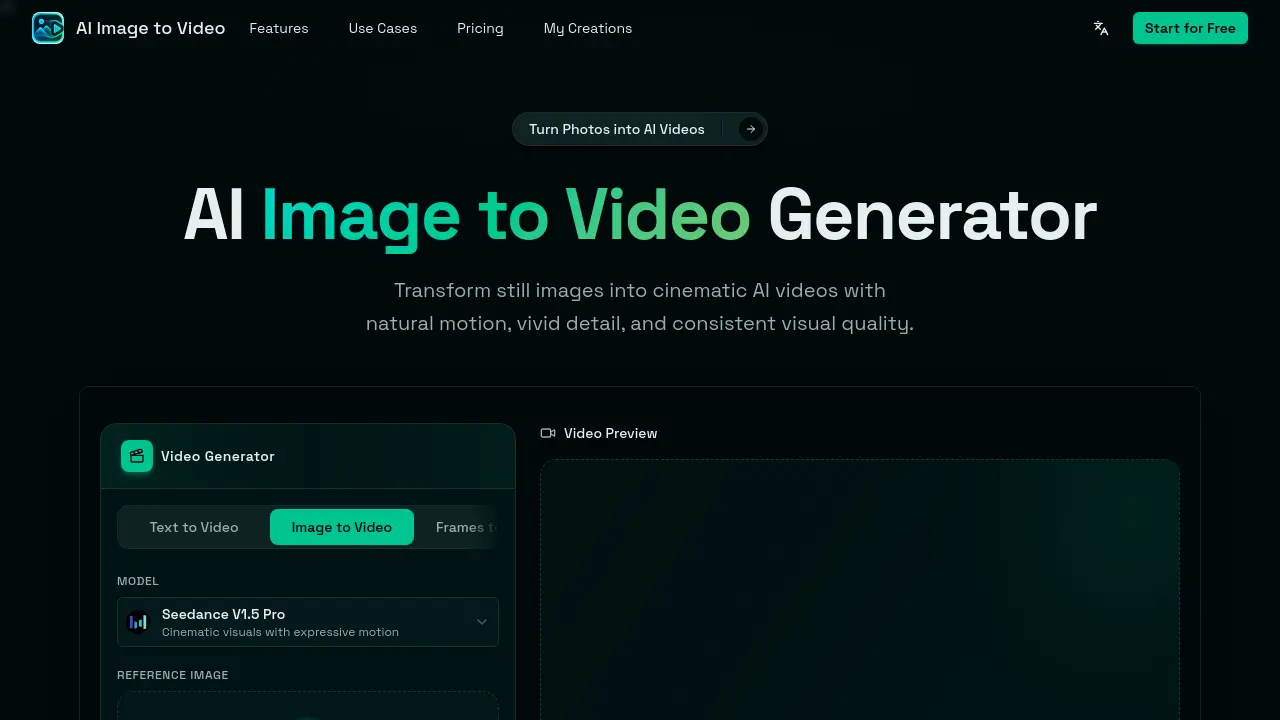
AI Image to Video is a free, browser‑based generator that converts a single still image into a short cinematic video. Users upload an image, add a motion prompt, and the service creates natural‑looking motion, camera movement, and optional audio without the need for local GPU resources or video‑editing software.
Is AI Image to Video free to use?
The core functionality of AI Image to Video is free, allowing unlimited uploads and basic video generation. Higher‑quality outputs, longer durations, or watermark‑free versions may require credits or a paid plan, as described on the pricing page.
Can I generate a video from only one image?
Yes. The platform is designed to work with a single image—photo, product shot, illustration, anime artwork, or pet picture. After uploading the image and describing the desired motion, the AI adds dynamic elements and renders a video clip.
How does the motion‑prompt system work?
Users type natural‑language instructions such as “slow zoom in,” “orbit camera around the product,” or “add floating particles.” The AI interprets these prompts to control camera paths, subject animation, lighting changes, and background movement, producing a video that matches the specified direction.
What types of images are supported?
Any high‑resolution still image up to 10 MB can be used, including portraits, selfies, product photos, fashion shots, food images, landscape or travel photos, anime illustrations, pet pictures, and graphic designs. The system works best with clear subjects and sufficient detail.
Are any technical skills required to create videos?
No technical expertise is needed. The workflow consists of four simple steps: upload an image, write a motion prompt, click “Generate,” and download the resulting video. All processing occurs in the cloud, eliminating the need for editing software or GPU knowledge.
Can the generated videos be used for commercial purposes?
Generated clips may be used in marketing, advertising, e‑commerce, or social‑media campaigns, subject to the platform’s terms of service. Users should review the licensing agreement to ensure compliance with any attribution or usage restrictions for commercial projects.
Which social‑media formats are supported?
AI Image to Video offers aspect‑ratio options such as 1:1, 9:16, 16:9, 3:4, and 4:3, making the output suitable for TikTok, Instagram Reels, YouTube Shorts, X posts, and other short‑form platforms. Users can select the appropriate ratio before generation.
How long does it take to render a video?
Rendering typically completes within a few minutes, depending on server load, selected resolution, and video duration. The interface displays a loading indicator, and users receive a preview once the generation process finishes.
Is it possible to add audio to the AI‑generated video?
Yes. By enabling the “Generate Audio” option, the AI creates a matching soundtrack that aligns with the visual motion and mood described in the prompt. Audio generation consumes additional credits but integrates seamlessly with the final video file.
How to use AI Image to Video
- AI Image to Video converts a single still image into a short cinematic AI video, offering motion prompts, camera animation, and optional audio generation for social or promotional use.
- Upload one image (photo, product shot, portrait, anime artwork, etc.) by clicking or dragging into the designated area; accepted formats are up to 10 MB each, max 5 images.
- Select the desired aspect ratio and resolution, then type a motion prompt describing the intended movement, such as “slow zoom‑in” or “orbit camera around the product.”
- Adjust additional settings like video duration, generate‑audio toggle, and credit consumption before clicking Ready to Generate to start the AI processing.
- While the model renders, monitor the loading indicator; upon completion a video preview appears, showing the applied cinematic motion and subject consistency.
- Review the preview to ensure the animation matches the prompt; if needed, tweak the motion description or aspect ratio and regenerate for a refined result.
- Once satisfied, click Download to save the MP4 file; the output is optimized for TikTok, Instagram Reels, YouTube Shorts, or product landing pages.
- Use the downloaded video in marketing campaigns, social media posts, or portfolio showcases, leveraging the AI‑generated motion to boost engagement and visual storytelling.
