
AI Image Text Editor FAQs
AI Image Text Editor lets users replace, remove, translate, and redact text inside finished images while preserving the original font, background, and layout.

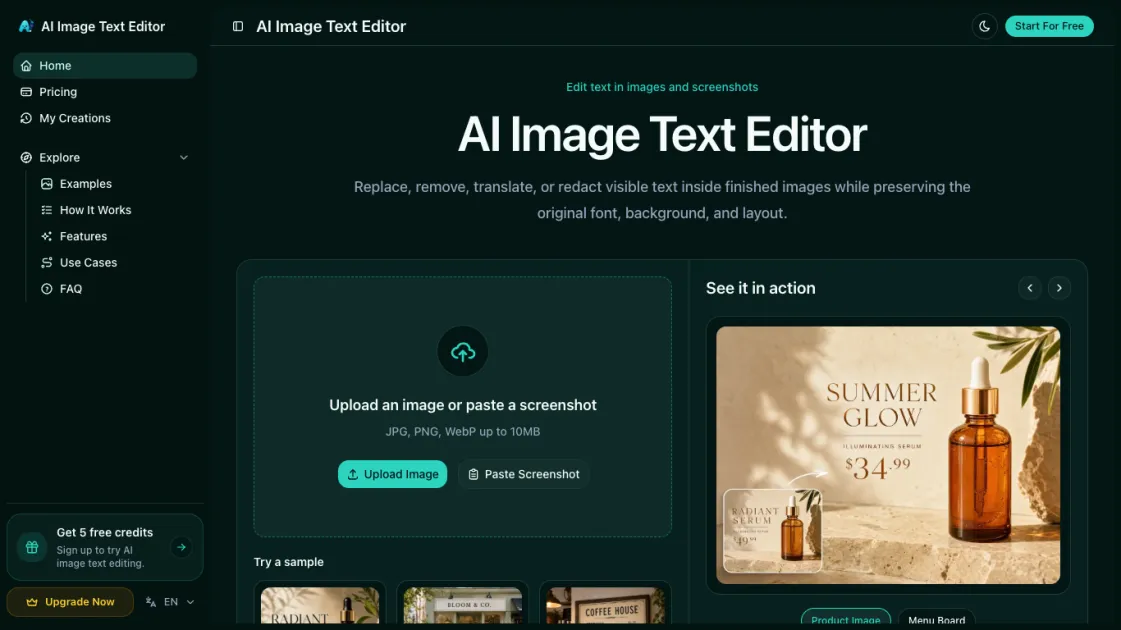
FAQs of AI Image Text Editor
How does AI Image Text Editor work?
You upload an image, the AI automatically detects all visible text and its positions, you select the text you want to change and type your replacement or deletion, and the tool regenerates the background and renders the new text in the original style before you download the result.
What types of images can I edit?
Any image with visible text works — product photos, screenshots, social media graphics, marketing banners, presentations, receipts, and scanned documents. Supported formats include PNG, JPG, and WebP.
Will the edited text match the original font and style?
Yes. The AI analyzes the original text's font, size, color, and spacing, then renders your replacement in the same style so the edit is visually seamless and undetectable.
Is there a free trial?
Yes. New users receive 5 free trial credits to test all features — text replacement, removal, translation, and redaction — before committing to a paid plan.
How many images can I process per month?
It depends on your plan. The free trial gives 5 credits, the Hobby plan includes 200 credits, Basic offers 500, Pro provides 2,000, and the Max plan includes 4,000 credits per month.
Can I translate text in images to other languages?
Yes. Select the target language and the AI translates all detected text in-place while preserving the original layout, font style, and visual design of the image.
Do I need to install any software?
No. AI Image Text Editor runs entirely in your web browser. There is nothing to download or install — just open the site, upload an image, and start editing.
How to use AI Image Text Editor
- Upload or paste an image: Open the site and drag a photo, screenshot, or graphic into the editor, or paste one from your clipboard.
- Select the text to edit: Click on any detected text block in the image — the AI highlights it and shows its current font and style.
- Make your change: Type a replacement, press delete to remove the text entirely, or choose a target language to translate it.
- Preview and download: Review the AI-generated result, and if it looks seamless, download the edited image in your preferred format.
