
PixPin – Fast screenshot, screen recorder and OCR tool

What is PixPin
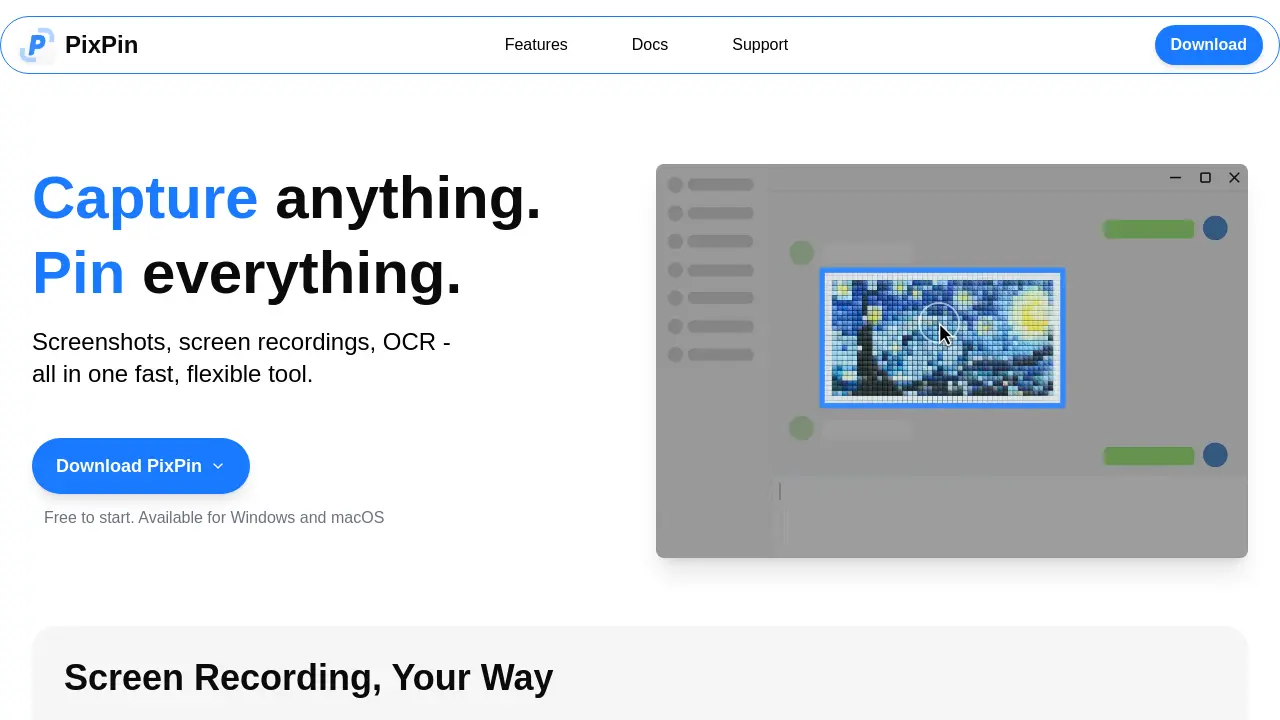
PixPin is a cross‑platform utility for Windows and macOS that consolidates screenshot capture, screen recording, OCR, and sticky‑note style pinning into a single, fast workflow. Users can quickly snap windows, regions, or full screens, then stitch scrolling pages, chats, or documents into long captures. The smart auto‑detection engine isolates UI elements for pixel‑perfect documentation, while built‑in annotation tools add circles, highlights, mosaics, and sequential markers. OCR functionality extracts selectable text directly from images or pinned notes, eliminating manual re‑typing. A global mouse shortcut (WIN + drag) enables instant “pin‑and‑capture” without leaving the active application. PixPin Pro extends the core set with action recording—capturing keystrokes and mouse clicks alongside video or GIF output—for detailed tutorials and bug reports. The free tier requires no sign‑up, making it a practical addition for designers, developers, product managers, and educators who need flexible visual note‑taking and sharing.
How does PixPin work
PixPin operates as an integrated capture‑and‑pin platform for Windows and macOS, combining screenshot, screen‑recording, and OCR functions within a single interface. Users select windows, regions, or full screens; the smart detection engine identifies UI elements, while a global mouse shortcut (WIN + drag) enables instant capture and pinning of images, text, colors, or files onto the desktop as digital sticky notes. Captured content can be annotated with shapes, highlights, or mosaics, and text is extracted directly via OCR for copy‑and‑paste. Additionally, PixPin records keystrokes and mouse clicks alongside video or GIF output, supporting detailed tutorials and process documentation.
Benefits of PixPin
PixPin consolidates screenshot capture, screen recording, scrolling captures, and OCR into a single lightweight Windows and macOS tool. Users can quickly snap windows, regions, or full pages, then pin images, text, colors, or files directly onto the desktop as digital sticky notes for instant reference. Built‑in annotation options—highlights, circles, mosaic and numbered steps—support clear visual communication, while the Pro shortcut (WIN + drag) enables fast pinning without leaving the active application. Action recording adds keystroke and mouse‑click logs to videos, facilitating detailed tutorials and bug reports. The free version requires no sign‑up, and a paid upgrade expands these capabilities.
Pros and Cons of PixPin
Pros
- Free starter version, no sign‑up required.
- Combines screenshots, recordings, and OCR in one tool.
- Smart auto‑detection for precise window captures.
- Global shortcut (WIN + Drag) for instant pinned screenshots.
- Built‑in annotation and Markdown‑style markup.
Cons
- macOS and Windows only; no Linux support.
- Advanced features locked behind PixPin Pro subscription.
- Limited cloud sync or collaboration options mentioned.
- Potential learning curve with many toolsets.
- No explicit pricing details for Pro tier.
Core Features of PixPin
Screenshot Capture
Enables fast capture of windows, specific regions, or full screens, with smart auto‑detection for pixel‑perfect images suitable for documentation and sharing.
Screen Recording & GIF Creation
Records videos or animated GIFs of screen activity, supporting annotations and optional action logging for clear tutorials and demonstrations.
Long Page Stitching
Combines multiple screenshots into a single continuous image, capturing scrolling pages, chats, or documents without manual cropping.
On‑Screen Pinning (Sticky Notes)
Pins images, text, colors, and files directly onto the desktop, providing persistent visual references that enhance workflow continuity.
OCR Text Extraction
Selects and copies text from screenshots or pinned notes instantly, eliminating manual retyping and improving information retrieval.
Annotation Suite
Offers drawing tools such as circles, markers, sequence numbers, and mosaics to highlight, hide, or emphasize content within screenshots and pins.
Quick Pin Shortcut (WIN + Drag)
Activates a global mouse command that captures a screenshot and pins it in a single gesture, streamlining visual note‑taking across applications.
Action Recording (Keystrokes & Mouse Clicks)
Logs user input alongside screen recordings, producing step‑by‑step tutorials and precise process documentation for developers and support teams.
Use Cases of PixPin
- Designers: Capture UI mockups, annotate feedback, and pin notes directly on screen for iterative design reviews.
- Developers: Record keystrokes and mouse clicks alongside screenshots to document bugs and API responses efficiently.
- Product managers: Stitch long page captures and extract text via OCR to organize user flow documentation and feature specs.
- Customer support agents: Create step‑by‑step screen recordings with annotations to guide users through troubleshooting processes.
- Researchers: Pin extracted quotes and reference images on the desktop while drafting papers, maintaining visual context without switching windows.
FAQs of PixPin
What core capture functionalities does PixPin provide?
PixPin combines screenshot, screen recording, and OCR capabilities into a single application. Users can capture individual windows, selected regions, full screens, scrolling pages, and even create animated GIFs, all without needing separate tools.
How does the “Pin it to screen” feature work?
The Pin feature lets users attach images, extracted text, colors, or files directly onto their desktop as virtual sticky notes. These pinned items remain visible across applications, offering quick reference and facilitating visual brainstorming or documentation.
Can PixPin extract text from images automatically?
Yes, PixPin includes an OCR engine that recognises text within screenshots or pinned notes. Users can select the desired area, copy the recognised text instantly, and avoid manual re‑typing, which speeds up research and note‑taking workflows.
What annotation tools are available for screenshots and pins?
PixPin provides a range of annotation options such as drawing circles, highlighting with a marker, adding sequential numbers, and applying a mosaic effect to obscure sensitive data. These tools help users communicate visual intent clearly and professionally.
How does the Quick Pin Screenshot shortcut improve workflow?
With the global shortcut WIN + Drag (left click), PixPin captures the current screen area and pins it as a sticky note in a single action, eliminating the need to open the app first. This rapid capture is especially useful for designers, developers, and support staff who need instant visual notes.
What additional capabilities are included in PixPin Pro?
PixPin Pro extends the free version by adding Action Recording, which logs keystrokes and mouse clicks alongside screen recordings. This feature is valuable for creating step‑by‑step tutorials, detailed bug reports, and comprehensive process documentation.
Is PixPin available for both Windows and macOS, and is there a sign‑up requirement?
PixPin can be downloaded and used on both Windows and macOS platforms. The application offers a free tier that requires no registration, allowing users to start capturing immediately; a paid Pro membership is optional for advanced features.
How to use PixPin
PixPin consolidates screenshot capture, screen recording, OCR extraction, and pinning into a single utility, enabling users to document, annotate, and reuse visual information efficiently.
Launch PixPin, select the desired mode—Screenshot, Recording, or Long Capture—via the main toolbar, then define the capture area using window, region, or auto‑detect options.
Initiate the capture; for recordings, choose video or GIF format, optionally enabling Action Recording to log keystrokes and mouse clicks for detailed tutorials.
After capture, employ the annotation panel to highlight, circle, add arrows, or mosaic sensitive regions, then click Pin to screen to create a persistent sticky note.
To extract text, activate the OCR tool on the pinned image or screenshot, select the text block, and copy the result directly to the clipboard for immediate use.
Review the pinned notes and annotations on the desktop; organize them by dragging, resizing, or deleting, thereby integrating captured content into the ongoing workflow.
PixPin Website Traffic Analysis
Latest traffic information
- Monthly Visits48.69K
- Bounce Rate32.79%
- Pages Per Visit2
- Visit Duration00:00:41
- Global Rank663.19K
- Country/Region Ranking46.58K
Top Keywords
| Keyword | Traffic | Volume | Cost Per Click |
|---|---|---|---|
| pixpin | 21.89K | 36.66K | $2.07 |
| pinpix | 1.69K | 3.16K | -- |
| pixpib | 370 | 770 | -- |
| pixpin download | 90 | 100 | -- |
| picpin | 80 | 130 | -- |
Top Regions
| Region | Percentage |
|---|---|
| China | 49.1% |
| Hong Kong | 10.27% |
| United States | 9.69% |
| Singapore | 8.62% |
| Taiwan | 7.3% |
PixPin Alternatives
A browser collection of 13 free creative editors for photos, vector art, PDFs, documents, video, audio, and CAD, opening without an account or install.

An online AI photo editor that removes image backgrounds, erases people, objects and text, and upscales photos 4x. Preview every photo free before paying per image.
AtAt runs Claude Code, Codex, or local models in the text field you are typing in, no app-switching. It adds TabTab autocomplete, screenshots, and clipboard history.
ScanPDF AI is a free online PDF scanner that turns photos and scans into clean PDFs, OCR searchable text, and receipt-to-Excel data in your browser.
Meta Image: browser AI studio powered by Muse Image. Edit photos with prompts, remove backgrounds, restore old photos, generate new images.
OmniEnhancer is an AI image enhancer and photo editor that improves photo quality, clarity, color, and resolution online, with free daily credits.
TranslateImage AI translates images to 70+ languages while preserving font, layout, and style. Free online AI image translator for photos and manga.
AI Clothes Changer is an online tool that replaces the clothing in a person photo using either a reference image or a text description.
AI Gazou offers free AI-powered image upscaling to enhance photos, product images, and illustrations. Upscale 2x or 4x with natural detail preservation.
PixMira AI is a free AI photo editor and image generator. Use text prompts for precise edits, style changes, and high-quality results in seconds.
AI Gazou removes image backgrounds for free using AI. Upload photos, products, or logos to get transparent PNGs with clean edges and customizable margins.
AI-powered PDF to Markdown converter with OCR for scanned pages. Get clean, structured Markdown from any PDF in seconds online.