
AI Image Upscaler
AI Image Upscaler - Free Online Photo Enhancement Tool
| Added on: | Jul 24, 2026 |
| Monthly Visits: | -- |
| Social & Email: | -- |

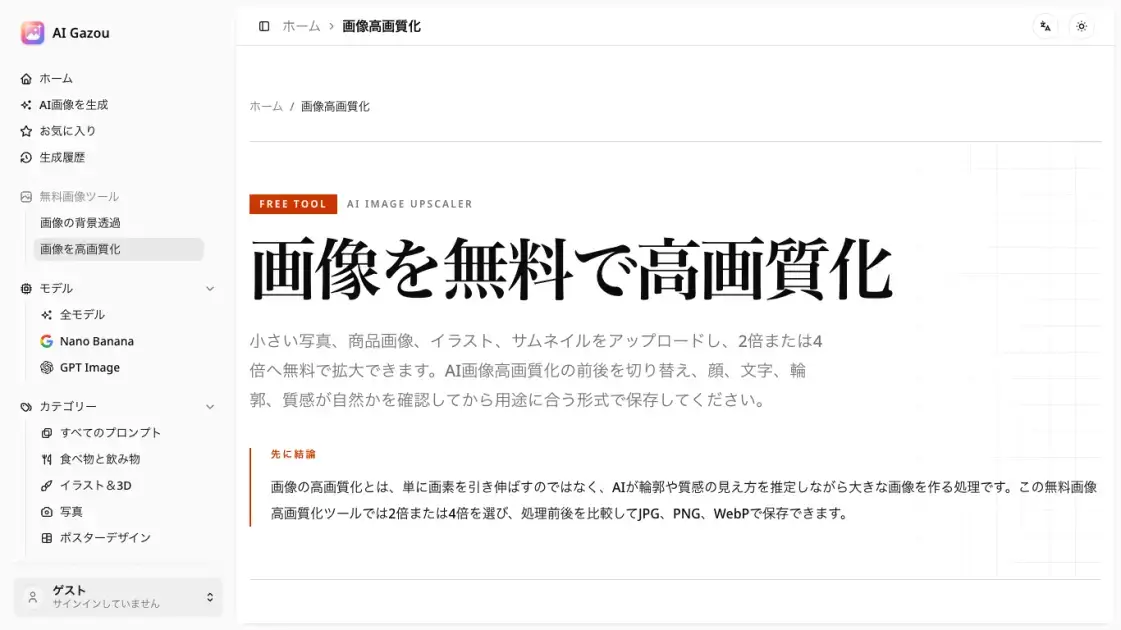
What is AI Image Upscaler
AI Gazou is a free online image upscaling tool that uses AI technology to enhance photo quality. Users can upload images in PNG, JPG, or WebP format (up to 8 MB) and choose between 2x or 4x upscaling factors. The tool processes images through external AI services to improve clarity, edges, and texture details while preserving the original appearance. Results can be saved in JPG, PNG, or WebP formats, with a comparison feature to preview before and after processing. The service requires no login or credits, making it accessible for quick image enhancement tasks.
How does AI Image Upscaler work
AI Gazou uses artificial intelligence to enhance image quality through a multi-step process. When a user uploads an image, the tool analyzes its shapes, colors, and textures to estimate how edges, skin, fabric, and product surfaces should appear at a larger size. The AI then generates a new image at 2x or 4x the original dimensions, attempting to preserve natural details while improving clarity. The processing occurs through external AI services, and users can compare the enhanced result with the original before downloading. The tool supports PNG, JPG, and WebP formats, with output options in the same formats to accommodate different use cases like web publishing or transparent backgrounds.
Benefits of AI Image Upscaler
AI Gazou provides a free, no-login image upscaling service that enhances photo quality through AI technology. The tool supports multiple input and output formats, allowing users to choose between 2x and 4x upscaling factors based on their specific needs. The before-and-after comparison feature helps users evaluate improvements in details like faces, text, and textures before downloading. Processing occurs through external AI services, and images are not stored in the service's history or gallery, offering privacy for sensitive photos. However, the service has limitations: it processes one image at a time with an 8 MB maximum, and AI enhancement cannot restore heavily blurred or motion-blurred images to their original clarity.
Pros and Cons of AI Image Upscaler
Pros
- Free to use without login or credits
- Supports multiple image formats (PNG, JPG, WebP)
- Offers 2x and 4x upscaling options
- Provides before-and-after comparison feature
- No image storage in service history or gallery
Cons
- Limited to one image per session (8 MB maximum)
- Cannot restore heavily blurred or motion-blurred images
- Requires Cloudflare verification for non-logged-in users
- AI enhancement may alter text or facial details
- Processing depends on external AI services
Core Features of AI Image Upscaler
AI-Powered Image Upscaling
The tool uses AI technology to enhance image quality by upscaling photos 2x or 4x. It analyzes the original image's shapes, colors, and textures to estimate edges, skin, fabric, and product surfaces, resulting in clearer details without simply stretching pixels.
Multiple Format Support
AI Gazou supports PNG, JPG, and WebP input formats up to 8 MB per image. Output can be saved in JPG, PNG, or WebP formats, allowing users to choose the appropriate format for their needs, whether for web publishing, transparent backgrounds, or general photography.
Before-and-After Comparison
After processing, users can toggle between the original and enhanced images to compare results. This feature helps evaluate improvements in faces, text, product labels, fine lines, and patterns at 100% display size before downloading the final version.
No Login Required
The service operates without requiring user accounts or credits. Users can upload and process images immediately, making it convenient for quick enhancement tasks without registration barriers.
Cloudflare Security Verification
For non-logged-in users, the tool implements Cloudflare security verification before processing images. This ensures secure access while maintaining the free, no-login service model.
Use Cases of AI Image Upscaler
- Product photos: Enhance small supplier images or old catalog photos to check corners, materials, stitching, and labels for e-commerce listings.
- Social media thumbnails: Upscale images 2x for Instagram, Twitter, or video thumbnails to ensure faces and text are clear on mobile screens.
- Presentation materials: Improve screenshots, diagrams, or old photos for slides and educational content, then verify text accuracy against originals.
- Trimmed photos: Enhance heavily cropped images where pixel count is low, starting with 2x to test improvement before considering larger factors.
- AI-generated images: Upscale AI creations to check fingers, pupils, repeating patterns, and signage text for errors that need manual correction.
FAQs of AI Image Upscaler
Is image upscaling free to use?
Yes, AI Gazou offers free image upscaling without requiring login or credits. Users can process one image at a time up to 8 MB, choosing between 2x or 4x upscaling factors. While the service is free, results may not always meet expectations, so important photos should be kept as originals for comparison.
What image formats are supported?
AI Gazou accepts PNG, JPG, and WebP images up to 8 MB. Output can be saved in JPG, PNG, or WebP formats. HEIC, SVG, PDF, and animated images are not supported. For transparent backgrounds, choose PNG; for web publishing with smaller file sizes, select WebP; for general photography, JPG works well.
Should I choose 2x or 4x upscaling?
Select 2x if the required dimensions are within twice the original size, which works well for web articles, social media, and presentations. Use 4x for large banners, strong cropping, or small original images, but note that processing time and verification requirements increase with higher factors.
How is this different from standard resizing or sharpening?
Standard resizing interpolates existing pixels, while sharpening enhances edge contrast. AI upscaling estimates new details based on surrounding information, which can improve clarity and texture but may also create unfamiliar shapes in text or faces, requiring verification against originals.
Can it fix blurry or shaky photos?
Light blur or compression artifacts may become less noticeable, but severe blur, motion shake, overexposure, or underexposure cannot be accurately restored. The tool enhances appearance rather than recovering lost photographic truth, so important records should not rely on AI estimation as fact.
What about text, faces, and illustrations?
The tool works for people, products, and illustrations, but verification points differ. Check eyes, teeth, and hair for people; labels and shapes for products; lines and coloring for illustrations; text for screenshots. Fine text may appear as different characters after AI processing, so critical information should be recreated from original data.
How does the background removal and upscaling order work?
Upscaling increases output pixels but does not reliably enhance original boundary information. Typically, compare background removal results on the original image with upscaling results. If using transparent PNG input with PNG output, AI may alter transparency, so keep intermediate results to verify edges and transparent areas.
How to use AI Image Upscaler
- Upload an image in PNG, JPG, or WebP format (maximum 8 MB) by dragging it to the upload area or using the file selection button.
- Select the upscaling factor: choose 2x for standard web, social media, or presentation use, or 4x for small crops or larger placements requiring more detail.
- Choose the output format from JPG, PNG, or WebP options based on your needs, considering transparency requirements and file size preferences.
- Complete the Cloudflare security verification if you are not logged in, which is required before the AI processing begins.
- Click the upscale button to start the AI processing, which sends the image to external AI services for enhancement.
- Compare the processed result with the original image by toggling between them to check improvements in faces, text, labels, and fine details.
- Download the enhanced image in your chosen format once you are satisfied with the results, using a descriptive filename to distinguish it from the original.
AI Image Upscaler Alternatives
A browser collection of 13 free creative editors for photos, vector art, PDFs, documents, video, audio, and CAD, opening without an account or install.

An online AI photo editor that removes image backgrounds, erases people, objects and text, and upscales photos 4x. Preview every photo free before paying per image.
Meta Image: browser AI studio powered by Muse Image. Edit photos with prompts, remove backgrounds, restore old photos, generate new images.
Remove image backgrounds, video watermarks, burned-in subtitles and video backgrounds with Rmark AI. Upload a file, preview, then download a clean copy.
OmniEnhancer is an AI image enhancer and photo editor that improves photo quality, clarity, color, and resolution online, with free daily credits.
TranslateImage AI translates images to 70+ languages while preserving font, layout, and style. Free online AI image translator for photos and manga.
AI Clothes Changer is an online tool that replaces the clothing in a person photo using either a reference image or a text description.
PixMira AI is a free AI photo editor and image generator. Use text prompts for precise edits, style changes, and high-quality results in seconds.
AI Gazou removes image backgrounds for free using AI. Upload photos, products, or logos to get transparent PNGs with clean edges and customizable margins.
AI Image Text Editor lets users replace, remove, translate, and redact text inside finished images while preserving the original font, background, and layout.
Bimg AI provides Nano Banana AI image editing, background removal, AI upscaling, photo restoration, and AI video generation. A platform for creators and teams.
Free AI hairstyle changer: upload a portrait and preview bobs, bangs, waves, pixie cuts, and buzz cuts while keeping your face, clothing, and lighting natural.