
AI Background Remover
AI Gazou: Free AI Background Remover for Photos and Products

What is AI Background Remover
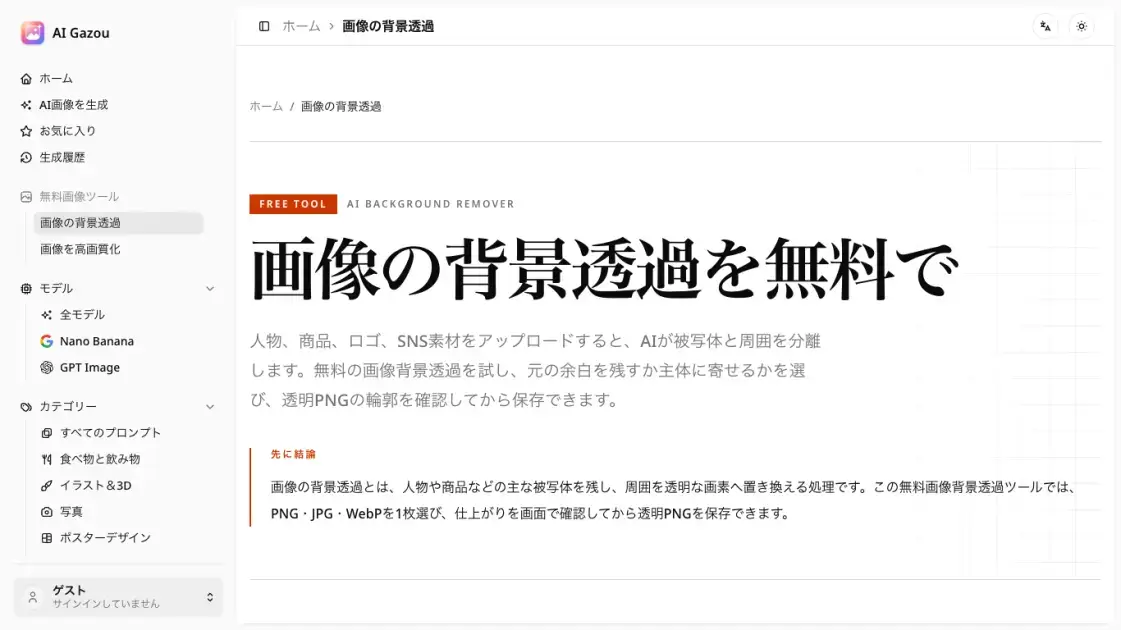
AI Gazou is a free online tool that removes image backgrounds using artificial intelligence. Users upload a photo, product shot, logo, or social media asset in PNG, JPG, or WebP format (up to 8 MB), and the AI model isolates the subject from its surroundings. The result is a transparent PNG that can be placed on any background without manual masking. A built-in preview lets users compare the processed image against the original on a checkerboard canvas before downloading. Two output modes are available: keep the original canvas dimensions or crop tight to the subject. The tool operates entirely in the browser with no account or login required, making it a straightforward option for quick background removal tasks across e-commerce, design, and social media workflows.
How does AI Background Remover work
When an image is uploaded, it is sent to a server-side AI model that performs semantic segmentation to distinguish the main subject from its background. The model analyzes color boundaries, edge patterns, and depth cues to create a mask separating foreground from background pixels. The background is then replaced with transparent values, producing a PNG with an alpha channel. Users can choose to retain the original canvas dimensions or crop to the subject's bounding box. Results appear on a checkerboard pattern to make transparency visible, and users can toggle between original and processed views to verify edge accuracy before saving.
Benefits of AI Background Remover
AI Gazou eliminates manual background removal by automating the process with AI. The tool is free and requires no account, lowering the barrier for tasks like preparing product listings, profile pictures, or design assets. The edge comparison preview helps catch quality issues before download, reducing post-processing. Transparent PNG output integrates directly into websites, presentations, and social media graphics. However, the tool processes one image at a time with an 8 MB limit, which may not suit high-volume workflows. For individual users and small teams needing quick, no-cost background removal, the tool provides a practical solution without software installation.
Pros and Cons of AI Background Remover
Pros
- Free to use with no account or login required
- Edge comparison preview before download catches quality issues
- Supports PNG, JPG, and WebP input formats
- Canvas margin control for flexible output composition
- Browser-based tool with no software installation needed
Cons
- Processes only one image at a time
- File size limit of 8 MB per image
- No batch processing for bulk workflows
- Depends on external AI service for image processing
- Limited to background removal without additional editing features
Core Features of AI Background Remover
AI-Powered Background Removal
The core function uses a server-side AI model to detect and separate the main subject from its background, replacing the surrounding area with transparent pixels.
Transparent PNG Export
Processed images are saved as PNG files, which preserve transparent pixels. This format is necessary because JPG does not support transparency.
Edge Preview and Comparison
After processing, users can toggle between the original and the result on a checkerboard canvas to inspect edge quality around hair, fingers, and product details before downloading.
Canvas Margin Control
Two output modes let users decide the final composition: keep the original canvas dimensions to preserve the original framing, or crop tightly to the subject to remove unnecessary transparent space.
Multi-Format Input
The tool accepts PNG, JPG, and WebP files up to 8 MB. This covers the most common image formats used for product photography, personal photos, and digital assets.
No Registration Required
The tool can be used without creating an account or logging in. A Cloudflare security check is performed for anonymous users, but no credentials or payment information are needed.
Use Cases of AI Background Remover
- E-commerce product images: Remove cluttered backgrounds from product photos to create clean, consistent listings with transparent or white backgrounds.
- Profile and headshot photos: Isolate a person's portrait from a busy background for professional profiles, team pages, or ID badges.
- Logo extraction: Separate a logo from its surrounding design elements to obtain a transparent version for watermarking or overlay use.
- Social media graphics: Prepare images with transparent backgrounds for layering onto custom banners, stories, or promotional posts.
- Design assets and stickers: Cut out subjects from photos to create reusable design components for presentations, mockups, or digital art projects.
FAQs of AI Background Remover
What image formats does AI Gazou support?
AI Gazou accepts PNG, JPG, and WebP files. The output is always a PNG file because only PNG supports transparent pixels. JPG does not preserve transparency, so using it as an output format would not work for background removal.
Is there a file size limit?
Yes, images must be 8 MB or smaller. If an image exceeds this limit, it should be resized or re-exported at a lower resolution before uploading, while maintaining the original composition as much as possible.
Do I need to create an account?
No account is required. The tool can be used directly without logging in. Anonymous users are asked to complete a Cloudflare security check before processing, but no personal information is collected.
How does the canvas margin option work?
Before processing, users choose between keeping the original canvas dimensions or fitting the output to the subject. "Keep original" preserves the original framing, which is useful for maintaining consistent positioning in product listings. "Fit to subject" crops away excess transparent space, which works better for stickers and design assets.
What should I check after processing?
After downloading, users should inspect the edges of the processed image, particularly around hair, fingers, and areas where the subject's color closely matches the original background. Checking the result on both light and dark backgrounds helps verify that the edges look natural in the final usage context.
How does AI Gazou handle image privacy?
Uploaded images are sent to an external AI processing service for background removal. AI Gazou does not store images in a history or asset library. Users should only upload images they have the rights to process and avoid uploading files containing sensitive or confidential information.
Can the tool process semi-transparent objects?
Semi-transparent materials and areas where the subject blends with the background can be challenging for the AI model. In these cases, the edge quality may not be perfect, and manual touch-up in an image editor may be needed after download.
How to use AI Background Remover
- Select an image file in PNG, JPG, or WebP format. The file must be 8 MB or smaller, and images with a clear subject-to-background contrast produce the best results.
- Choose a canvas option before processing. Select "keep original" to maintain the current framing and margins, or "fit to subject" to crop the output tightly around the detected subject.
- Click the process button to send the image to the AI model. The server handles background detection and removal, and the preview updates once processing is complete.
- Review the result by toggling between the original and processed images on the checkerboard canvas. Inspect edges around hair, fingers, and product details for accuracy.
- Download the transparent PNG file. After saving, verify the transparency in the target application, checking both light and dark backgrounds to ensure clean edges.
AI Background Remover Alternatives
Browser workspace for AI image generation, reference photo editing, and short video drafts, aimed at creators, marketers, and product teams.
A browser collection of 13 free creative editors for photos, vector art, PDFs, documents, video, audio, and CAD, opening without an account or install.

AI design studio for architects and designers: turn sketches, model views, and room photos into rendering concepts, material studies, and staged interiors.
An online AI photo editor that removes image backgrounds, erases people, objects and text, and upscales photos 4x. Preview every photo free before paying per image.
Upload one selfie to preview 120+ cuts, colors and bangs rendered on your own face in about 20 seconds, then take the reference sheet to your barber.
Pet to Art is a free AI pet portrait generator that turns one clear pet photo into custom digital artwork across 170+ styles, canvas ratios, and 2K downloads.
Meta Image: browser AI studio powered by Muse Image. Edit photos with prompts, remove backgrounds, restore old photos, generate new images.
Create and edit images with Image 2.5 by GPT. Sunburst for precision, Flare for speed, up to 4K, 6 quality modes, and transparent PNG/WebP output.
Remove image backgrounds, video watermarks, burned-in subtitles and video backgrounds with Rmark AI. Upload a file, preview, then download a clean copy.
Free unlimited image to prompt generator. Upload any image and get a detailed, accurate AI prompt for Midjourney, Stable Diffusion, FLUX and more in seconds.
Koozee turns a single clothing image into AI product photos, model try-on images, and marketing videos for apparel sellers, cutting costs by up to 99%.
OmniEnhancer is an AI image enhancer and photo editor that improves photo quality, clarity, color, and resolution online, with free daily credits.