
Pet to Art: AI Pet Portrait Generator from Pet Photos

What is Pet to Art
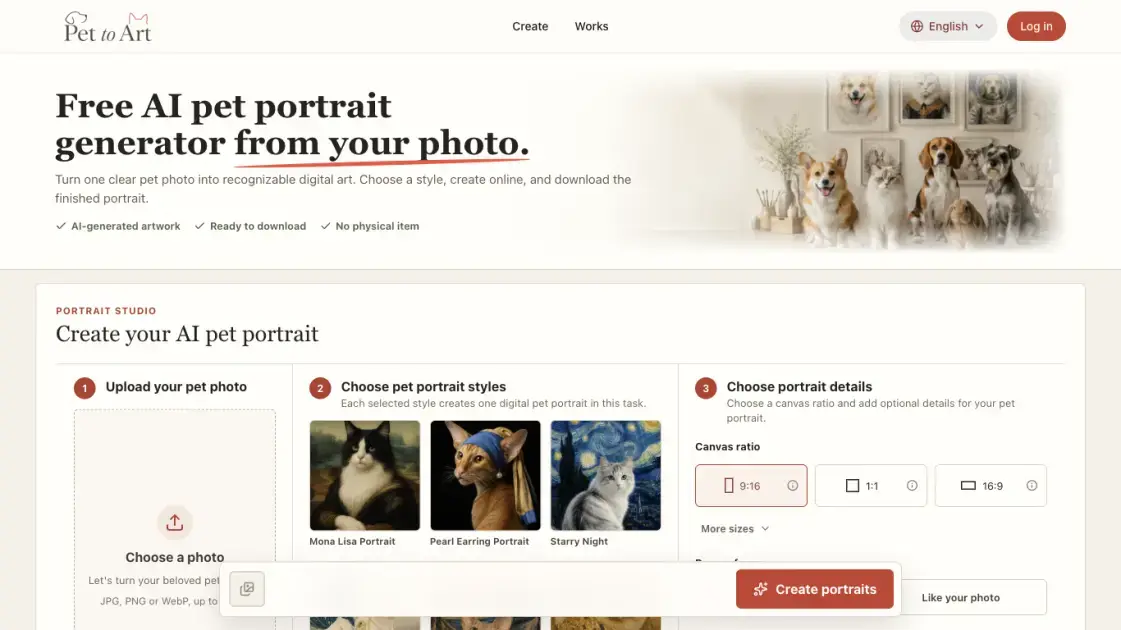
Pet to Art is an AI pet portrait generator that turns one clear photo of a pet into finished digital artwork. It is built around a template library of more than 170 pet portrait styles, grouped into classic oil, watercolor, drawing and printmaking, modern graphic, digital illustration, and cinematic collections. A user can pick a single template or select several at once to build a portrait collection from the same source photo, then set a canvas ratio, an optional pose reference, and up to 100 characters of extra detail before the task runs. Finished portraits are delivered as 2K-resolution digital files, with no physical print or frame involved. Work is metered in Credits, and the site runs entirely in the browser, so nothing needs to be installed locally.
How does Pet to Art work
Pet to Art treats the uploaded photo as an identity reference rather than as raw input for text-to-image generation. The model is asked to preserve the features it can read from that photo — face shape, eye colour, coat pattern, ear shape — while the template supplies the artistic direction, which is why source quality changes the likeness noticeably. Each selected template in a task becomes a separate portrait rendered against that same reference, and any portrait that fails to render returns its Credit automatically.
Benefits of Pet to Art
Pet to Art removes the usual bottleneck in pet artwork, which is waiting. A commissioned pet painting takes days or weeks, while a general-purpose image generator still requires prompt writing and offers no comparable template library. Because one photo can be reused across up to ten templates in a single task, the expensive part — finding and preparing a good source image — is paid for once, and style exploration becomes cheap. A free monthly Credit makes the first attempt nearly free, pre-built templates remove the need for any image-generation knowledge, and every failed portrait returns its Credit automatically.
Pros and Cons of Pet to Art
Pros
- Over 170 named templates, no prompt writing
- One photo renders up to ten styles at once
- Automatic Credit refund on failed portraits
- Purchased Credits never expire
- Browser-based, nothing to install
Cons
- One pet per portrait, no group scenes
- No post-generation editing controls
- No separate source photo deletion
- Free monthly credit covers a single portrait
- Digital files only, no print supplied
Core Features of Pet to Art
Large template library with named categories
More than 170 pet portrait templates are grouped into classic oil, watercolor, drawing and print, modern graphic, illustration, and cinematic sets, with art-history collections such as Dutch Golden Age included.
Multi-style collection in one task
Up to ten templates can be selected at once from a single upload, each producing one portrait while keeping the chosen canvas ratio consistent across the set.
Canvas ratio selection with extra sizes
Ratios cover 9:16 for phone wallpapers and Stories, 1:1 for profile pictures, 16:9 for desktop wallpapers, plus further sizes behind a More sizes option.
Pose reference and free-text detail
Each portrait can follow either the template's own pose or the pose in the uploaded photo, and an optional 100-character field records extra instructions.
Persistent Works gallery per account
Every submitted task is kept in a Works view where results can be previewed, downloaded individually, or deleted, so the photo is not re-uploaded for later work.
2K output with batch download
Portraits are generated at 2K resolution as PNG, JPG, or WebP. A single file downloads directly, while a multi-portrait task arrives as a ZIP archive.
Credit system with automatic refunds
Each selected template consumes one Credit, and any portrait that is not successfully delivered returns its Credit automatically, so failed renders carry no cost.
Use Cases of Pet to Art
- Home decor: Pick a calm watercolor, oil, or modern template that stays comfortable to look at every day.
- Gifting: Match a royal, birthday, or storybook style to the recipient, the occasion, and the pet's personality.
- Social sharing: Use pop art, comic, or funny templates, where bold colour survives being scaled down to a small post.
- Remembrance: Choose soft light or botanical styles that keep the familiar face central without extra symbolism.
- Print projects: Check the downloaded 2K file against the print service's pixel requirements before ordering.
FAQs of Pet to Art
Does Pet to Art include free Credits?
Yes. The free plan adds one Credit every month, which is enough for a single pet portrait. Unused monthly Credits expire before the next month's Credit is issued, so a light user is not penalised but a dormant account does not accumulate a balance. Credits bought in a one-time pack are kept separately and never expire.
What kind of pet photo works best?
A bright, front-facing photo of a single pet with a clear, unobstructed face gives the most recognisable result. Hands, toys, and furniture covering the eyes, ears, or muzzle reduce what the model can read, and dark or strongly backlit images hide coat pattern and eye colour. JPG, PNG, and WebP files up to 10 MB are accepted.
Will my digital pet portrait look like my pet?
Pet to Art uses the uploaded photo as an identity reference and asks the model to preserve key features, so a clear photo plus useful detail text gives the portrait its best chance. Results still vary, and the site does not promise an exact replica. Dedicated post-generation edit controls are not available yet, which means a poor result has to be re-rendered rather than corrected.
How many Credits does a portrait cost, and what happens on failure?
Each selected template costs one Credit, so a task with five templates uses five Credits, and the maximum of ten templates in one task uses ten. Any portrait that is not successfully delivered has its Credit returned automatically, so failed renders do not consume the balance.
How many portraits can I create at once?
Up to ten templates can be selected in a single task, and each one produces a separate portrait that shares the same source photo and canvas ratio. Once the task completes, the results are reviewed in Works and can be downloaded individually or together as a ZIP file.
What files will I receive?
Portraits are generated at 2K resolution, though the exact pixel dimensions depend on the chosen canvas ratio and the returned image. The delivered file arrives as PNG, JPG, or WebP with no format selector, a single portrait downloads directly, and multiple portraits from one task download together as a ZIP file.
Can I print my portraits or use them as gifts?
Printing is allowed, but Pet to Art supplies the digital image only, with no physical print or frame included. The downloaded file should be checked against the print service's pixel requirements first, since achievable print size depends on the canvas ratio and on the service itself.
How to use Pet to Art
- Open https://pettoart.com/ and scroll to the Portrait Studio section. Nothing needs to be installed, and the whole flow runs in the browser.
- Upload one pet photo with the Choose a photo control. JPG, PNG, and WebP files are accepted up to 10 MB, so phone photos work directly.
- Open the template picker and select styles. One template yields one portrait, while several in the same task yield a matching set, capped at ten.
- Set the canvas ratio to match the destination, such as 9:16 for a phone wallpaper, 1:1 for a profile picture, or 16:9 for a desktop background.
- Optionally pick a pose reference between Like the template and Like your photo, then add up to 100 characters of detail such as an accessory or setting.
- Submit with the Create portraits button. One Credit is deducted per selected template, and the button shows the balance remaining.
- Track rendering in the Works view, where each portrait can be previewed and downloaded alone or as one ZIP file for the full collection.
Pet to Art Alternatives
MixVio runs 21 video, image and audio models in one browser workspace, plus 11 creator tools, with exact credit cost shown before every generation.
Create and edit images with Image 2.5 by GPT. Sunburst for precision, Flare for speed, up to 4K, 6 quality modes, and transparent PNG/WebP output.
Generate and edit AI images with Nano Banana Pro. Blend up to 14 images, render crisp text, and create 4K visuals online with studio controls.
Browse curated AI image and video prompts with real results and creator attribution, copy-ready for GPT Image, Nano Banana, Midjourney, and more.
Free unlimited image to prompt generator. Upload any image and get a detailed, accurate AI prompt for Midjourney, Stable Diffusion, FLUX and more in seconds.
Koozee turns a single clothing image into AI product photos, model try-on images, and marketing videos for apparel sellers, cutting costs by up to 99%.
SeiSei AI is a free, no-sign-up AI image generator turning text prompts into AI illustrations and realistic photos with no watermark, 5 free images daily.
Turn JPG, PNG, and WebP images into editable PowerPoint slides. Upload up to 10 images, set the order, and let AI rebuild each image as a real slide.

Makiverse is a free online AI manga and comic generator that turns text prompts into complete manga, comics, and GIFs with consistent characters and styles.
Generate AI images for portraits, product visuals, social posts, and creative edits using Nano Banana Pro and GPT Image 2 models.
AI Clothes Changer is an online tool that replaces the clothing in a person photo using either a reference image or a text description.
PixMira AI is a free AI photo editor and image generator. Use text prompts for precise edits, style changes, and high-quality results in seconds.