
AI Background Remover FAQs
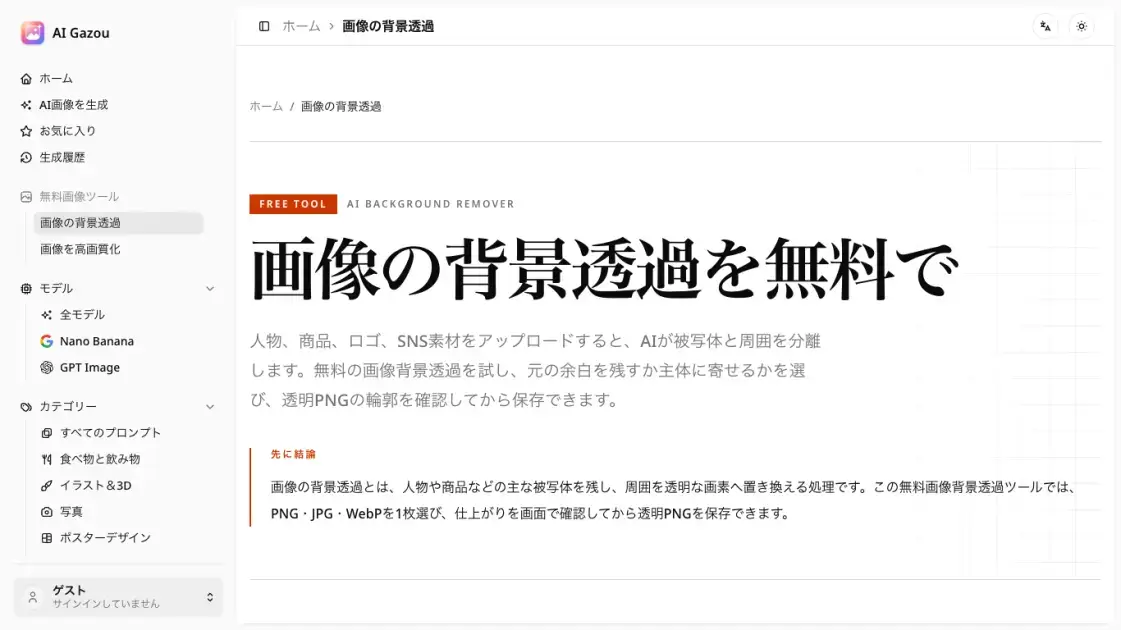
AI Gazou removes image backgrounds for free using AI. Upload photos, products, or logos to get transparent PNGs with clean edges and customizable margins.

FAQs of AI Background Remover
What image formats does AI Gazou support?
AI Gazou accepts PNG, JPG, and WebP files. The output is always a PNG file because only PNG supports transparent pixels. JPG does not preserve transparency, so using it as an output format would not work for background removal.
Is there a file size limit?
Yes, images must be 8 MB or smaller. If an image exceeds this limit, it should be resized or re-exported at a lower resolution before uploading, while maintaining the original composition as much as possible.
Do I need to create an account?
No account is required. The tool can be used directly without logging in. Anonymous users are asked to complete a Cloudflare security check before processing, but no personal information is collected.
How does the canvas margin option work?
Before processing, users choose between keeping the original canvas dimensions or fitting the output to the subject. "Keep original" preserves the original framing, which is useful for maintaining consistent positioning in product listings. "Fit to subject" crops away excess transparent space, which works better for stickers and design assets.
What should I check after processing?
After downloading, users should inspect the edges of the processed image, particularly around hair, fingers, and areas where the subject's color closely matches the original background. Checking the result on both light and dark backgrounds helps verify that the edges look natural in the final usage context.
How does AI Gazou handle image privacy?
Uploaded images are sent to an external AI processing service for background removal. AI Gazou does not store images in a history or asset library. Users should only upload images they have the rights to process and avoid uploading files containing sensitive or confidential information.
Can the tool process semi-transparent objects?
Semi-transparent materials and areas where the subject blends with the background can be challenging for the AI model. In these cases, the edge quality may not be perfect, and manual touch-up in an image editor may be needed after download.
How to use AI Background Remover
- Select an image file in PNG, JPG, or WebP format. The file must be 8 MB or smaller, and images with a clear subject-to-background contrast produce the best results.
- Choose a canvas option before processing. Select "keep original" to maintain the current framing and margins, or "fit to subject" to crop the output tightly around the detected subject.
- Click the process button to send the image to the AI model. The server handles background detection and removal, and the preview updates once processing is complete.
- Review the result by toggling between the original and processed images on the checkerboard canvas. Inspect edges around hair, fingers, and product details for accuracy.
- Download the transparent PNG file. After saving, verify the transparency in the target application, checking both light and dark backgrounds to ensure clean edges.
