
ManualFig: AI Instruction Manual Illustration Generator

What is ManualFig
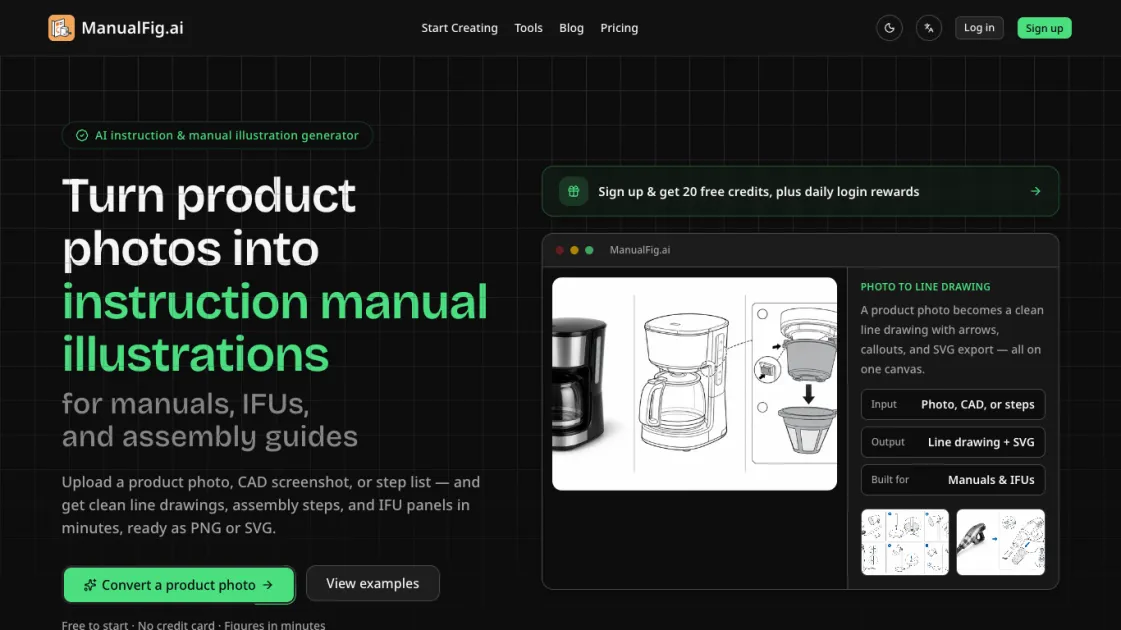
ManualFig is an AI-powered tool that converts product photos, CAD screenshots, or step lists into clean instruction manual illustrations. Designed for technical writers, product teams, and support departments, it generates numbered assembly steps, part callouts, direction arrows, and IFU-compliant panels without requiring design skills. The platform supports export in PNG and SVG formats, making it straightforward to drop figures directly into manuals, packaging inserts, and help articles. ManualFig targets the specific problem of creating clear, review-ready manual figures — the kind that reduce support tickets and pass regulatory review — rather than producing polished marketing renders.
How does ManualFig work
ManualFig uses AI image processing to convert uploaded product photos or CAD screenshots into clean line drawings suitable for instruction manuals. The system identifies key components, removes visual clutter like reflections and backgrounds, and produces structured figures with numbered steps, part callouts, and directional arrows. For text-based inputs, it interprets step descriptions and generates corresponding visual panels. Users can then refine any figure using plain-language instructions, and the tool applies changes while maintaining the established drawing style. The process runs entirely in the browser — no design software or vector editing skills are required.
Benefits of ManualFig
ManualFig reduces the time and skill barrier involved in creating instruction manual illustrations. Technical writers can generate publication-ready figures from existing product photos without hiring illustrators or learning vector tools. The consistent drawing style across figures helps documentation teams maintain visual uniformity across multiple manuals and product lines. For companies with regulatory requirements, the built-in IFU panel generation — including hazard symbols and correct-versus-incorrect comparisons — streamlines compliance documentation. The free tier allows teams to evaluate the tool before committing to a paid plan.
Pros and Cons of ManualFig
Pros
- Converts real product photos into manual-ready line drawings
- Generates numbered step-by-step assembly panels automatically
- Produces IFU-compliant safety and warning figures
- Exports as PNG and SVG for direct documentation insertion
- Free tier available with no credit card required
Cons
- Limited to instruction manual illustrations, not general-purpose design
- Output quality depends on input image clarity and detail
- Free tier likely has generation limits that require paid upgrade
Core Features of ManualFig
Photo-to-Line-Drawing Conversion
Upload a product photo, CAD screenshot, or supplier image and receive a clean line drawing that preserves the real shape while removing reflections, clutter, and visual noise. The output is optimized for instruction manuals rather than marketing materials.
Numbered Step-by-Step Panels
Generate sequential assembly panels with one action per panel, including arrows, part callouts, and a clear finished state. Each step is designed so the reader can confirm completion visually.
IFU and Safety Compliance
Add hazard symbols, correct and incorrect comparisons, pinch points, and polarity indicators to figures. The tool produces the warning and do-don't panels that IFUs and safety pages require.
Consistent Style Across Documents
Reuse the same drawing style across multiple manuals, user guides, packaging inserts, and help articles. This keeps documentation visually uniform without manual redrawing.
Text-Based Editing
Refine any generated figure with a plain-language sentence rather than manual vector editing. Changes apply to the current version while preserving previous iterations for comparison.
PNG and SVG Export
Export finished figures as PNG or SVG files ready for direct insertion into documentation systems, print layouts, or digital support pages.
Use Cases of ManualFig
- Technical writers: Generate assembly instruction figures from product photos for user manuals and quick-start guides
- Product teams: Create consistent illustration styles across multiple product documentation sets
- Support departments: Produce visual troubleshooting guides that reduce repetitive customer inquiries
- Compliance teams: Generate IFU panels with hazard symbols and safety warnings for regulatory submissions
- Manufacturers: Convert CAD screenshots into customer-facing installation and maintenance instructions
FAQs of ManualFig
What is ManualFig?
ManualFig is an AI tool that generates instruction manual illustrations from product photos, CAD screenshots, or written step lists. It produces clean line drawings, assembly panels, and IFU-compliant figures for technical documentation.
Who should use ManualFig?
Technical writers, product documentation teams, and customer support departments that need to create or update instruction manuals, packaging inserts, and assembly guides. It is also useful for manufacturers producing regulatory-required IFU panels.
How does ManualFig differ from general image generators?
General image generators produce visual content for marketing or creative purposes. ManualFig is purpose-built for instruction manuals — its outputs are line drawings with numbered steps, part callouts, and compliance elements, not glossy renders.
What input formats does ManualFig accept?
The tool accepts product photos, CAD screenshots, supplier images, sketches, existing manual pages, or plain-text step descriptions. It works from visual or textual input depending on what is available.
What file formats can I export?
ManualFig exports figures as PNG or SVG files. Both formats can be inserted directly into documentation systems, print layouts, or digital support pages.
Is there a free plan?
ManualFig offers a free tier that allows users to try the tool without a credit card. Paid plans — Starter, Pro, and Business — unlock higher generation limits and additional features.
Can ManualFig figures pass regulatory review?
The tool generates IFU-compliant panels including hazard symbols, correct and incorrect comparisons, and safety warnings. However, compliance verification depends on the specific regulatory requirements of each market.
How to use ManualFig
- Upload a product photo, CAD screenshot, or step description to the ManualFig platform — the tool accepts visual or text input depending on what is available
- Describe the desired figure or assembly step in plain language, specifying elements like part callouts, arrows, or safety warnings as needed
- Review the generated line drawing and use text-based editing to refine details, adjust numbering, or add compliance elements like hazard symbols
- Export the finished figure as PNG or SVG and insert it directly into your manual, packaging insert, or support article
ManualFig Website Traffic Analysis
Latest traffic information
- Monthly Visits3.6K
- Bounce Rate36.29%
- Pages Per Visit1.16
- Visit Duration00:00:00
- Global Rank5.37M
- Country/Region Ranking2.34M
Top Keywords
| Keyword | Traffic | Volume | Cost Per Click |
|---|---|---|---|
| create a instuctions with images using ai | 130 | 140 | -- |
| ai做安装说明书 | 120 | 60 | -- |
| 사진으로 만드는 매뉴얼 | 110 | 230 | -- |
| photo to build instruction | 30 | 240 | -- |
| making an art instruction manual | 20 | 20 | -- |
Top Regions
| Region | Percentage |
|---|---|
| United States | 67.67% |
| Brazil | 28.21% |
| France | 4.12% |
ManualFig Alternatives
Browser workspace for AI image generation, reference photo editing, and short video drafts, aimed at creators, marketers, and product teams.
AI co-director that turns an idea or script into shot-by-shot storyboard panels for indie filmmakers, with real film shot references and PDF board export.
AI design studio for architects and designers: turn sketches, model views, and room photos into rendering concepts, material studies, and staged interiors.
Upload one selfie to preview 120+ cuts, colors and bangs rendered on your own face in about 20 seconds, then take the reference sheet to your barber.
Pet to Art is a free AI pet portrait generator that turns one clear pet photo into custom digital artwork across 170+ styles, canvas ratios, and 2K downloads.

Create and edit images with Image 2.5 by GPT. Sunburst for precision, Flare for speed, up to 4K, 6 quality modes, and transparent PNG/WebP output.
Free unlimited image to prompt generator. Upload any image and get a detailed, accurate AI prompt for Midjourney, Stable Diffusion, FLUX and more in seconds.
SeiSei AI is a free, no-sign-up AI image generator turning text prompts into AI illustrations and realistic photos with no watermark, 5 free images daily.
Turn JPG, PNG, and WebP images into editable PowerPoint slides. Upload up to 10 images, set the order, and let AI rebuild each image as a real slide.
AI Clothes Changer is an online tool that replaces the clothing in a person photo using either a reference image or a text description.
AI Gazou removes image backgrounds for free using AI. Upload photos, products, or logos to get transparent PNGs with clean edges and customizable margins.
Opusly is a scene-first AI studio offering curated image and video generation workflows. No prompt engineering required — pick a scene and create.