
Video Prompt Generator FAQs
Video Prompt Generator is a free online tool for creators, marketers and editors that analyses YouTube or MP4 videos into shot‑by‑shot scripts, camera notes, audio cues and ready‑to‑use AI prompts.

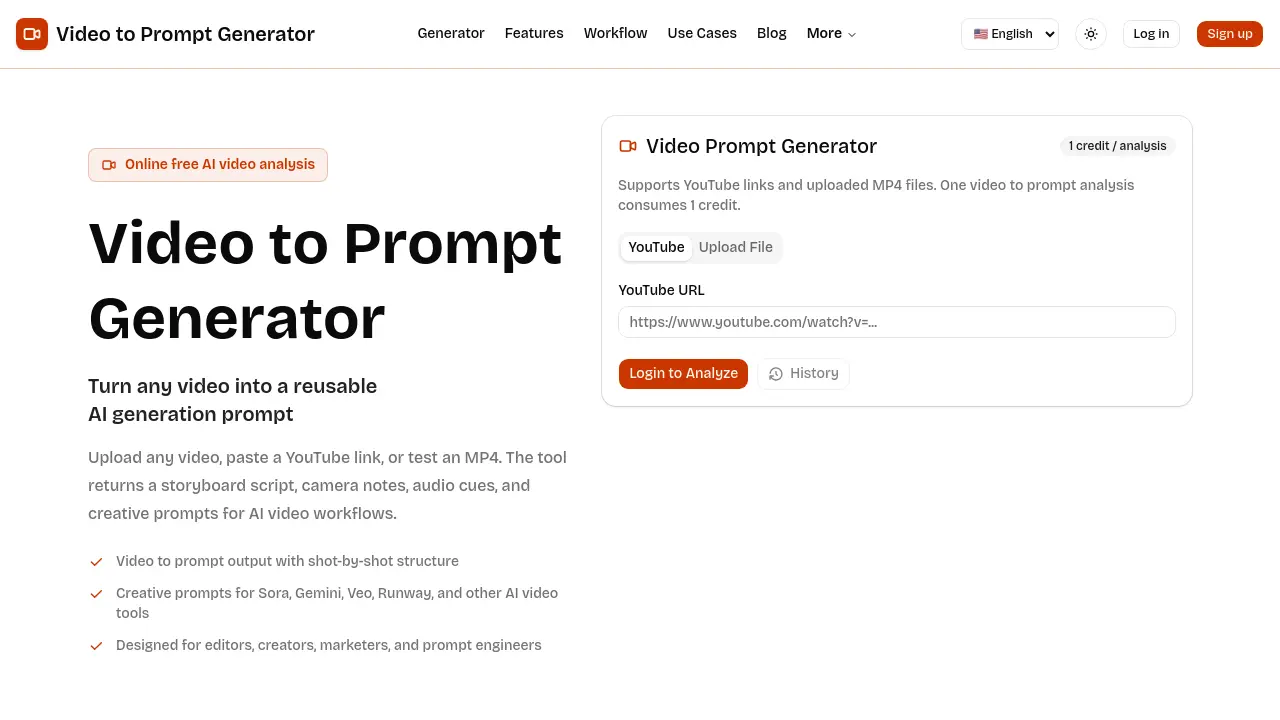
FAQs of Video Prompt Generator
What is a video to prompt generator?
A video to prompt generator is an online AI tool that analyses a reference video and extracts its visual and audio structure into a textual prompt. The output includes a shot‑by‑shot storyboard, camera notes, audio cues, and creative descriptors that can be fed into AI video generation platforms.
Can I use YouTube videos?
Yes, the service accepts YouTube URLs. By pasting a public YouTube link, the system retrieves the video, parses its scenes, and creates a prompt without requiring a download. This feature simplifies analysis of existing online content.
Is this video prompt generator free online?
The platform offers a free tier that allows one credit per analysis. Each video analysis consumes a single credit, enabling users to test the tool with a YouTube link or an MP4 upload up to 50 MB at no cost.
What does the generated prompt include?
The generated prompt contains a structured storyboard table that lists each shot’s framing, camera movement, visual details, lighting, duration, and associated audio notes. It also provides a consolidated creative prompt suitable for AI video tools, mood boards, or client briefs.
Which AI video tools can use the result?
The output is compatible with popular AI video generation models such as Sora, Gemini, Veo, Runway, and other similar platforms. Users can copy the prompt directly into these tools to guide automated video creation.
How large a video file can I upload?
Uploaded files must be in MP4 format and cannot exceed 50 MB. This limit ensures quick processing while preserving enough visual detail for accurate prompt extraction.
How does the shot‑level script help editors?
The shot‑level script breaks the source video into discrete frames with annotations for camera angle, motion, and audio texture. Editors can use this table to compare pacing, document intended visuals, and communicate shot intent without manually rewriting each beat.
Can the generated prompt be customized?
After the initial analysis, users can edit the consolidated prompt to adjust format, duration, model constraints, or brand guidelines. This flexibility allows prompt engineers to refine the language before feeding it into the AI video pipeline.
Is a user account required to run an analysis?
Running a single analysis does not require login, but creating an account provides access to analysis history, credit management, and future feature updates. Users may choose to sign up for a more streamlined workflow.
How to use Video Prompt Generator
Identify the product’s purpose: converting a YouTube link or uploaded MP4 into a detailed storyboard script, camera notes, audio cues, and AI‑ready creative prompts.
Access the platform, log in if necessary, then locate the “Generator” section where the input field for a YouTube URL or MP4 upload is displayed.
Paste the desired YouTube URL or drag‑and‑drop an MP4 file (max 50 MB) into the upload area, then confirm the submission to allocate one credit for analysis.
Wait for the system to process the video; a shot‑by‑shot table appears, showing framing, camera motion, visual details, audio notes, and duration for each segment.
Review the generated storyboard table, checking that scene order, motion cues, lighting, and audio texture match the original reference.
Copy the consolidated prompt from the “Reusable Prompt Output” box; this text includes shot size, angle, movement, tone, and timing ready for AI video tools such as Sora, Gemini, or Runway.
If needed, edit the prompt to adjust model constraints, brand voice, or duration, then paste the refined prompt into your chosen AI video generation workflow.
Apply the same prompt across multiple production stages—campaign planning, client briefs, or iterative edits—to maintain consistent visual language and streamline collaboration.
Store the analysis in the “History” tab for future reference, allowing quick reuse of the prompt or further modification without re‑uploading the video.
Use the final output to inform marketing briefs, storyboard reviews, or prompt‑engineering templates, ensuring that all stakeholders share a common, production‑ready description.
