
PixPin FAQs
PixPin is a cross‑platform app for capturing screenshots, recordings and extracting text via OCR, with pinning and annotation features for developers, designers and support teams.

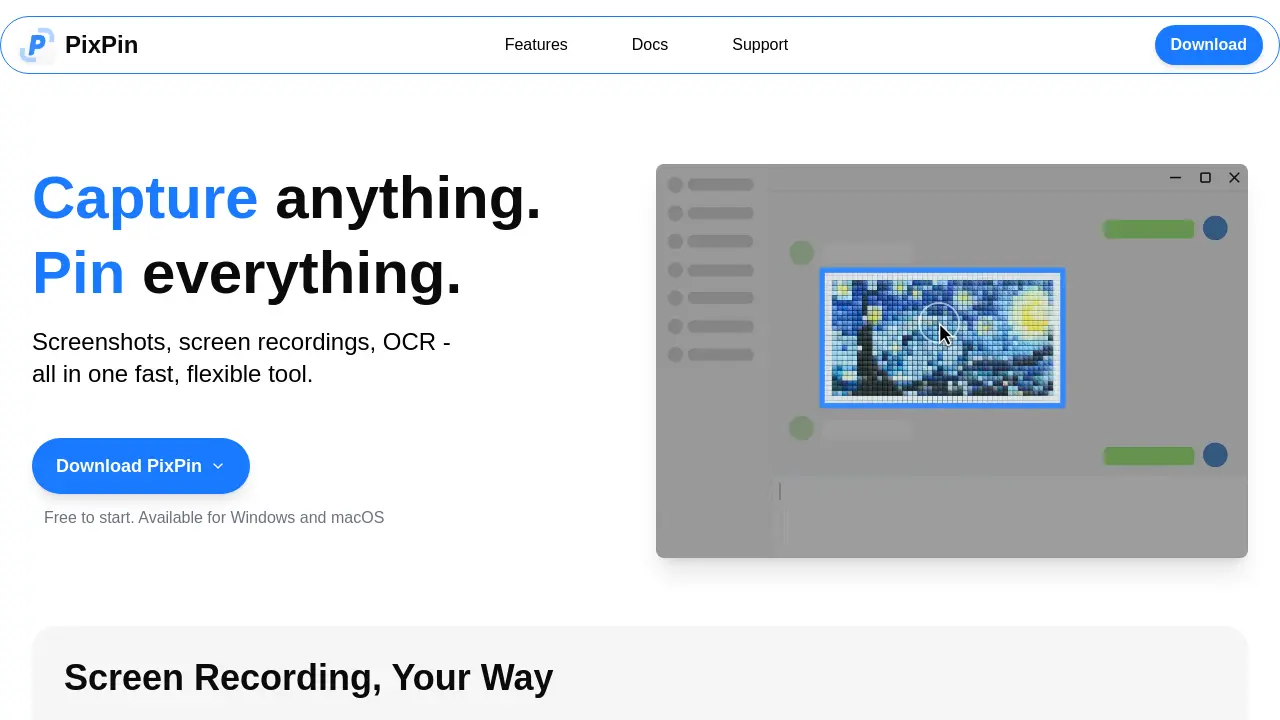
FAQs of PixPin
What core capture functionalities does PixPin provide?
PixPin combines screenshot, screen recording, and OCR capabilities into a single application. Users can capture individual windows, selected regions, full screens, scrolling pages, and even create animated GIFs, all without needing separate tools.
How does the “Pin it to screen” feature work?
The Pin feature lets users attach images, extracted text, colors, or files directly onto their desktop as virtual sticky notes. These pinned items remain visible across applications, offering quick reference and facilitating visual brainstorming or documentation.
Can PixPin extract text from images automatically?
Yes, PixPin includes an OCR engine that recognises text within screenshots or pinned notes. Users can select the desired area, copy the recognised text instantly, and avoid manual re‑typing, which speeds up research and note‑taking workflows.
What annotation tools are available for screenshots and pins?
PixPin provides a range of annotation options such as drawing circles, highlighting with a marker, adding sequential numbers, and applying a mosaic effect to obscure sensitive data. These tools help users communicate visual intent clearly and professionally.
How does the Quick Pin Screenshot shortcut improve workflow?
With the global shortcut WIN + Drag (left click), PixPin captures the current screen area and pins it as a sticky note in a single action, eliminating the need to open the app first. This rapid capture is especially useful for designers, developers, and support staff who need instant visual notes.
What additional capabilities are included in PixPin Pro?
PixPin Pro extends the free version by adding Action Recording, which logs keystrokes and mouse clicks alongside screen recordings. This feature is valuable for creating step‑by‑step tutorials, detailed bug reports, and comprehensive process documentation.
Is PixPin available for both Windows and macOS, and is there a sign‑up requirement?
PixPin can be downloaded and used on both Windows and macOS platforms. The application offers a free tier that requires no registration, allowing users to start capturing immediately; a paid Pro membership is optional for advanced features.
How to use PixPin
PixPin consolidates screenshot capture, screen recording, OCR extraction, and pinning into a single utility, enabling users to document, annotate, and reuse visual information efficiently.
Launch PixPin, select the desired mode—Screenshot, Recording, or Long Capture—via the main toolbar, then define the capture area using window, region, or auto‑detect options.
Initiate the capture; for recordings, choose video or GIF format, optionally enabling Action Recording to log keystrokes and mouse clicks for detailed tutorials.
After capture, employ the annotation panel to highlight, circle, add arrows, or mosaic sensitive regions, then click Pin to screen to create a persistent sticky note.
To extract text, activate the OCR tool on the pinned image or screenshot, select the text block, and copy the result directly to the clipboard for immediate use.
Review the pinned notes and annotations on the desktop; organize them by dragging, resizing, or deleting, thereby integrating captured content into the ongoing workflow.
