
Gemini Omni Video
Gemini Omni Video: AI Text and Image Video Generator

What is Gemini Omni Video
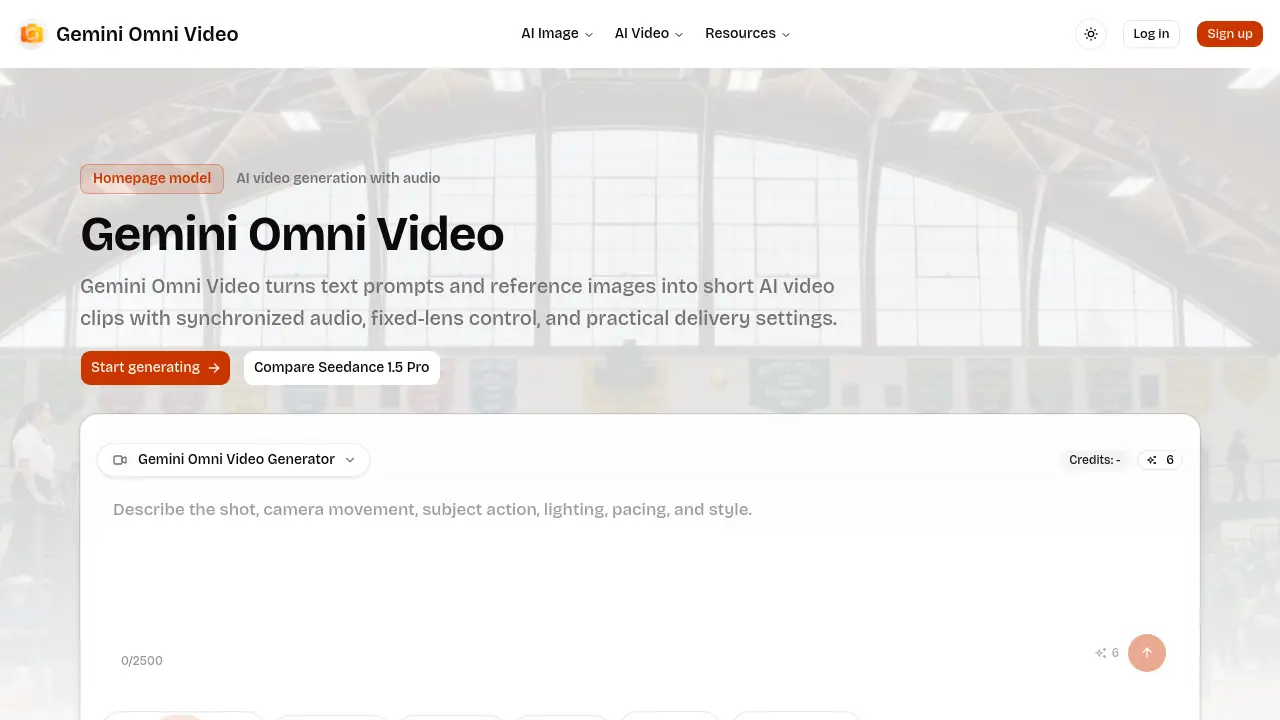
Gemini Omni Video is an AI‑driven generator that converts text prompts or reference images into short video clips with synchronized audio. Users select the input mode (text‑to‑video or image‑to‑video), then define delivery parameters such as aspect ratio, resolution (480p, 720p, or 1080p), and duration (4, 8, or 12 seconds) before rendering. An optional fixed‑lens setting stabilizes the camera for product demos, character shots, or interface showcases, while built‑in audio synthesis adds ambient or action‑driven soundtracks. The workflow is presented on a compact homepage interface, allowing rapid iteration and credit‑aware production. Gemini Omni Video supports six aspect ratios—including square, portrait, landscape, vertical, and cinematic formats—making it suitable for social media, advertising, and prototype visualisation. The tool is positioned for teams that need controllable, cost‑effective short‑form video output without extensive post‑production.
How does Gemini Omni Video work
Gemini Omni Video processes a user‑supplied text prompt or reference image through a generative AI pipeline that first extracts visual concepts, then animates them into a short clip while optionally synthesising synchronized audio. The interface lets the user select resolution (480p‑1080p), aspect ratio (including 1:1, 16:9, 9:16), and duration (4‑12 seconds) before credits are consumed, ensuring cost‑effective output. A fixed‑lens mode locks camera movement, preserving stability for product or character shots. By aligning prompt details, audio requirements, and delivery settings early in the workflow, the system delivers consistent, platform‑ready video assets.
Benefits of Gemini Omni Video
Gemini Omni Video converts text prompts or reference images into short AI‑generated clips with synchronized audio and optional fixed‑lens control. Users can select from six aspect ratios—including square, portrait, and cinematic—plus 480p, 720p, or 1080p resolutions to match budget and quality needs. The workflow lets creators set duration (4, 8, or 12 seconds), aspect ratio, and audio requirements before rendering, ensuring predictable credit use. Fixed‑lens mode stabilizes the camera for product demos, character shots, or clean interface visuals, while built‑in audio adds ambience or narrative depth. The compact homepage interface streamlines repeat production for social or marketing content.
Pros and Cons of Gemini Omni Video
Pros
- Generates synchronized audio with video clips.
- Supports multiple resolutions up to 1080p.
- Offers six aspect ratios for diverse platforms.
- Fixed‑lens mode stabilizes product or character shots.
- Simple homepage workflow for quick iterations.
Cons
- Limited to 4‑12 second clip durations.
- No mention of higher frame‑rate options.
- Audio generation may increase credit cost.
- Fixed‑lens prevents dynamic camera movement.
- Lacks advanced editing or post‑processing features.
Core Features of Gemini Omni Video
Text‑to‑Video Generation
Creates short video clips directly from written prompts, allowing users to prototype concepts without needing visual source material, while optimizing credit usage.
Image‑to‑Video Generation
Transforms uploaded reference images into animated sequences with controlled motion, preserving key subject details for product demos or character showcases.
Synchronized Audio Production
Generates ambient or action‑matched soundtracks that align with visual events, enhancing storytelling depth for short‑form ads and sport scenes.
Resolution and Aspect‑Ratio Selection
Offers 480p, 720p, and 1080p outputs across six formats (square, portrait, landscape, vertical, cinematic), matching quality targets and publishing platforms.
Fixed‑Lens Stabilization
Locks camera movement to keep the subject steady, ideal for product presentations, interface walkthroughs, and clean hero shots.
Variable Duration Control
Provides 4‑, 8‑, and 12‑second clip lengths, enabling precise alignment with specific story beats or platform constraints.
Use Cases of Gemini Omni Video
- Marketing teams: Produce 8‑second vertical product clips with synchronized audio for Instagram Reels.
- Educators: Generate short, fixed‑lens explanatory videos from images to illustrate concepts without distracting motion.
- Sports analysts: Create 12‑second highlight reels with crowd sound and stable camera framing for quick previews.
- UI/UX designers: Turn static app mockups into 4‑second loops, maintaining fixed lens for clean interface showcases.
FAQs of Gemini Omni Video
What is Gemini Omni Video?
Gemini Omni Video is an AI-powered video generation tool that creates short video clips from text prompts or reference images. It offers synchronized audio, fixed‑lens control, and multiple delivery options such as resolution, aspect ratio, and duration.
Can Gemini Omni Video generate audio?
Yes. The platform can synthesize synchronized audio that matches the visual content, making it suitable for ambience, action sequences, or brief storytelling without requiring external soundtracks.
Which aspect ratios does Gemini Omni Video support?
Gemini Omni Video supports six aspect ratios: 1:1 (square), 4:3, 3:4, 16:9 (standard landscape), 9:16 (vertical), and 21:9 (cinematic widescreen), allowing creators to target various social and broadcast formats.
How long can Gemini Omni Video clips be?
The generator provides three fixed duration options: 4 seconds, 8 seconds, and 12 seconds. These lengths are optimized for short‑form content such as ads, social media stories, and quick product demos.
When should I use fixed lens?
Fixed‑lens mode should be selected when a stable camera view is required, for example in product showcases, character close‑ups, or any scene where camera movement would distract from the main subject.
How should teams plan Gemini Omni Video generation?
Teams are advised to decide on the input mode (text or image), set credit budgets, choose resolution, aspect ratio, and duration, and define review criteria before initiating generation. Clear planning reduces iteration cycles and cost.
What resolutions are available for Gemini Omni Video output?
Users can choose from three resolution tiers: 480p for low‑bandwidth needs, 720p for standard high‑definition delivery, and 1080p for full HD quality. Selecting a resolution balances visual fidelity against credit consumption.
Is there a credit system, and how does it affect usage?
Gemini Omni Video operates on a credit model where each generated clip consumes a predetermined number of credits based on selected resolution, duration, and audio inclusion. Monitoring credits helps manage budgets and avoid unexpected usage spikes.
Can I generate videos from an existing image?
Yes. The image‑to‑video mode allows users to upload a reference picture and define motion constraints, enabling the AI to animate the static subject while preserving recognizability and composition.
What types of content are best suited for Gemini Omni Video?
The tool excels at short‑form scenarios such as product demos, social media clips, sports highlights with ambient sound, street‑dance showcases, and turning sketches into animated sequences, thanks to its quick turnaround and configurable settings.
How to use Gemini Omni Video
Gemini Omni Video converts text prompts or reference images into short AI‑generated video clips, offering synchronized audio, fixed‑lens stability, selectable resolution, aspect ratio, and duration.
Choose the input mode on the homepage: enter a descriptive text prompt for open concepts or upload an image when the subject’s appearance must stay recognizable.
Define delivery settings before rendering—select aspect ratio (e.g., 16:9, 9:16), resolution (480p, 720p, 1080p), and clip length (4, 8, or 12 seconds) to match the intended platform.
Enable synchronized audio if the scene requires ambience, action cues, or storytelling cues; the AI will generate matching background sound aligned with visual events.
Activate Fixed‑Lens mode when the shot should remain stable—useful for product demos, character close‑ups, or interface showcases to avoid distracting camera motion.
Click “Start generating”; the system reserves credits, processes the prompt, and displays a preview thumbnail once rendering completes.
Review the generated video and audio track, checking visual fidelity, audio sync, and framing against the original brief; note any mismatches for prompt refinement.
Export the final clip in the chosen format, then integrate it into ads, social feeds, or presentations, leveraging the resolution and aspect ratio that best serve the distribution channel.
