
Gemini Omni Flash FAQs
Gemini Omni Flash is an AI video generator for creators and developers, converting text, images, audio and reference video into drafts and enabling conversational edits for fast, consistent video production.

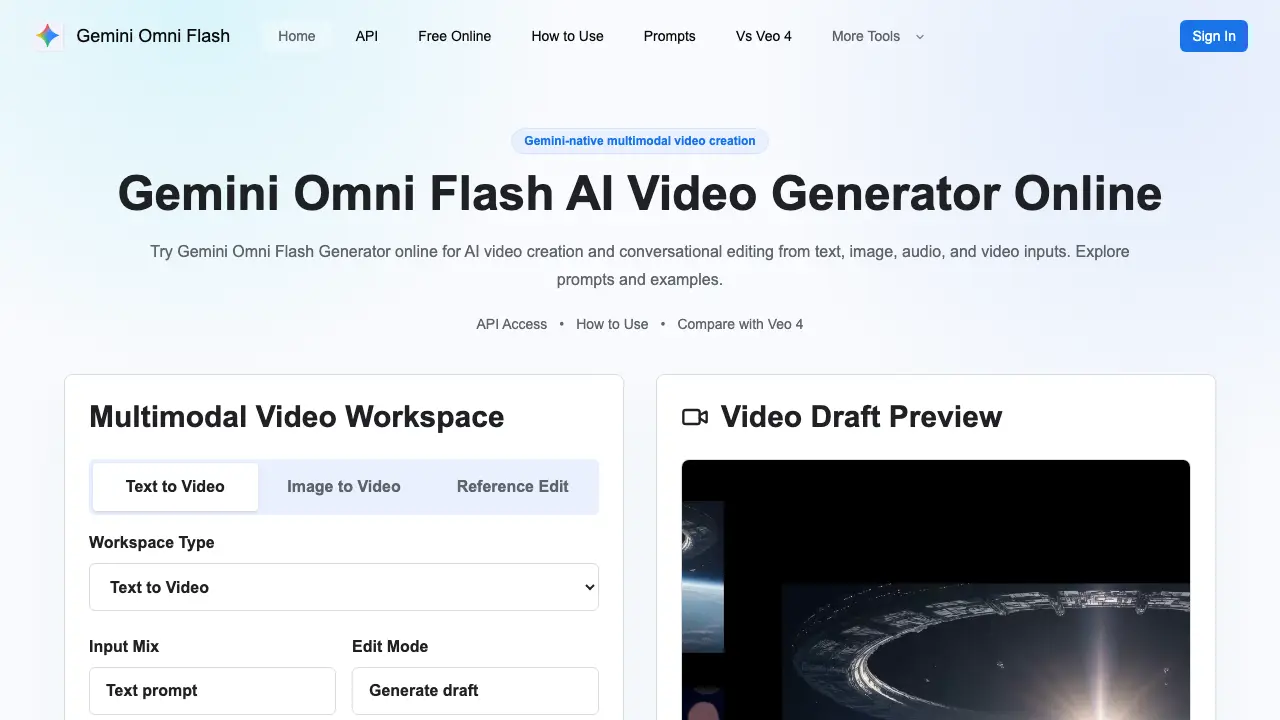
FAQs of Gemini Omni Flash
What is Gemini Omni Flash?
Gemini Omni Flash is the first Gemini Omni model specifically designed for video generation and conversational editing. It merges Gemini’s multimodal understanding, real‑world knowledge, and physical reasoning with a generative video workflow, allowing users to create and refine clips from text, images, audio, or reference video inputs.
How does the Gemini Omni Flash online generator work?
The online generator provides a browser‑based workspace where users enter a prompt, select starting media (text, image, or video), add reference assets, and specify edit instructions. After submitting, the model renders a video draft that can be previewed, compared with variations, and further edited through natural‑language commands such as “shorten the opening” or “preserve the product identity.”
Can Gemini Omni Flash edit existing video content?
Yes. Beyond text‑to‑video creation, Gemini Omni Flash supports reference‑based editing. Users can upload a source clip, provide audio cues or timing notes, and request changes like pacing adjustments, camera smoothing, or alternate endings. The model processes these instructions while maintaining continuity of characters, products, and scene layout.
What types of multimodal inputs are accepted?
Gemini Omni Flash accepts any combination of text prompts, still images, audio tracks, and reference video files. This flexibility enables creators to anchor identity with an image, guide motion with a video snippet, or influence performance through audio cues, all within a single unified prompt.
Is an API available for developers?
Google has announced a forthcoming Gemini Omni Flash API, with rollout status and pricing information tracked on the site’s API page. Developers can prepare by building prompt templates, asset storage pipelines, moderation rules, and credit‑tracking logic ahead of public access.
How does Gemini Omni Flash differ from Veo 4?
While both platforms support multimodal video creation, Gemini Omni Flash emphasizes Gemini‑level reasoning, real‑world physics awareness, and conversational edit loops. Veo 4 focuses more on predefined pipelines, whereas Gemini Omni Flash allows natural‑language revisions that preserve identity, camera logic, and scene consistency across multiple iterations.
What is included in the free credit package?
Free credits are allocated for initial drafts, prompt experimentation, aspect‑ratio testing, and short‑scene validation. They enable users to explore how phrasing affects identity preservation and motion stability before committing to paid credits for longer, higher‑resolution, or production‑scale videos.
How are paid video credits structured?
Paid credits cover extended clip lengths, higher resolution outputs, multiple variation generations, and workflows that incorporate source assets such as product footage or brand‑specific audio. Pricing scales with the volume and complexity of the video tasks, making it suitable for marketing teams that need predictable budgeting.
What best practices should be followed when writing prompts?
Effective prompts clearly name the subject, desired motion, camera movement, environment, timing, and any preservation rules. Including physical context (e.g., “a lightweight object falls gently”) and specifying what must stay unchanged (e.g., “keep the brand logo visible”) helps the model produce coherent, physics‑aware results.
How to use Gemini Omni Flash
Gemini Omni Flash serves as an AI video generator that creates and edits videos from text, images, audio, or reference video using multimodal prompts.
Sign in, select the workspace type (Text‑to‑Video, Image‑to‑Video, or Reference Edit), and paste or upload the desired input assets into the provided fields.
Compose a concise prompt that specifies subject, motion, camera angle, environment, timing, and any preservation rules, then click Generate draft to start rendering.
Review the preview thumbnail or playback; the interface displays duration, aspect ratio, and a download link for the draft video file.
Use the conversational edit box to request changes—such as shortening the opening, adjusting camera movement, or keeping character identity—then regenerate the updated clip.
Compare multiple drafts by toggling between versions; note differences in motion smoothness, lighting consistency, and adherence to the original constraints.
Export the final video by confirming resolution and format, then download or copy the embed code for integration into marketing or academic projects.
For developers, consult the Gemini Omni Flash API documentation to automate prompt submission, credit management, and batch processing within custom pipelines.
