
GPT Image 2 FAQs
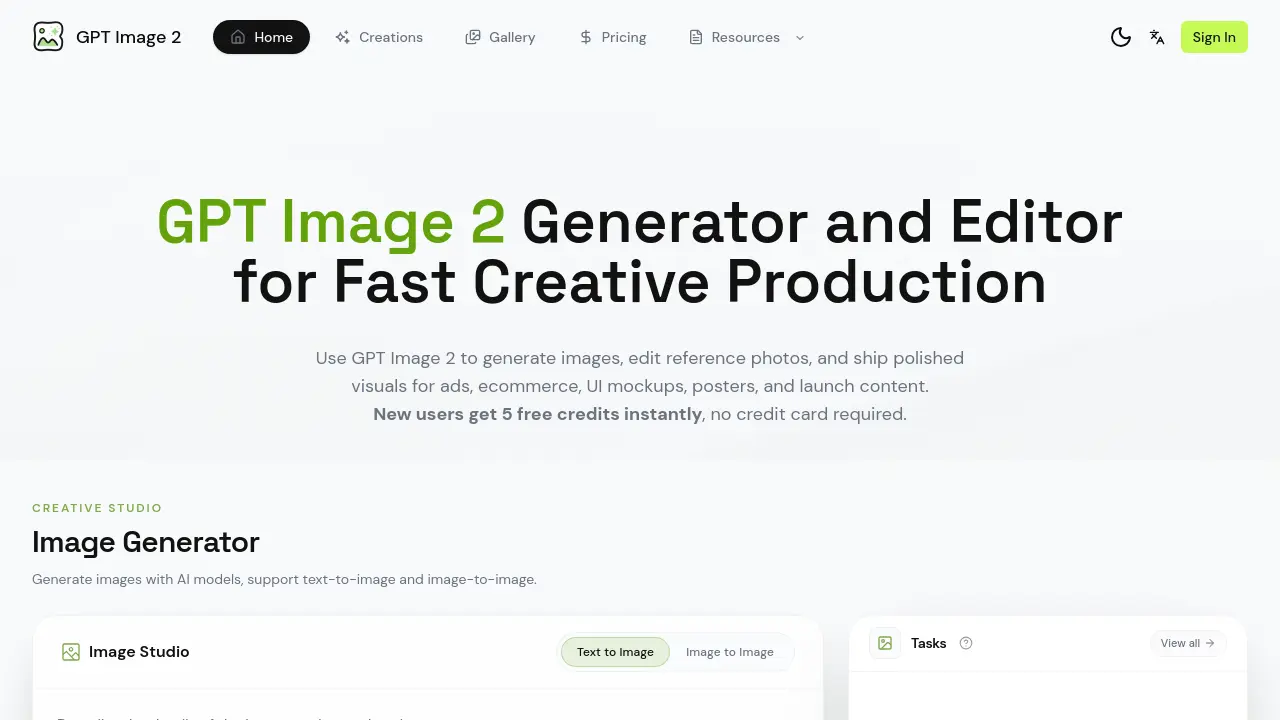
GPT Image 2 is an AI image generator and editor for creators and marketers, offering text-to-image and image-to-image tools to produce ads, ecommerce visuals, UI mockups, and posters, then export production-ready assets in one workflow.

FAQs of GPT Image 2
What can I make with a GPT Image 2 workflow?
GPT Image 2 supports the creation of a wide range of visual assets, including product advertisements, e‑commerce hero images, UI mockups, landing‑page graphics, flyers, posters, menus, character illustrations, and launch‑event visuals. Users can generate both text‑heavy designs and pure imagery, then refine them within the same workspace before exporting production‑ready files.
How do I write better prompts?
Effective prompts combine clear subject description, desired composition, lighting conditions, material details, and aspect ratio. Including specifics such as “soft natural light,” “centered product with white background,” or “bold typography for a poster” helps the AI interpret the brief accurately. Iteratively adjusting wording and providing reference images further improves consistency across multiple generations.
Can GPT Image 2 edit an existing image?
Yes. The platform offers a reference‑image editing mode where users upload a photo or mockup and then modify style, background, props, or copy space using text prompts. The AI applies the requested changes while preserving key elements, enabling rapid revisions without rebuilding the image from scratch.
Who uses this workflow?
Marketing teams, e‑commerce managers, UI/UX designers, product photographers, and small‑to‑medium creative agencies adopt GPT Image 2 for fast, repeatable visual production. The tool is also useful for freelancers who need to generate high‑quality assets on tight deadlines and limited budgets.
Can I try it before paying?
New users receive five free credits immediately after signing up, with no credit‑card requirement. These credits allow full access to both image generation and reference‑image editing features, giving a risk‑free opportunity to evaluate the platform’s suitability for a project.
Why use a SaaS workflow instead of scattered tools?
A single SaaS platform centralises generation, editing, iteration, and export, reducing context switching between separate applications. This consolidates asset management, ensures consistent style across campaigns, and speeds up collaboration by providing shared workspaces and version history for whole teams.
How does GPT Image 2 handle text inside images?
The engine is tuned for near‑accurate text rendering, preserving typographic hierarchy and legibility. Users can specify font style, size, color, and positioning in the prompt, allowing the AI to embed clear, readable text suitable for posters, menus, UI mockups, and other text‑heavy visuals.
Is this an official OpenAI page?
GPT Image 2 is a third‑party SaaS product built on OpenAI’s image generation models, but it is not an official OpenAI website. The service operates independently, offering its own UI, credit system, and support channels while leveraging OpenAI’s underlying technology.
What is the pricing model after the free credits are used?
After the initial five free credits, users purchase additional credits in predefined bundles. Each generated or edited image consumes one credit, and pricing tiers are listed on the site’s Pricing page. Credits never expire, allowing users to accumulate balances for larger projects.
Which file formats are available for export?
GPT Image 2 exports high‑resolution assets in common formats such as PNG, JPEG, and WebP. For print‑ready workflows, users can download lossless PNG files at 300 dpi, while JPEG options are suitable for web and social‑media distribution. All exported files retain the selected aspect ratio and quality settings.
How to use GPT Image 2
Define the product’s purpose: GPT Image 2 delivers AI‑powered image generation, reference‑image editing, and production‑ready export, supporting ads, ecommerce, UI mockups, and poster design.
Sign in or register, then claim the initial five free credits; no payment information is required to activate the workspace.
Set the brief by entering descriptive prompts—subject, composition, lighting, text, aspect ratio—or upload a reference image to guide the AI model.
Choose between Text‑to‑Image or Image‑to‑Image mode, adjust ratio and quality settings, and click Run to generate the first batch of visuals.
Review generated variations side‑by‑side, refine prompts or replace reference images, and iterate until the output aligns with the campaign objectives.
Select the preferred asset, download the high‑resolution file, and optionally save the prompt pattern for future reuse across creative projects.
Apply the exported asset to marketing channels, ecommerce listings, or UI prototypes, ensuring the visual meets brand guidelines and production standards.
