
Gemini Omni FAQs
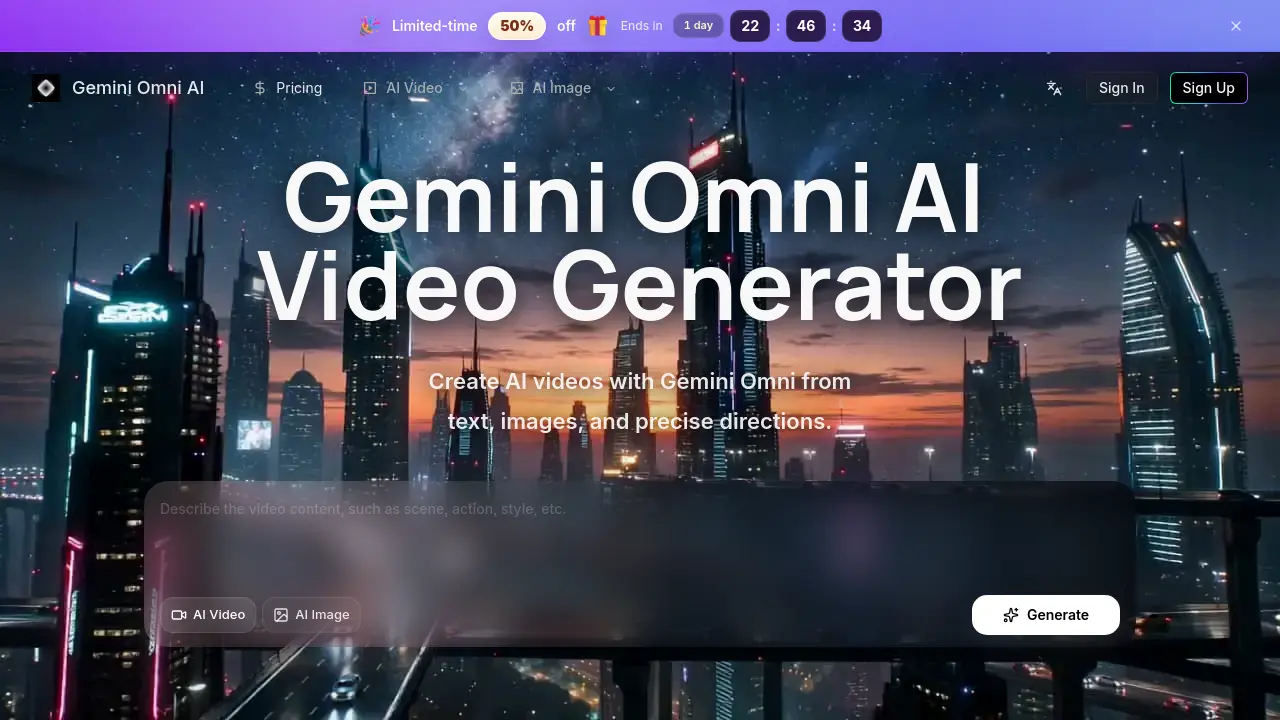
Gemini Omni AI Video Generator is an AI‑powered platform for creators and marketers, providing text, image and reference‑driven video generation with fine‑grained control, editing‑ready HD output, and unified prompt management.

FAQs of Gemini Omni
What is Gemini Omni AI?
Gemini Omni AI is an AI‑powered video generator that creates cinematic‑quality videos from text prompts, reference images, or precise directional inputs. It consolidates prompt planning, reference handling, and HD output within a single workflow, making it suitable for creators, marketers, and developers who need fast, high‑resolution video drafts.
Can I create videos from both text and images?
Yes. Gemini Omni AI supports text‑to‑video, image‑to‑video, and reference‑driven video generation. Users can start with a plain description, upload a still image as a visual anchor, or combine both to achieve fine‑grained control over style, composition, and motion.
Is Gemini Omni AI an official Google website?
No. Gemini Omni AI is an independent service operated by Lotook, LLC. Although the name references Google’s Gemini brand, the platform is not affiliated with or endorsed by Google.
What can I make with Gemini Omni AI?
The platform can produce short‑form social clips, product advertisements, storyboards, concept scenes, brand visuals, and other creative video assets. Its flexibility allows creators to generate anything from fashion lookbooks to isometric office walkthroughs.
Do I need an account to generate videos?
You can browse public examples without signing in. To generate, save history, manage credits, and download files, you must create an account and log in.
How do credits work?
Each generation consumes credits based on the selected model, video resolution, duration, and complexity of the prompt. Credits are replenished monthly according to your subscription tier, and you can purchase additional credits on demand.
Can I use generated videos commercially?
Gemini Omni AI is designed for commercial workflows, but the final usage rights depend on the specific model’s licensing terms and the nature of the input materials. Review the model documentation for any restrictions before using outputs in paid campaigns.
How can I export videos in HD quality?
After a video is generated, an “Export” button appears on the result page. Selecting HD (1080p or higher) initiates a download of an MP4 file encoded with H.264. The platform stores the HD file for 180 days, after which you may need to re‑export if additional edits are required.
What is the approximate credit cost per minute of video?
Credit consumption varies, but a typical 30‑second HD video using the standard model costs between 8 and 12 credits. Longer durations or higher‑quality models can increase the cost proportionally, so a full minute generally requires roughly 20‑30 credits.
Is there a refund or cancellation policy for subscriptions?
Lotook, LLC offers a 7‑day money‑back guarantee for new subscribers. If you cancel within this window, a full refund of the most recent payment will be issued. After the guarantee period, refunds are evaluated on a case‑by‑case basis according to the terms of service.
Can multiple team members collaborate on the same project?
Yes. The Premium subscription includes unlimited concurrency, allowing several users to work on separate drafts simultaneously. While real‑time co‑editing is not yet supported, each member can access shared generation history and download assets using the same account credentials.
How to use Gemini Omni
Gemini Omni AI serves as an AI video generator that creates cinematic HD videos from text prompts, reference images, or combined directions, streamlining content production for marketing and storytelling.
Sign in or create an account, then navigate to the “Generate Video” section; the interface displays separate tabs for Text‑to‑Video and Image‑to‑Video inputs.
For text‑to‑video, compose a concise prompt describing scene, camera motion, timing, and visual style; the system parses the description into a structured draft.
For image‑to‑video, upload a high‑resolution reference image, add an optional prompt to guide motion and transitions, then click Generate to convert the still into motion.
Review the preview window where the generated video appears; hover over timestamps to inspect individual frames and assess fidelity to the original prompt or reference.
Use the download button to export the HD video, or click “Edit” to adjust prompts, refine camera paths, or modify style settings for iterative improvement.
Analyze the output by comparing key metrics such as visual coherence, motion smoothness, and resolution; apply insights to optimize future prompts and achieve desired creative goals.
