
AI Image Upscaler FAQs
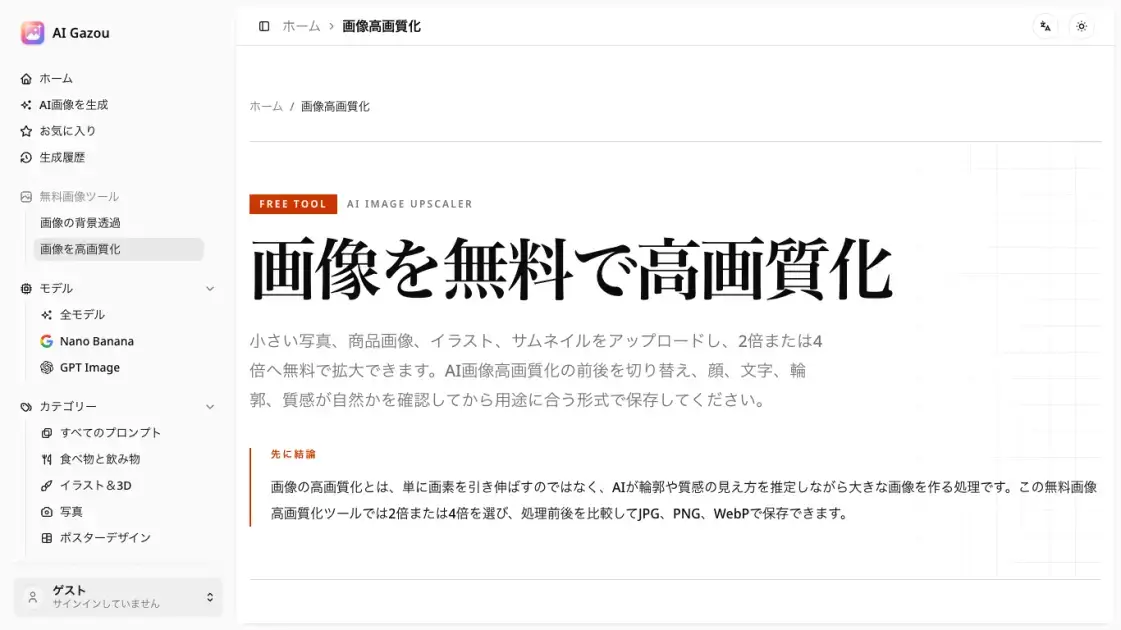
AI Gazou offers free AI-powered image upscaling to enhance photos, product images, and illustrations. Upscale 2x or 4x with natural detail preservation.

FAQs of AI Image Upscaler
Is image upscaling free to use?
Yes, AI Gazou offers free image upscaling without requiring login or credits. Users can process one image at a time up to 8 MB, choosing between 2x or 4x upscaling factors. While the service is free, results may not always meet expectations, so important photos should be kept as originals for comparison.
What image formats are supported?
AI Gazou accepts PNG, JPG, and WebP images up to 8 MB. Output can be saved in JPG, PNG, or WebP formats. HEIC, SVG, PDF, and animated images are not supported. For transparent backgrounds, choose PNG; for web publishing with smaller file sizes, select WebP; for general photography, JPG works well.
Should I choose 2x or 4x upscaling?
Select 2x if the required dimensions are within twice the original size, which works well for web articles, social media, and presentations. Use 4x for large banners, strong cropping, or small original images, but note that processing time and verification requirements increase with higher factors.
How is this different from standard resizing or sharpening?
Standard resizing interpolates existing pixels, while sharpening enhances edge contrast. AI upscaling estimates new details based on surrounding information, which can improve clarity and texture but may also create unfamiliar shapes in text or faces, requiring verification against originals.
Can it fix blurry or shaky photos?
Light blur or compression artifacts may become less noticeable, but severe blur, motion shake, overexposure, or underexposure cannot be accurately restored. The tool enhances appearance rather than recovering lost photographic truth, so important records should not rely on AI estimation as fact.
What about text, faces, and illustrations?
The tool works for people, products, and illustrations, but verification points differ. Check eyes, teeth, and hair for people; labels and shapes for products; lines and coloring for illustrations; text for screenshots. Fine text may appear as different characters after AI processing, so critical information should be recreated from original data.
How does the background removal and upscaling order work?
Upscaling increases output pixels but does not reliably enhance original boundary information. Typically, compare background removal results on the original image with upscaling results. If using transparent PNG input with PNG output, AI may alter transparency, so keep intermediate results to verify edges and transparent areas.
How to use AI Image Upscaler
- Upload an image in PNG, JPG, or WebP format (maximum 8 MB) by dragging it to the upload area or using the file selection button.
- Select the upscaling factor: choose 2x for standard web, social media, or presentation use, or 4x for small crops or larger placements requiring more detail.
- Choose the output format from JPG, PNG, or WebP options based on your needs, considering transparency requirements and file size preferences.
- Complete the Cloudflare security verification if you are not logged in, which is required before the AI processing begins.
- Click the upscale button to start the AI processing, which sends the image to external AI services for enhancement.
- Compare the processed result with the original image by toggling between them to check improvements in faces, text, labels, and fine details.
- Download the enhanced image in your chosen format once you are satisfied with the results, using a descriptive filename to distinguish it from the original.
