
VoWo AI FAQs
VoWo AI VEO 3 Video Generator produces 8‑second cinematic clips from text prompts, adding native audio with lip‑sync for rapid video creation.

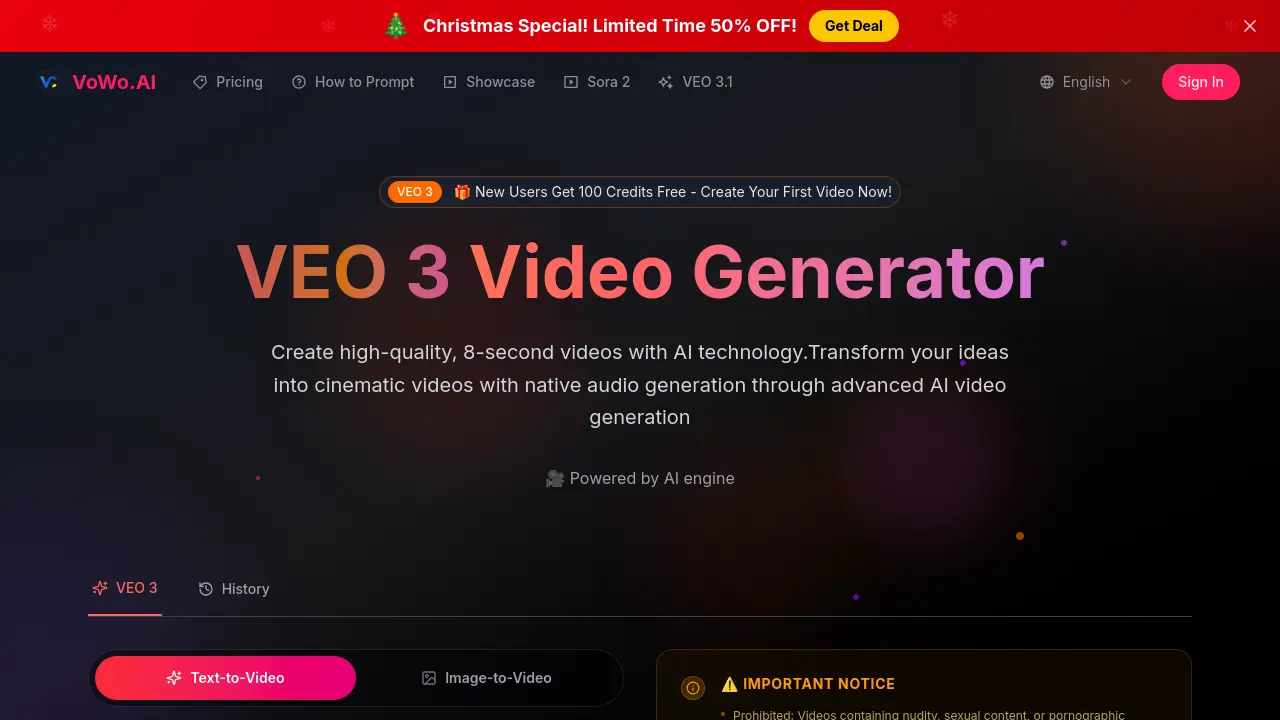
FAQs of VoWo AI
How many free credits does VoWo AI provide for new users?
VoWo AI grants 100 free credits to all new registrants, allowing users to generate up to 100 eight‑second videos without any charge. The free tier is ideal for testing native audio generation, cinematic quality, and prompt versatility before committing to a paid subscription. After the credits expire, users must purchase additional credit packs via the pricing page to continue creating video content.
What is the maximum duration of a video that VEO 3 can render?
VEO 3’s current model is optimized for short, high‑impact clips and supports a maximum duration of eight seconds per request. This constraint ensures rapid generation and high‑quality output, including synchronized lip‑sync and realistic environment sounds. Users needing longer sequences can stitch multiple VEO 3 outputs together in standard video editing software.
Does VEO 3 understand prompts in languages other than English?
VEO 3’s multilingual natural language processing module can parse and generate video content from prompts written in several major languages, such as Spanish, French, German, and Mandarin. While the highest quality results are typically produced from English prompts, the model will still interpret and translate essential visual and narrative cues from non‑English input, providing a flexible experience for diverse users.
What output formats are available for downloaded videos?
Downloads from VoWo AI are delivered in MP4 format at 1080 × 1920 resolution (16:9 aspect ratio) with H.264 video encoding and AAC audio at standard 48 kHz sampling rate. The unwatermarked files include full usage rights, making them suitable for commercial projects, social media campaigns, or academic presentations. Users can also export in compressed formats directly from the platform’s export settings if lower bandwidth is required.
Can I integrate VEO 3 videos into other applications or workflows?
Yes, videos generated by VEO 3 can be incorporated into any digital workflow that accepts MP4 files, including video editing suites, content management systems, and web publishing platforms. The native audio tracks—encompassing ambient sounds, dialogue, and synchronized lip‑sync—are fully compatible with standard audio libraries, allowing developers to embed or remix them as needed. For advanced usage, VoWo AI also supports API access for automated content production, subject to the terms of service and usage limits.
How to use VoWo AI
VoWo AI delivers the VEO 3 Video Generator, an AI‑powered tool that transforms natural‑language prompts into 8‑second cinematic videos with integrated audio, realistic physics, and synchronized lip‑sync.
The platform, comparable to vozo ai solutions, offers free trials, lip‑sync, and multilingual audio output for translators, enabling quick creation of high‑quality commercial content.
- Log into your VoWo AI account or create a new one. From the main dashboard, click “VEO 3 Video Generator” to open the creation interface.
- Select the desired generation settings: choose “Fast” for quick output or “Quality” for higher fidelity, set the duration to 8 seconds, and pick a 16:9 aspect ratio.
- Enter a detailed text prompt in natural language, staying within the 2,000‑character limit. Example prompts are available under the “How to Prompt” guide.
- Toggle “With Audio” on to enable native audio generation, which automatically creates synchronized background sounds and dialogue (lip‑sync) for a cinematic result.
- Click “Generate Video”; the model will process your request, producing an 8‑second preview in the preview area. When finished, a thumbnail appears and the video plays.
- Review the preview; if changes are needed, edit the prompt or adjust settings and click “Generate Video” again to regenerate several times if desired.
- After satisfaction, click “Download” to get an unwatermarked, high‑resolution MP4 file. Confirm licensing for commercial use before distribution and reuse.
- Optionally, use the “Create With Text” workflow to batch generate multiple clips, then stitch them together in external editing software for longer narratives.
