
Swayclip FAQs
Swayclip is an AI creative platform that lets creators generate cinematic videos, editorial images, and music tracks from text or reference images using multiple leading models within a single browser workspace.

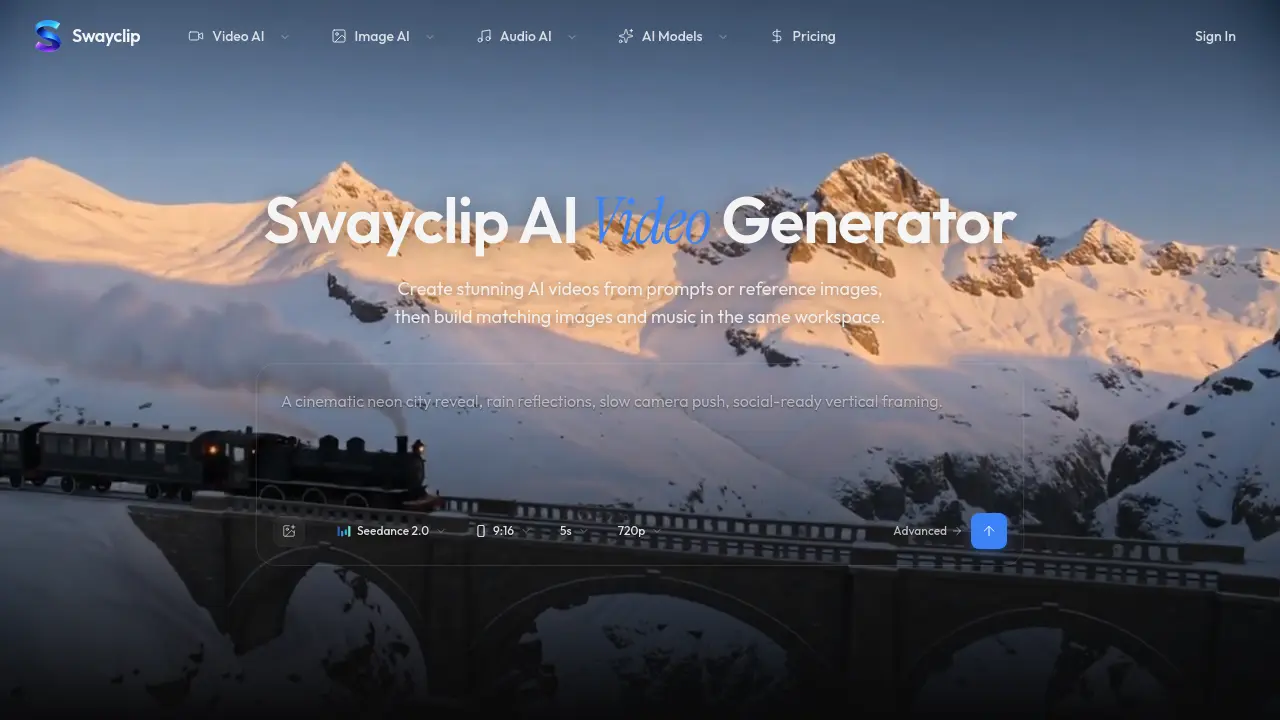
FAQs of Swayclip
What is Swayclip?
Swayclip is an all‑in‑one AI video workspace that lets users generate cinematic video, editorial images, and custom music from a single text prompt or reference image. All creation tools run in one browser tab, streamlining the workflow for fast‑moving creators.
Which AI models can I use?
Swayclip integrates several leading AI models, including Kling 3.0, Veo 3.1, Seedance 2.0, Happy Horse, GPT Image 2, and Nano Banana. These models cover video, image, and audio generation, giving creators flexibility across media types.
Can I create from both text and images?
Yes. Users may start a project with a textual description, an uploaded reference image, or a combination of both. The platform then applies the appropriate model to generate video, image, or music that matches the supplied prompt or visual cue.
What kinds of scenes can I make?
Swayclip supports a wide range of cinematic and editorial scenes, such as aerial drone shots, neon‑lit city streets, studio desk setups, cliffs at golden hour, and fashion close‑ups. The built‑in prompt library showcases diverse styles, from 35 mm anamorphic looks to Wong Kar‑wai‑inspired palettes.
How do examples and prompts work?
Each example on the homepage displays the exact prompt that produced the output. Users can click an example to load its prompt into the composer, then edit or extend it. This approach provides a transparent starting point for learning model behavior.
Can I use Swayclip for commercial work?
Yes. Content generated in Swayclip can be used commercially, provided users comply with the platform’s terms of service and any model‑specific licensing restrictions. Commercial users should review the rights section in the FAQ for detailed guidance.
What formats, durations, and resolutions are supported?
Swayclip offers multiple output settings, including vertical 9:16 and widescreen 16:9 aspect ratios, video durations from a few seconds up to several minutes, and resolutions up to 720p for the free tier. Higher‑resolution options are available under paid plans.
How is Swayclip different from other AI video tools?
Unlike many single‑purpose generators, Swayclip consolidates video, image, and music creation within a single workspace, reducing context switching. It also provides multi‑model access, allowing creators to select the best AI for each media type without leaving the platform.
Is there a free trial or limit for new users?
Swayclip offers a limited free tier that includes a set number of generation credits per month. New users can experiment with text‑to‑video, text‑to‑image, and text‑to‑music tools before deciding to upgrade to a paid plan for higher limits and advanced features.
How can I export my generated assets?
After a generation finishes, each asset appears in the workspace with download buttons for video (MP4), image (PNG/JPEG), and audio (MP3/WAV). Users can also save projects to the cloud for later editing or sharing via a unique URL.
How to use Swayclip
Swayclip functions as an all‑in‑one AI video workspace, generating cinematic video, editorial images, and prompt‑to‑music from text prompts or reference images in a single browser tab.
Access the composer by selecting Open the composer; the interface displays unified panels for video, image, and audio generation, simplifying workflow navigation.
Enter a descriptive text prompt or upload a reference image in the designated field; ensure the prompt includes desired style, aspect ratio, and duration for optimal model selection.
Choose appropriate AI models (e.g., Seedance 2.0 for video, GPT Image 2 for images, Happy Horse for music) from the model dropdown to match the creative intent.
Adjust advanced settings such as resolution, aspect ratio (e.g., 9:16 for vertical clips), and duration; these parameters directly affect output quality and file size.
Initiate generation by clicking the Generate button; Swayclip processes the request across selected models, displaying a progress indicator within the workspace.
Review the generated assets displayed as thumbnails; hover over each thumbnail to preview video clips, high‑resolution images, or audio waveforms without leaving the page.
Export desired results by selecting the download icon; choose file formats (MP4 for video, PNG/JPEG for images, MP3/WAV for music) that align with the intended distribution channel.
Analyze key metrics shown beneath each asset, such as generation time, model confidence scores, and resolution details, to assess technical fidelity and creative alignment.
Integrate the exported media into external projects—e.g., social media posts, presentations, or marketing campaigns—leveraging the cohesive aesthetic produced by Swayclip’s multi‑modal AI tools.
For commercial applications, verify licensing information provided in the FAQ; Swayclip grants usage rights for generated content, supporting seamless commercial deployment.
Repeat the prompt refinement cycle by editing the original text or swapping reference images, using the same workspace to iterate quickly and improve creative outcomes.
