
LiveTalk Translate FAQs
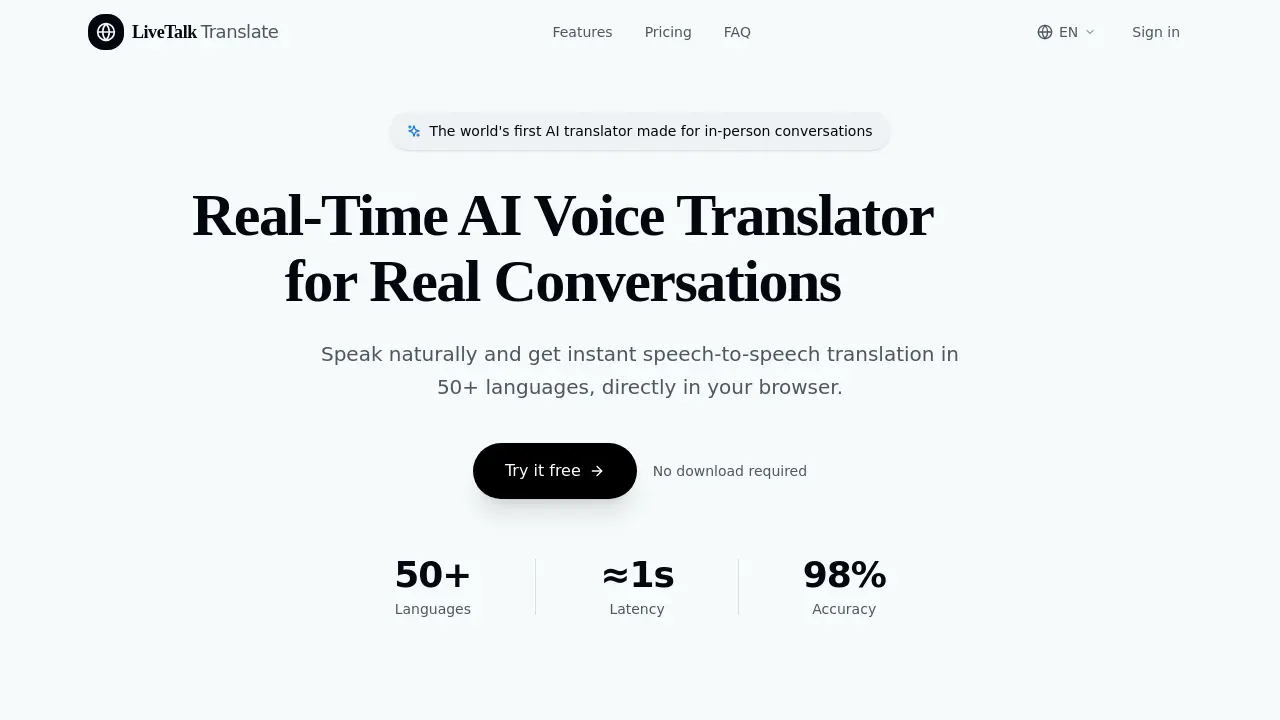
LiveTalk Translate offers AI-powered two-way voice translation with low latency, supporting 50+ languages directly in your browser without any app download.

FAQs of LiveTalk Translate
What is LiveTalk Translate?
LiveTalk Translate is the world's first AI translator designed specifically for in-person conversations. It provides real-time speech-to-speech translation in 50+ languages directly in your browser, allowing you to speak naturally and get instant translations without any downloads required.
How does LiveTalk Translate work?
LiveTalk Translate uses advanced AI models to process your speech in real-time. Simply select two languages, press and hold the microphone button to speak, then release when finished. The system instantly translates your speech and plays it back in the target language while displaying both the original and translated text for easy review.
What languages are supported by LiveTalk Translate?
LiveTalk Translate currently supports over 50 languages including Chinese, English, Japanese, Korean, Spanish, French, German, Portuguese, Italian, Arabic, Hindi, and many more. The platform regularly adds new languages to expand its global coverage.
How accurate is the translation?
LiveTalk Translate uses state-of-the-art AI models that achieve over 98% accuracy for most language pairs. The system is continuously improving and can handle natural speech patterns, including pauses, filler words, and varying accents, making it suitable for authentic conversations.
Do I need to download anything to use LiveTalk Translate?
No, LiveTalk Translate works entirely in your browser. There's no need to download any apps or software. It runs on Chrome, Safari, Firefox, and Edge on both desktop and mobile devices, making it accessible wherever you need it.
How much does LiveTalk Translate cost?
LiveTalk Translate offers a free tier with 180 seconds of usage per month. Paid plans start at $9.99/month (billed yearly) for the Starter plan with 100 minutes per month, $19.99/month (billed yearly) for the Pro plan with 240 minutes per month, and custom Enterprise plans starting at $299/month for teams needing shared usage and additional features.
Is my conversation data private and secure?
Your audio is processed in real-time and transmitted to model providers to generate translations and transcripts. LiveTalk Translate is not designed to store full conversation audio or transcript history as a persistent user archive. All conversations are encrypted and handled with privacy in mind.
Can I use LiveTalk Translate for business meetings?
Yes, many users rely on LiveTalk Translate for international business meetings, client calls, and conferences. The Starter and Pro plans offer features specifically designed for professional use, including priority voice processing and support to ensure smooth communication during important business interactions.
What devices are compatible with LiveTalk Translate?
LiveTalk Translate works on modern browsers including Chrome, Safari, Firefox, and Edge on both desktop and mobile devices. As long as you have a compatible browser and microphone access, you can use LiveTalk Translate without any additional hardware or software requirements.
What happens if I reach my monthly usage limit?
When you reach your monthly usage limit on your current plan, you'll need to upgrade to continue using the service. You can view paid plans on the pricing page to choose a plan that better fits your needs, or contact the support team for enterprise solutions if you require more extensive usage.
How to use LiveTalk Translate
LiveTalk Translate is an AI-powered voice translation tool designed for real-time, in-person conversations. It supports 50+ languages with instant speech-to-speech translation directly in your browser. No downloads are required, and it's ideal for travel, business meetings, and personal connections.
- Open LiveTalk Translate in your browser. No installation needed.
- Select your source and target languages from the dropdown menus.
- Click the microphone button or press Space to start speaking.
- Hold the button while speaking, then release to trigger translation.
- Listen to the translated audio and read the transcript displayed below.
- Review both original and translated text for accuracy and context.
- Use the tool continuously for seamless multi-turn conversations.
- Check your usage limit in the dashboard; upgrade if needed.
- Ensure microphone permissions are enabled in your browser settings.
