
img2img AI FAQs
This all-in-one AI image-to-image editor enables style transfer, background removal, upscaling, and face swap with natural prompts, providing fast previews and free credits.

FAQs of img2img AI
What is the img2img AI Tool?
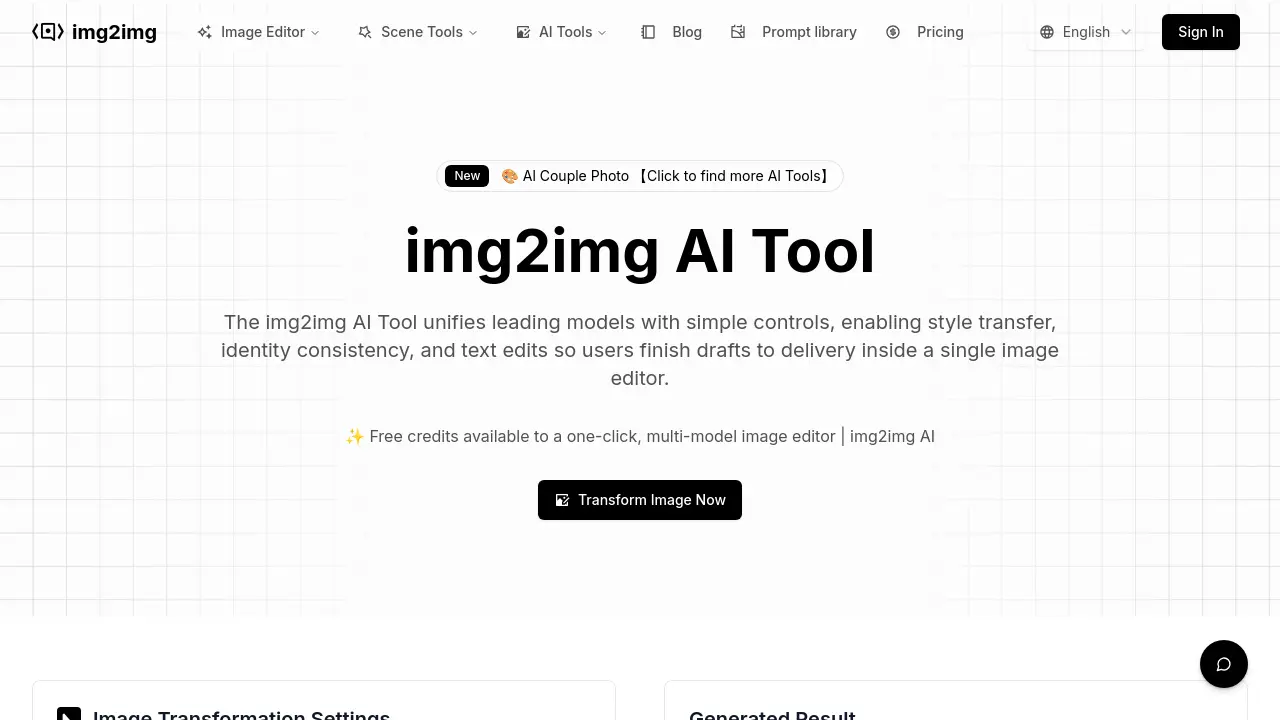
The img2img AI Tool is an online image editor designed for business teams that integrates leading AI models with intuitive controls. This platform facilitates various image transformations, including style transfer, identity consistency, and text edits, allowing users to complete projects from initial drafts to final delivery within a single interface. It provides free credits for a multi-model image editor experience.
How does the img2img AI Tool transform images?
The img2img AI Tool transforms images through a four-step process. Users first upload their image, then describe desired changes using a text prompt, adjust settings such as resolution and output count, and finally generate and download the enhanced image. This image-to-image AI generator process allows for precise control over the output, from basic edits to complex artistic styles.
What are the core benefits of using the img2img AI Tool?
The img2img AI Tool offers several key benefits for image creators and business teams. It unifies multiple top AI models, eliminating the need to switch between different tools. It provides one-click AI effects and filters, and enables editing with plain language prompts, simplifying complex tasks like background removal or headline changes. The platform also boasts a prompt library, industry templates, and a comprehensive scenario toolkit for diverse applications.
What image editing scenarios does the img2img AI Tool support?
The img2img AI Tool supports a wide range of image editing scenarios. These include portrait editing (retouching, relighting, background swaps), style transfer (turning photos into various artistic styles), art illustration (enhancing sketches), commercial design (rewriting text, generating marketing assets), anime design (human-to-anime, character consistency), and image quality boosts (upscaling, sharpening, denoising). This makes it a versatile img2img AI editor for diverse professional needs.
What AI models are integrated into the img2img AI Tool?
The img2img AI Tool integrates several prominent AI models to power its transformations. Currently, it includes Flux Kontext Pro, Nano Banana AI, Seedream 4.0 AI, and Qwen Image Edit. The platform is continuously expanding its integration to include more cutting-edge models, offering users a comprehensive and evolving set of tools for their img2img AI generator needs.
How does the img2img AI Tool ensure brand consistency across edits?
The img2img AI Tool ensures brand consistency by utilizing style, type, and color presets that keep batches aligned. Its text editing features are designed to preserve existing layouts, minimizing the need for rework and helping maintain a consistent visual identity across different marketing materials and channels. This is crucial for businesses aiming for a cohesive brand presence with their img2img AI art.
What image formats and resolutions does the img2img AI Tool support?
The img2img AI Tool supports standard JPEG, PNG, and WEBP formats for both image import and export, with a maximum file size of 15MB for uploads. It provides quick previews and offers high-resolution settings for generated outputs, making them suitable for e-commerce pages, offline prints, and professional media reuse. This ensures high-quality results for any img2img AI online free or paid project.
How to use img2img AI
The img2img AI Tool provides a unified online image editor for transforming images using various AI models. It facilitates style transfer, maintains identity consistency, and enables text-based edits, streamlining the image editing workflow from draft to final delivery for business teams.
- Access the img2img AI editor, where you will find the prompt input and image upload sections.
- Upload your base image in JPEG, PNG, or WEBP format, ensuring it is clear and well-lit (max 15MB).
- Enter a descriptive prompt in the text box, detailing the desired changes, such as artistic style or background removal.
- Adjust image transformation settings like resolution, output count, and strength to refine the AI's processing.
- Click "Generate" to initiate the AI image transformation, allowing the img2img AI to process your request.
- Review the "Generated Result" preview and download your high-quality, enhanced image instantly.
