
Happy Wan: AI Video Generator with Image & Video References

What is Happy Wan
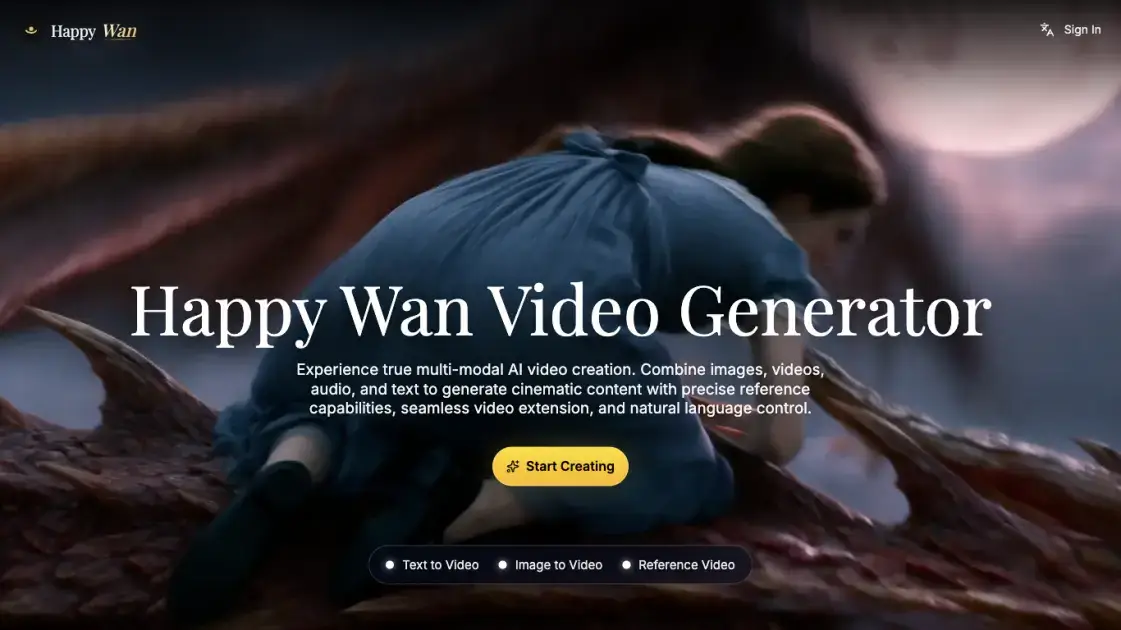
Happy Wan combines text prompts, still images, video clips and audio cues into a single video generation workflow. It targets creators, brand teams and studios that need repeatable cinematic output without rebuilding a production pipeline for every idea. Reference-guided control lets a director specify characters, framing and camera behavior before a clip is rendered, while scene extension keeps longer sequences coherent. The generator runs through Happy Wan Studio and exposes separate modes for text, image and reference-driven creation.
How does Happy Wan work
Generation starts with a natural-language prompt plus optional @-tagged images or clips that the model reads as visual anchors. Seedance 2.5 extracts core features from those reference objects and merges them with the written description, which is how characters, products and motion stay stable between renders. Operators steer the shot through subject, action, setting, aesthetics, camera and audio directions in the prompt, and can fix the opening and closing frames. When footage needs to grow, scene extension carries the same characters, environments and pacing forward instead of starting a fresh render. Text overlays, subtitles and speech bubbles also follow the prompt in T2V, I2V, R2V and V2V scenarios.
Benefits of Happy Wan
Faster iteration changes what a team can test: more directions can be explored before stakeholders settle on a final, without rebuilding the workflow for each pass. Reference-guided inputs reduce the drift in characters, scenes and motion that tends to appear when a sequence is assembled from separate renders. Directors keep control of framing, progression and audio alignment inside one creative flow rather than handing clips between unrelated tools. Teams also get a repeatable path from exploration to delivery, which suits campaign schedules and approval cycles.
Pros and Cons of Happy Wan
Pros
- Text, image, clip and audio inputs
- @-tagged reference control
- Scene extension without restarting
- Character consistency across cuts
- Native audio and four-variation batches
Cons
- Credit-based generation costs
- 1080p resolution ceiling
- Copyrighted or sensitive material blocked
- Standard processing on the listed plan
- Subscription required for ongoing credits
Core Features of Happy Wan
Reference tagging with @ syntax
Prompts can point at @Image or @Video inputs to lock character identity, composition and action, so a generation follows supplied material rather than a text description alone.
Three creation modes
Text to Video, Image to Video and Reference are the selectable creation modes, and each accepts prompts, stills or existing footage as its starting point.
Director-level framing controls
First and last frames, camera movement and cinematic style are set before rendering, giving operators explicit control over how a shot opens and closes.
Scene extension and shot insertion
Existing clips can be continued or interleaved with new beats while characters, environments and motion flow stay aligned across the cut.
Native audio and synchronized pacing
Output includes sound, and timing is matched to the visuals so text, image, motion and audio direction move together.
Resolution and variation settings
Generations can be requested at 480p, 720p or 1080p in 16:9, and one prompt can produce up to four variations with identical settings.
Use Cases of Happy Wan
- Brand teams and content marketers: campaign visuals, launch videos and social-ready edits produced with tighter creative control.
- Filmmakers and video editors: previsualizing scenes, testing camera movement and assembling multi-shot sequences before final production.
- Designers and visual storytellers: turning reference stills into stylized motion concepts and exploring new looks.
- Marketing and growth leads: scaling social and brand campaigns while keeping a consistent identity across many cuts.
FAQs of Happy Wan
What does Happy Wan produce?
It renders short cinematic clips from prompts, stills, existing footage and audio cues, with optional text overlays and synchronized sound.
Can a specific look be reused across shots?
Yes — @Image and @Video tags inside the prompt pin composition, characters and action, so later renders can follow the same visual anchors.
Is it intended for commercial projects?
The platform is positioned for brand teams, studios and approval-driven delivery, and its FAQ states commercial use is supported.
What output options are configurable?
Creators can pick 480p, 720p or 1080p in a 16:9 frame and request up to four variations from one set of instructions.
How are longer scenes assembled?
Scene extension continues characters, environments and motion from an existing clip, and new shots can be inserted between segments.
What content is restricted?
Copyrighted characters, logos or music and sensitive, explicit or violent material should be avoided, since the provider may block such requests.
How does someone begin?
Open the generator, choose a creation mode, add a prompt or references and render a first clip.
How to use Happy Wan
- Open Happy Wan Studio and choose the core video creation flow.
- Select Text to Video, Image to Video or Reference from the generator tabs.
- Write a prompt describing the subject, action, setting, visual style and camera, then attach @Image or @Video references where a specific look or motion must be matched.
- Set resolution to 480p, 720p or 1080p, keep the 16:9 frame, and choose how many of the four available variations to render.
- Press Generate Video, then wait for the render to appear in the Result panel.
- Compare the finished renders in the Result and Examples panels, then extend a sequence or insert a new shot to refine it.
Happy Wan Alternatives
Viral Video AI turns text, photos, or a video reference into short clips for TikTok, Reels, and Shorts. Explore trend templates and download MP4 videos.
Turn a static logo into an animated video with Logo Animation AI. Upload a logo, pick a style or describe the motion, and export MP4 or transparent WebM.
MV Creator turns songs, photos and lyrics into downloadable music videos with lip-sync, slideshow, lyric, karaoke and visualizer tools for musicians.

Tavoa is an all-in-one AI creation platform for images, videos, music, and voice. Create production-ready content with leading AI models in one studio.
Kling 4.0 turns text prompts or first and last frames into 5–30 second clips with optional audio, letting creators direct and refine scenes in one workspace.
UniRoute gives developers one API and one pay-as-you-go USD balance for Claude, GPT, Gemini, Seedance and Suno text, image, video and audio models.
TokLab puts AI image, video, language and audio models behind one API key and one prepaid USD balance, with live listed prices and no subscription.
Photo-to-video studio that turns portraits into Hello 2027 climb, Goodbye 2026 and Lunar New Year clips with fixed Wan templates. No prompts, 6-15s MP4s.
Multimodal AI video generator that turns text prompts, reference images, and clips into cinematic multi-shot sequences with consistent characters.
Seedance 3.0 preview page: planned multi-shot continuity, scene editing and audio-visual sync for AI video, while the on-page generator runs Seedance 2.5.
Browser workspace for AI image generation, reference photo editing, and short video drafts, aimed at creators, marketers, and product teams.
Black Forest Labs' multimodal model with a web generator for text-to-video, image-to-video and image editing with native audio, for creators and marketers.