
VEO 3 Video Generator FAQs
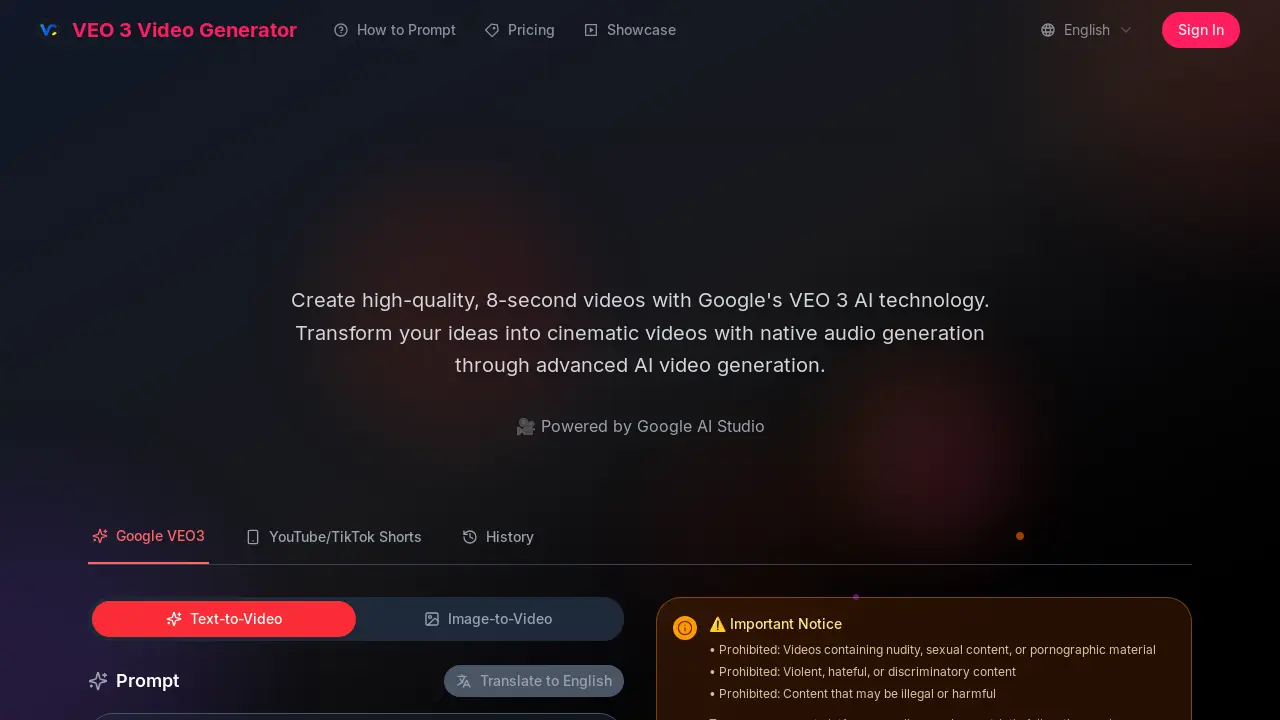
This AI video generator powered by Google AI Studio creates high-quality, 8-second cinematic videos with native audio from text descriptions.

FAQs of VEO 3 Video Generator
What is VEO 3 and how does it work?
VEO 3 Video Generator is powered by Google's advanced AI video generation model. This platform creates high-quality, 8-second videos complete with native audio generation, all from simple text descriptions. The VEO 3 Video Generator is notable for its capabilities in generating realistic physics, enhancing overall realism, and delivering cinematic quality.
Do I need technical experience to use Veo3 AI?
No technical experience is required to use Veo3 AI. This AI video generator is designed for all users, from beginners to seasoned professionals. Users simply describe their desired video content in everyday language, and the AI system manages the technical aspects of video creation.
What makes VEO 3 different from other video generators?
The distinct features of the VEO 3 Video Generator include its native audio generation capabilities, exceptional adherence to complex prompts, and state-of-the-art cinematic quality output. These elements collectively contribute to a more immersive and high-fidelity video generation experience compared to other tools.
Can I download my creations?
Subscribers to the VEO 3 Video Generator service receive unwatermarked, high-resolution downloads of their created content. These downloads come with full usage rights, allowing for flexible application of the generated videos.
Is VEO 3 suitable for commercial use?
Yes, videos generated using the VEO 3 Video Generator through Google AI Studio are suitable for commercial projects. There are no watermarks on the output, which facilitates professional use in various commercial applications.
What audio capabilities does VEO 3 offer?
VEO 3 Video Generator features advanced native audio generation. This includes the automatic creation of environmental sounds, character dialogue, and atmospheric audio, which is seamlessly synchronized with the video content produced by the VEO 3 Video Generator.
How are credits managed for the VEO 3 Video Generator?
New users of the VEO 3 Video Generator receive 200 free credits upon signing up, which allows them to begin creating videos immediately. Additional credits can be obtained through various pricing plans, ensuring continuous access to the AI video generation services.
What are the prohibited content types for VEO 3 Video Generator?
To ensure compliance with payment platform policies and ethical guidelines, the VEO 3 Video Generator prohibits content containing nudity, sexual or pornographic material. Additionally, violent, hateful, discriminatory, illegal, or harmful content is strictly forbidden, and violations may lead to account restrictions.
What is the maximum duration for videos generated by VEO 3?
Videos created with the VEO 3 Video Generator have a default duration of 8 seconds. This fixed duration is part of the system's design, focusing on producing concise, high-quality clips with Google's advanced AI technology.
How to use VEO 3 Video Generator
The VEO 3 Video Generator, powered by Google's VEO 3 AI technology, allows users to create high-quality, 8-second cinematic videos. Its core functionality involves transforming detailed text prompts or images into video content with integrated native audio.
- Navigate to the VEO 3 Video Generator platform and sign in or create an account. New users often receive free credits to begin.
- Locate the "Prompt" input field to describe your desired video scene. Be detailed and specific for optimal results, noting the 2000-character limit.
- Select the "Generation Mode" that aligns with your needs, choosing between Super Fast, Fast, or Quality for processing speed versus output fidelity.
- Ensure the "With Audio" option is selected if native sound effects, dialogue, or ambient noises are desired in the generated video.
- Click the "Generate Video" button to initiate the AI video generation process based on your provided prompt and selected settings.
- Review the generated 8-second video preview in the designated output area. This allows for immediate assessment of the AI's interpretation.
- Interpret the video's adherence to the prompt, evaluating visual elements, motion, and integrated audio for cinematic quality.
- Refine your text prompt for subsequent attempts if the initial output does not fully meet your creative vision or specific requirements.
- Download the unwatermarked, high-resolution video if you are a subscriber, ensuring full usage rights for commercial or personal projects.
- Explore the "Showcase" section for examples of high-quality videos generated by the VEO 3 AI to understand its capabilities.
