
Photoshop Nano Banana FAQs
This AI-powered plugin transforms Photoshop workflows, enabling natural, context-aware image edits through simple prompts for users.

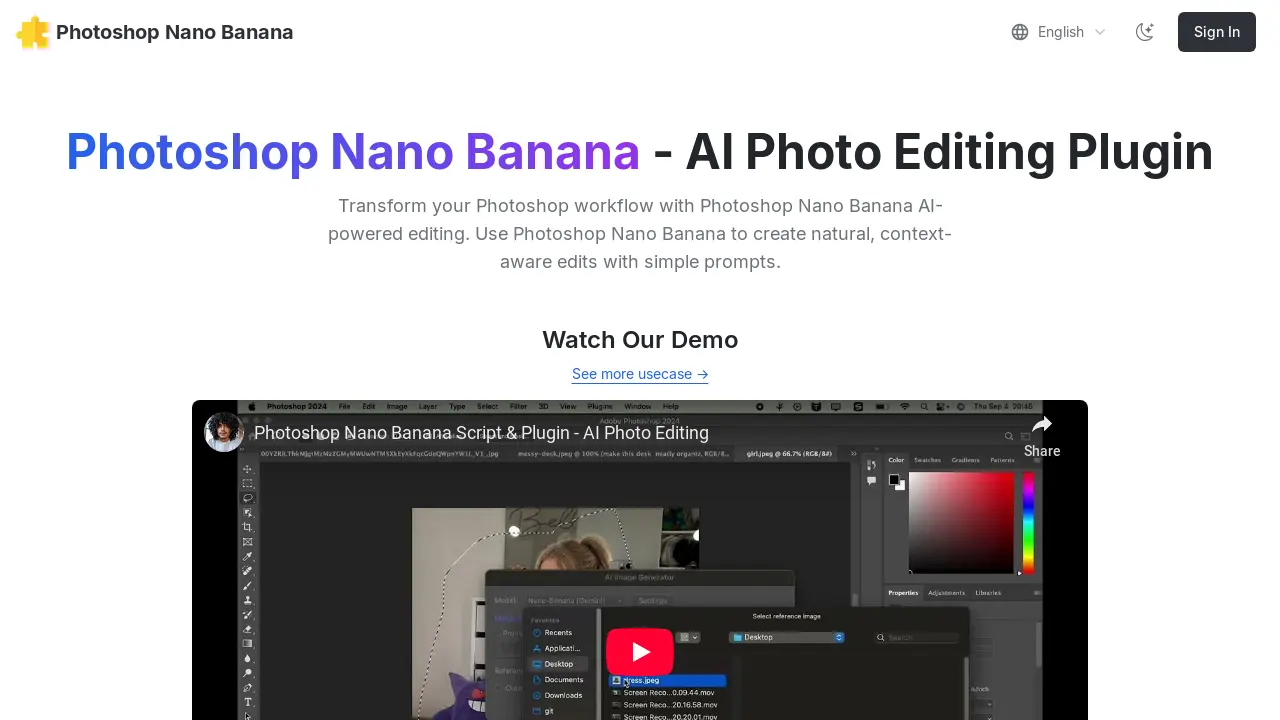
FAQs of Photoshop Nano Banana
What is Photoshop Nano Banana?
Photoshop Nano Banana is an AI-powered plugin designed to enhance the Photoshop workflow by enabling natural, context-aware image edits through simple text prompts. This AI photo editing plugin integrates seamlessly into Photoshop, transforming your editing capabilities with artificial intelligence.
How does Photoshop Nano Banana work?
Photoshop Nano Banana leverages AI to perform edits. Users make a selection in Photoshop, enter a descriptive prompt, and the plugin generates a new layer with the AI-powered edit, matching existing lighting, shadows, and materials for a natural result. This AI photo editing plugin streamlines image manipulation.
What are the system requirements for Photoshop Nano Banana?
Photoshop Nano Banana is compatible with Windows 10 and 11, and macOS. Users need an Adobe Photoshop installation. During operation on Windows, console windows may appear, which is normal and safe behavior for the Photoshop plugin.
How do I install Photoshop Nano Banana?
To install Photoshop Nano Banana, first download the .jsxbin plugin file. Then, copy this file into your Photoshop Scripts folder (e.g., C:\Program Files\Adobe\Adobe Photoshop [version]\Presets\Scripts\ on Windows or /Applications/Adobe Photoshop [version]/Presets/Scripts/ on macOS). After copying, restart Photoshop for the script to appear under File → Scripts.
Does Photoshop Nano Banana require an external account or service?
Yes, Photoshop Nano Banana integrates with Replicate, an external service, to power its AI capabilities. Users need to create a Replicate account, add credit (minimum $10 recommended), and generate an API token, which is then entered into the Photoshop Nano Banana plugin settings for functionality.
What is the cost associated with using Photoshop Nano Banana?
The Photoshop Nano Banana plugin has a purchase price, currently $8 during a limited-time offer, returning to $19.9 afterward. Additionally, there are per-image generation costs through the Replicate service, estimated at approximately $0.039 per image for Photoshop Nano Banana, plus costs for other models if used.
What are some common use cases for Photoshop Nano Banana?
Photoshop Nano Banana can be used for various AI-powered image manipulations, including overlaying images, removing backgrounds, and placing logos on objects like T-shirts. Its ability to create natural edits based on text prompts makes it versatile for many editing scenarios within Photoshop.
What should I do if I encounter API request failures on Windows?
If you experience API request failures on Windows with Photoshop Nano Banana, it is often related to Windows security settings. Users should check their firewall settings or attempt to run Photoshop with administrative privileges. If issues persist, contacting support for assistance or a refund is recommended.
How to use Photoshop Nano Banana
Photoshop Nano Banana is an AI photo editing plugin designed to integrate advanced AI capabilities into Photoshop, enabling context-aware edits through natural language prompts. This tool aims to streamline image manipulation, offering features like background removal, object placement, and scene transformation.
- Access Replicate and sign in via GitHub to create your account, which is essential for the AI processing.
- Navigate to your Replicate account settings and add at least $10 in credit for plugin usage.
- Disable auto-reload in Replicate billing settings to manage credit usage and prevent unwanted charges.
- Generate a new API token within Replicate's API tokens section and copy it for later use in Photoshop.
- Download the Photoshop Nano Banana
.jsxbinplugin file from the provided link. - Copy the downloaded file into your Adobe Photoshop Scripts folder, located in
Presets/Scriptswithin your Photoshop installation directory. - Restart Adobe Photoshop to ensure the Nano Banana plugin appears correctly under the
File > Scriptsmenu. - Open any document in Photoshop, then launch the plugin by navigating to
File > Scripts > Nano-Banana-Image-Edit_v1_0. - During the initial launch, paste your copied Replicate API token into the plugin's settings panel.
- Utilize any Photoshop selection tool to define the specific area of your image intended for AI editing.
- Re-open the Photoshop Nano Banana plugin via
File > Scripts > Nano-Banana-Image-Edit_v1_0. - Input a concise and descriptive prompt detailing the desired AI-powered edit or generation.
- Select "Photoshop Nano Banana" as your preferred model within the plugin interface.
- Click the "Generate" button; the AI-edited result will appear as a new layer within your Photoshop document.
