
NanoPhoto.AI FAQs
NanoPhoto.AI offers an AI-powered online background remover for product photos, portraits, and creative assets. Upload and get a transparent PNG in seconds.

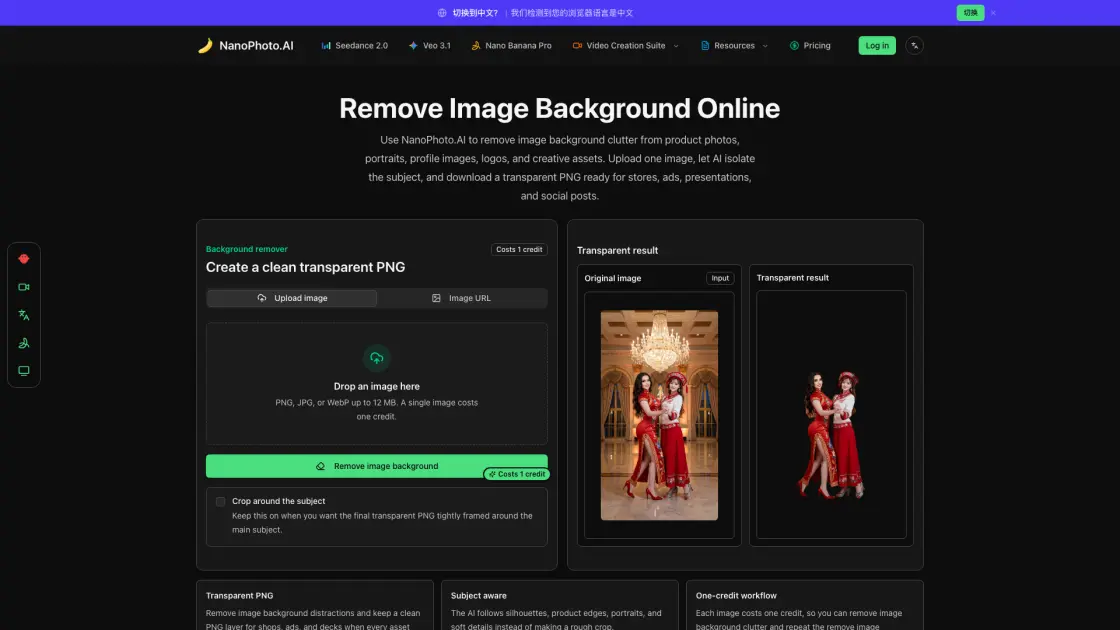
FAQs of NanoPhoto.AI
How does NanoPhoto.AI remove image background areas?
NanoPhoto.AI sends your image to the fal.ai rembg model through a secure server-side route. The model identifies the subject, separates it from the background, and returns a transparent PNG. The user's FAL_API_KEY stays on the server and is never exposed in the browser.
How many credits does it cost to remove image background from one image?
One image costs one credit. The credit is pre-deducted before processing to prevent concurrent abuse. If the removal request fails, NanoPhoto.AI automatically refunds the credit so the user does not pay for incomplete work.
Which image types work best for background removal?
PNG, JPG, and WebP files produce good results when the subject is clearly visible and not extremely blurred. Product photos, portraits, logos, and objects with enough contrast between the subject and background typically yield the cleanest output.
Can I remove image background from a hosted image URL?
Yes. Users can paste a public HTTPS image URL instead of uploading a file. This is useful when the image already lives on a CDN or storage bucket. Private URLs, expired links, and hosts that block automated access may fail, so uploading is usually a safer option.
What does the crop around subject option do?
The crop option trims empty transparent space around the detected object. It is useful when preparing compact product cutouts, stickers, avatars, or catalog assets. Disabling it preserves the original canvas dimensions, which is helpful when the background needs to be replaced with a specific size.
How to use NanoPhoto.AI
- Upload an image or paste a URL: Drag a PNG, JPG, or WebP file onto the upload area, or paste a public HTTPS image URL. Files up to 12 MB are accepted.
- Choose crop preference: Toggle the crop option on if you want the final PNG tightly framed around the subject. Leave it off to preserve the original canvas dimensions.
- Start the removal: Click the remove background button. One credit is deducted, and the AI processes the image on the server side.
- Download the result: When the transparent PNG is ready, download it and use it in product galleries, thumbnails, social posts, or other design workflows.
