
NanoBiBi FAQs
NanoBiBi is an AI batch image editor that removes backgrounds, upsizes product photos for e‑commerce sellers and creators, saving time with pipelines.

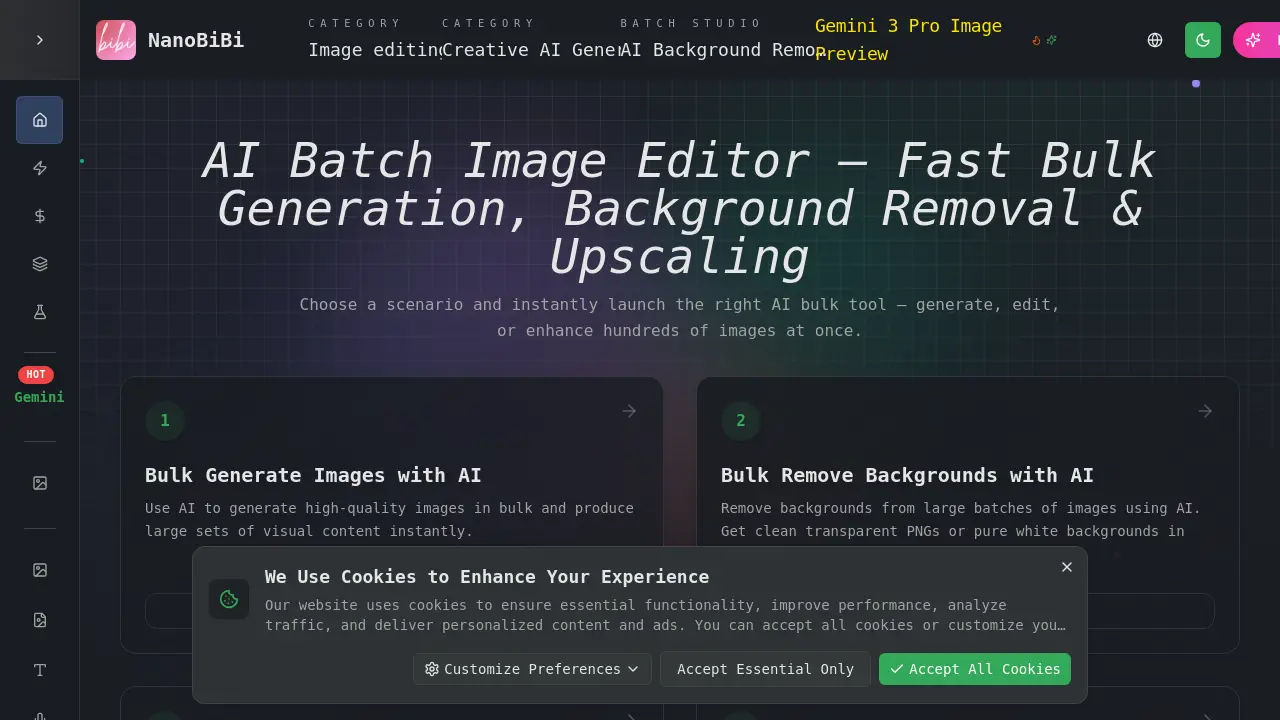
FAQs of NanoBiBi
What is NanoBiBi?
NanoBiBi is an all‑in‑one AI creation platform that offers text‑to‑image generation, image editing, background removal, and bulk processing workflows. It enables individuals and businesses to produce high‑quality visual content with minimal technical skill.
Which AI tools are available on NanoBiBi?
The platform bundles several AI models: Gemini‑based image generators for artistic and realistic outputs, automated background remover, upscaler, recolor, style‑transfer, and object‑replacement tools. Users can launch these tools via web UI or scripted API endpoints.
How do I get started with NanoBiBi?
Begin by creating an account on the NanoBiBi website. Once logged in, navigate to the “Maker” section to access the prompt editor, or visit “Bulk” for batch tasks. No prior coding experience is required.
What pricing plans does NanoBiBi offer?
NanoBiBi provides a free tier with limited usage quotas and paid plans that scale by credit packs. Each plan grants a specific number of image generations, background removals, or upscale operations per month. Detailed pricing can be viewed in the “Pricing” page.
How do I set up a bulk AI workflow?
In the “Bulk” section, choose one of the pre‑built pipelines—such as “Remove Background”, “Upscale”, or “Style Guide”. Upload your images, configure parameters, and launch the job to process entire folders automatically.
How is my upload data protected during processing?
All uploads are encrypted in transit (HTTPS) and stored in secure data centers with GDPR‑compliant controls. Files are automatically deleted from the server after the job completes, and no AI model can access user‑specific visual content beyond the immediate job.
Is there an API for integrating NanoBiBi into my software?
Yes, NanoBiBi offers a RESTful API that exposes model endpoints for generation, editing, and batch processing. Developers can request an API key via the account dashboard and integrate it into web or mobile applications.
Which languages and platforms are supported by the NanoBiBi UI?
The web interface is fully responsive and available in multiple languages, including English, Spanish, French, German, and Chinese. It supports all major browsers (Chrome, Firefox, Safari) and mobile browsers with touch‑friendly prompts.
How can I export processed images in different formats?
During batch job configuration, choose the desired output format (PNG, JPEG, WebP, GIF, or TIFF). Size, resolution, and color‑profile options can also be set, allowing direct export to cloud storage or local download.
What makes NanoBiBi’s background removal more accurate than typical tools?
NanoBiBi uses a deep‑segmentation model trained on thousands of annotated datasets, achieving near‑pixel‑perfect masks. It handles complex edges, small details, and transparent overlays out of the box, delivering clean transparent or solid‑color backgrounds.
How to use NanoBiBi
- NanoBiBi is an AI creation platform offering text‑to‑image, image‑to‑image, and bulk AI editing tools, enabling creators to generate and transform visuals quickly.
- After visiting https://nanobibi.com/, users must log in or sign up, then navigate to the “Maker” tab to access core generative functions.
- Select a tool (e.g., Text to Image), enter a concise prompt, choose desired image size, then click “Generate” to launch the AI model.
- For bulk editing, open the “Bulk” menu, pick a pipeline such as Background Removal or Upscale, upload image sets, and configure batch parameters before execution.
- Examine the generated image preview; assess color fidelity, resolution, and prompt adherence, then export in preferred formats (PNG, JPG, HD) for downstream use.
- Apply results by embedding images in presentations, augmenting web content, or refining them with further AI edits to align with branding or project objectives.
