
HideGen FAQs
HideGen is an AI video platform enabling creators and marketers to generate videos and images from text, photos or source clips, streamlining production of branded, social and storytelling assets.

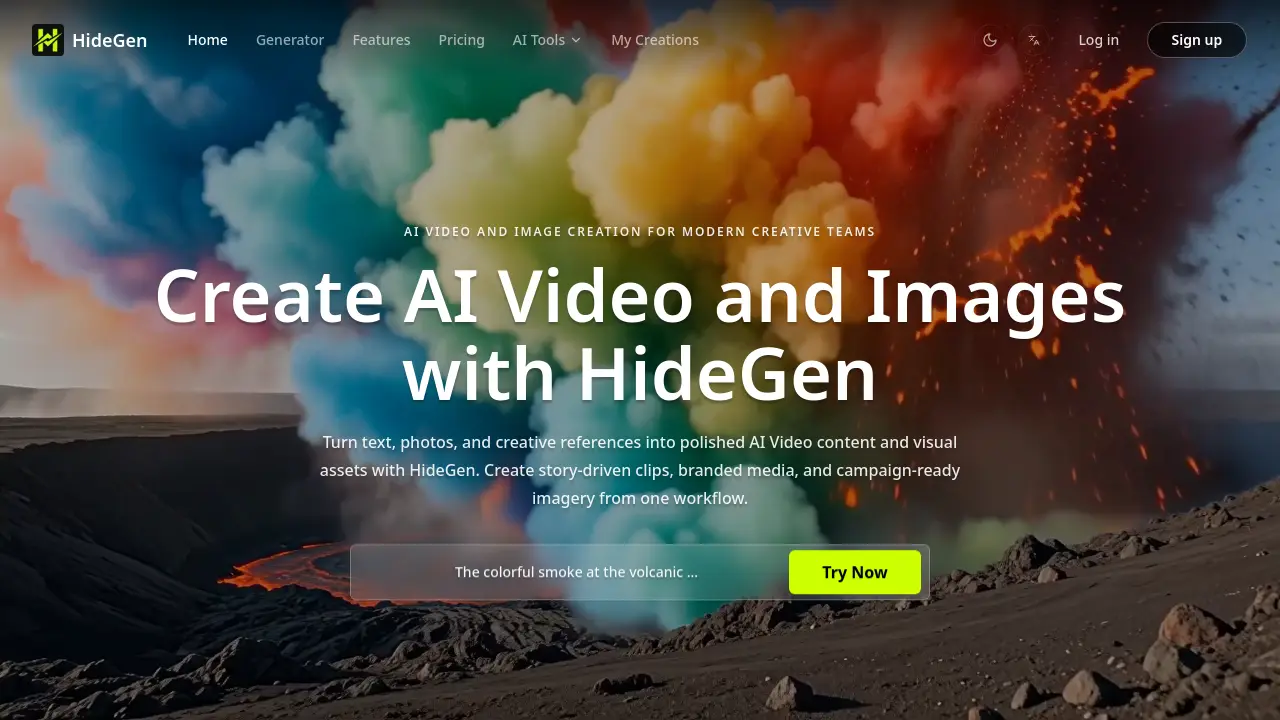
FAQs of HideGen
What is HideGen?
HideGen is an AI‑powered platform that generates videos and images from text prompts, uploaded media, and reference files. It consolidates text‑to‑video, image‑to‑video, video‑to‑video, and image editing tools into a single workflow, targeting creators, marketers, and production teams that need fast, consistent visual output.
How do I generate a video from text in HideGen?
To create a video from text, select the Text to Video tool, enter a detailed prompt describing the scene, style, lighting, and mood, choose the desired video size and duration, optionally add background audio, and click Generate. The system processes the prompt using the selected AI model and returns a short video clip that can be downloaded or further refined.
How do references improve results?
References such as images or short video clips guide the AI model toward specific visual characteristics, including color palette, composition, motion style, and character appearance. By uploading a reference, users can achieve more predictable outcomes, maintain brand consistency across iterations, and reduce the need for extensive post‑production adjustments.
Can HideGen create multi‑scene videos?
Yes, HideGen supports multi‑shot generation. Users can enable the Multi‑Shot option, provide a sequence of prompts or a structured script, and the platform will stitch together several connected scenes. This feature is useful for ads, product storytelling, or any content that requires a narrative flow across multiple visual segments.
What output formats and layouts are available?
HideGen currently offers 1280×720 (16:9) video resolution as the default output, with the ability to select other aspect ratios in future updates. Generated videos are exported in standard MP4 format, compatible with most social media platforms, web pages, and presentation software. Users can also export still images generated during the workflow in PNG or JPEG formats.
How does HideGen handle audio for generated videos?
Audio can be added in two ways: by uploading a custom background audio file or by describing the desired soundscape directly in the text prompt. The platform’s “Prompted Sound Intent” interprets keywords related to ambience, dialogue energy, or musical mood, and blends appropriate synthetic audio with the visual content.
Is there a credit or subscription system for using HideGen?
HideGen operates on a credit‑based model where each generation consumes a specific number of credits, displayed in the user dashboard. Credits can be purchased individually or through subscription plans that provide a monthly allotment at discounted rates. Unused credits typically roll over within the billing cycle, depending on the chosen plan.
What types of creative styles can HideGen produce?
The platform supports a wide range of visual styles, including photorealistic renders, anime, 3D‑styled scenes, branded product visuals, and concept‑driven art. Users influence style through prompt descriptors or by providing reference media that embody the desired aesthetic, enabling flexible experimentation without switching tools.
How can I ensure brand consistency across multiple videos?
Brand consistency is achieved by reusing the same reference assets (logos, color palettes, typography) and maintaining uniform prompt structures for each video. HideGen’s reference‑led control and scene‑based building allow creators to apply a consistent visual language across all assets, reducing variation and streamlining approval processes.
How to use HideGen
- HideGen serves as an AI video and image generation platform, converting text prompts, photos, or reference clips into polished, campaign‑ready video and visual assets.
- Begin by selecting a generation mode (e.g., Text to Video, Image to Video) on the dashboard, then enter a detailed prompt describing scene, style, lighting, and mood.
- If higher visual fidelity is required, upload reference images or video snippets; the system uses these inputs to guide composition, motion, and color palette.
- Choose output specifications such as resolution (e.g., 1280×720), duration, and single‑shot or multi‑shot mode, then optionally attach background audio or a voice‑over file.
- Click Generate; HideGen processes the request, displaying a progress bar and, once complete, a preview thumbnail of the AI‑created video.
- Review the generated clip within the interface; compare it against the original prompt and reference materials to assess alignment with creative intent.
- Use the built‑in tools to iterate: adjust prompt phrasing, swap references, or modify settings, then re‑run generation to refine visual quality or pacing.
- When satisfied, download the final video in the chosen format or export it directly to your content management system for immediate deployment.
- Analyze performance metrics provided by HideGen—such as generation speed, credit consumption, and version history—to optimize future workflows and budget allocation.
- Apply insights from the output review to inform broader marketing or storytelling strategies, ensuring AI‑generated assets maintain brand consistency across campaigns.