
Happy Horse Video Generator FAQs
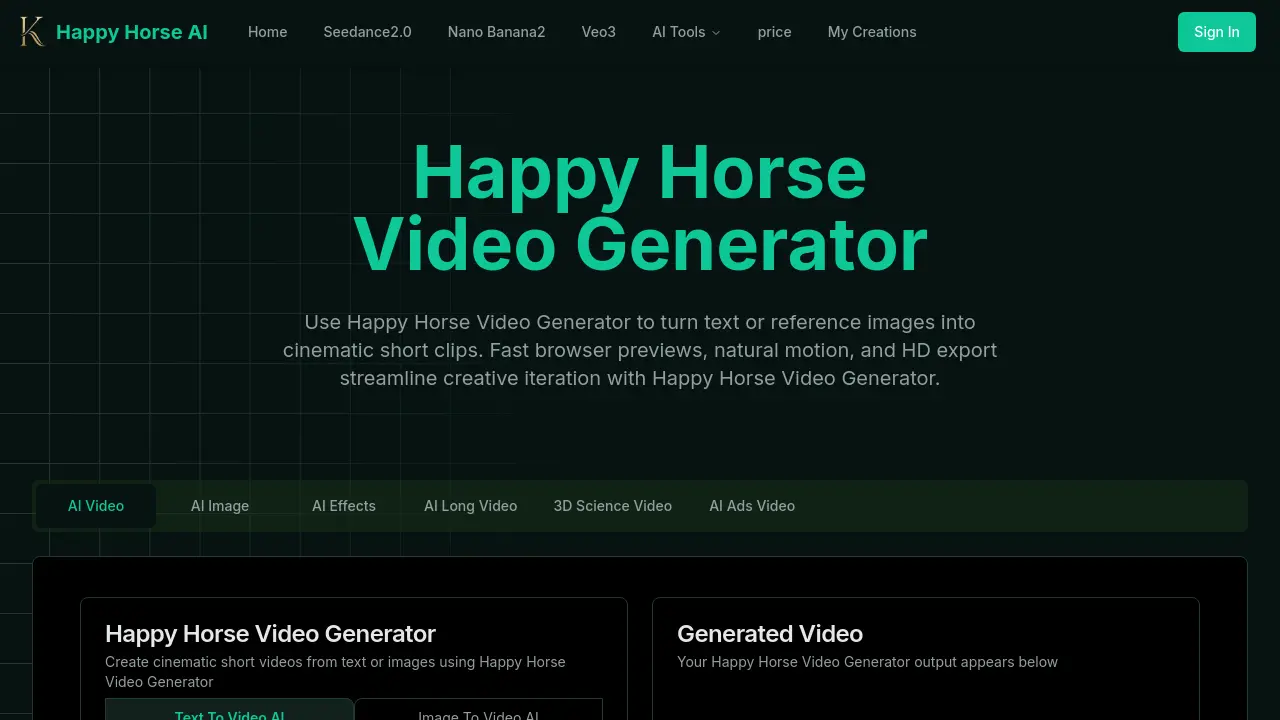
Happy Horse Video Generator is an AI video generator for creators and marketers, turning text prompts or reference images into cinematic clips with natural motion, fast browser previews, and HD export for rapid content production.

FAQs of Happy Horse Video Generator
What is the Happy Horse Video Generator and how does it function?
Happy Horse Video Generator is an AI‑powered tool that transforms short text prompts or reference images into cinematic video clips. It automatically plans scene composition, generates natural camera motion, and renders the result in the browser, delivering fast previews and HD‑ready exports for creative projects.
What types of videos can I create?
Users can produce a variety of short‑form content, including marketing promos, social‑media reels, explanatory animations, concept trailers, and image‑to‑video animations. The platform’s flexible style presets let creators achieve photorealistic, stylized, or editorial looks without additional software.
How long does it take to process videos?
Preview clips are typically generated within a few minutes, depending on the chosen duration, resolution, and any additional effects. Full‑resolution HD exports may require extra processing time, but the credit‑based workflow is designed to keep turnaround fast for iterative work.
Can I download the videos I create?
Yes. After a preview is approved, users can download the final video in HD formats such as 720p or 1080p. Paid subscription tiers provide higher‑resolution options and commercial‑use licensing, while free accounts may be limited to lower‑resolution outputs.
Do I own the content I generate?
Content ownership depends on the selected plan. Generally, users retain rights to the generated video for personal, educational, or commercial use, subject to Happy Horse’s terms of service. Review the licensing agreement in the pricing section to confirm specific usage rights.
What video quality options are available?
Happy Horse Video Generator supports common resolutions including 480p, 720p, and 1080p. Users can select a preset that balances speed and visual fidelity, and higher‑resolution downloads are accessible through premium plans that include extended credit allocations.
How does the “Camera Motion Type” setting affect the final video?
The Camera Motion Type option lets users choose preset motion patterns—such as slow handheld push‑in, smooth drone flyby, or Steadicam dolly—or let the AI generate motion automatically. Selecting a specific type guides the underlying motion‑aware pipeline, ensuring consistent framing and realistic camera dynamics throughout the clip.
Is it possible to animate a still image with Happy Horse Video Generator?
Yes. By uploading a reference image, the platform applies its motion‑aware algorithms to create natural subject follow and dynamic background movement. This image‑to‑video feature is useful for product showcases, portrait animations, and turning artwork into short motion pieces.
What kind of creative control do I have over pacing and style?
Users can adjust pacing, camera drift, and overall style through intuitive sliders and dropdown menus. Options include photorealistic, stylized, or editorial looks, as well as fine‑tuning of scene timing to match music, narration, or specific storytelling beats.
How to use Happy Horse Video Generator
- Happy Horse Video Generator converts text prompts or reference images into short cinematic clips, offering natural camera motion, fast browser previews, and HD export for rapid creative iteration.
- Open the web interface, sign in, and select either “Text‑to‑Video” or “Image‑to‑Video” mode; the appropriate input fields appear automatically.
- Enter a concise description in the prompt box or upload a reference image; optional AI‑generated prompt can be activated for richer detail.
- Choose camera motion type, aspect ratio, and duration from the preset menus; these settings control framing, pacing, and output size.
- Click “Create with Happy Horse Video Generator”; the system processes the request, generating a low‑resolution preview within minutes.
- Review the preview directly in the browser; assess subject follow, motion smoothness, and overall cinematic quality against project goals.
- If adjustments are needed, modify the prompt, motion type, or timing, then regenerate the preview to refine the result.
- Once satisfied, select the HD export option, confirm resolution (480p‑1080p), and download the final video file for distribution or further editing.
- Store the downloaded clip in the “My Creations” library; use the platform’s sharing link to collaborate with teammates or clients.
- Analyze exported metrics such as playback smoothness and frame consistency to ensure the video meets promotional or storytelling objectives.