
Happy Horse AI FAQs
Happy Horse AI, an AI video generator for creators, combines text, images, clips and audio to produce lifelike, multi-shot videos with native sound, realistic motion and consistent characters.

FAQs of Happy Horse AI
What input formats does Happy Horse AI accept?
Happy Horse AI accepts multiple input formats including PNG, JPG, JPEG, and WebP for images, as well as MP4 and MOV for video clips. For audio, Happy Horse AI supports MP3 and WAV file formats. Users can combine up to 9 images, 3 video clips (maximum 15 seconds each), and 3 audio tracks (maximum 15 seconds each) in a single generation.
How does Happy Horse AI generate native audio?
Happy Horse AI generates audio simultaneously with video in a single generation pass. The platform produces contextually appropriate sound effects, background music with cinematic depth, and even dialogue with accurate lip-sync. Users can also upload their own audio tracks to synchronize video actions to specific beats or rhythms.
What aspect ratios and resolutions are supported by Happy Horse AI?
Happy Horse AI supports various aspect ratios including Auto, 16:9, 9:16, 4:3, 3:4, 21:9, and 1:1. The platform generates videos in 480p and 720p resolutions, providing sharp quality suitable for both professional production and social media delivery.
How does Happy Horse AI maintain character consistency across frames?
Happy Horse AI uses advanced diffusion architecture that locks onto facial features, clothing details, on-screen text, and scene aesthetics throughout every frame. This technology eliminates common AI video artifacts such as character drift, style shifts, and detail degradation between shots, ensuring rock-solid consistency.
Are there watermarks on videos generated by Happy Horse AI?
No, videos generated by Happy Horse AI are completely watermark-free. The platform provides clean, professional outputs without any branding overlays, allowing users to download and use their creations anywhere for any purpose, whether personal or commercial.
How to use Happy Horse AI
- Navigate to the Happy Horse AI website and click "Sign In" to access your account.
- Once logged in, click "Get Started" to begin creating your first video.
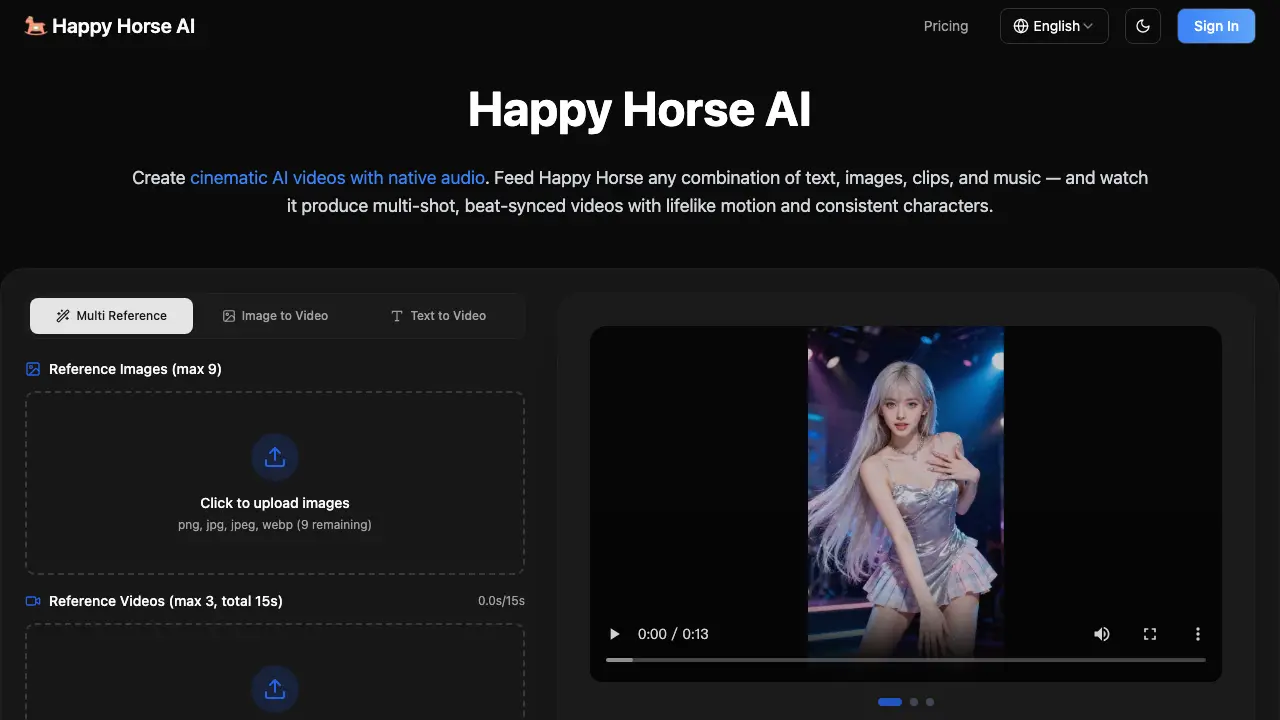
- Upload reference images (up to 9), videos (up to 3, 15 seconds total), and audio files (up to 3, 15 seconds total) by dragging and dropping or clicking to select files.
- In the "Prompt" field, type a description of your desired video output. Use "@" followed by the reference name (e.g., "@Image1") to specify elements like opening frames or character appearance.
- Select your preferred resolution (480p or 720p), duration (up to 5 seconds), and aspect ratio (multiple options available).
- Click "Generate" to process your inputs. Happy Horse will synthesize the assets into a cohesive, multi-shot video with native audio, synced to your prompt.
- Review the generated video. If needed, use the extension or editing features to refine segments or add more content before exporting the final result without watermarks.