
Happy Horse AI FAQs
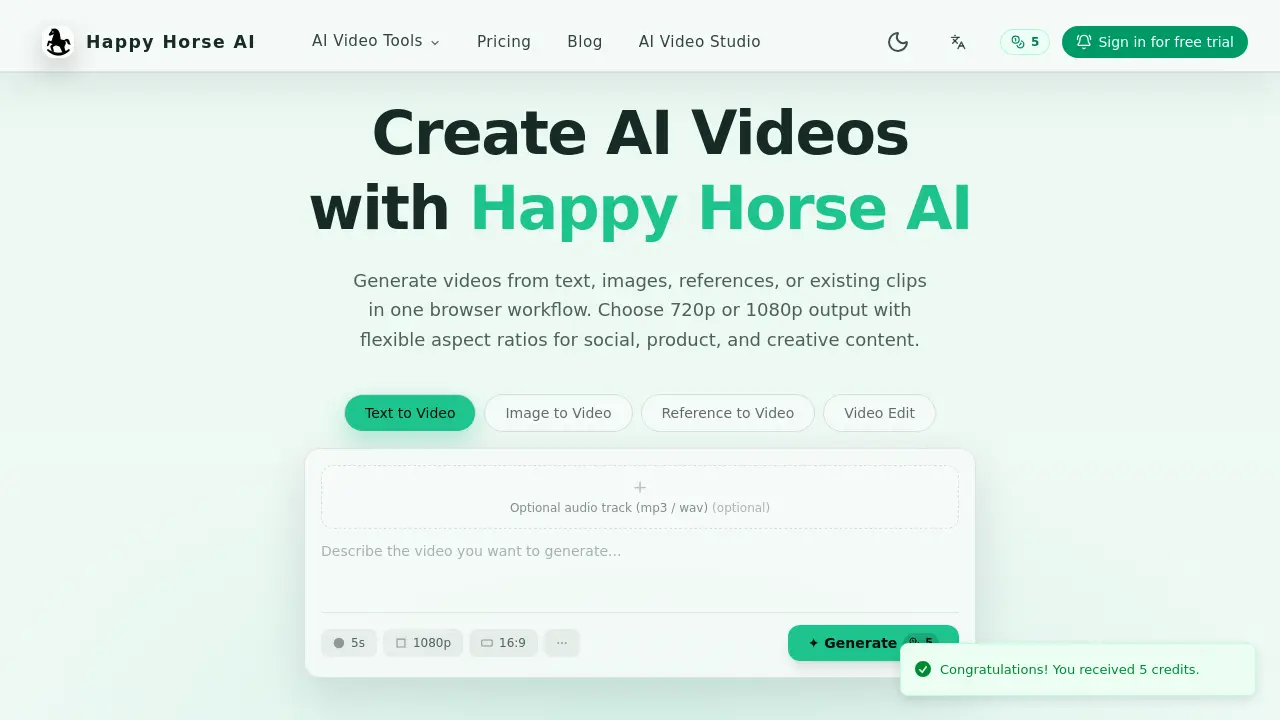
Happy Horse AI is an online AI video generator for creators, offering text‑to‑video, image‑to‑video, reference‑guided and video‑edit workflows with 720p/1080p output and flexible aspect ratios.

FAQs of Happy Horse AI
What is Happy Horse AI and how does it work?
Happy Horse AI is a browser‑based platform that generates short videos using artificial intelligence. Users provide text prompts, images, reference clips, or existing video footage, and the system synthesizes visual content with optional audio tracks. The workflow runs entirely online, allowing creators to move from idea to export without installing additional software.
Which workflows are available on the homepage?
The homepage showcases four distinct AI video workflows: Text‑to‑Video, Image‑to‑Video, Reference‑to‑Video, and Video Edit. Each workflow presents dedicated controls tailored to its input type, such as duration sliders for text prompts, first‑ and last‑frame selectors for image animation, and reference asset upload options for style guidance.
What resolutions and aspect ratios are supported?
Happy Horse AI supports output resolutions of 720p and 1080p. Aspect ratios are flexible and include 16:9, 9:16, 1:1, 4:3, and 3:4, enabling creators to produce content optimized for platforms ranging from YouTube to Instagram Stories.
Can I upload reference images, videos, or voice?
Yes. In the Reference‑to‑Video workflow, users may upload reference images, full‑length videos, or voice recordings. These assets guide the AI’s style, motion, and subject direction, allowing more precise control over the generated clip’s appearance and narrative flow.
What can I change in the video edit workflow?
The Video Edit workflow lets users upload an existing clip and apply AI‑driven modifications such as scene alterations, visual effects, or re‑timing. Users can also choose to retain the original audio track or replace it with AI‑generated audio in MP3 or WAV format.
How does pricing work?
Happy Horse AI uses a credit‑based pricing model. Each generation or edit consumes a specific number of credits, which are purchased in tiered plans. Higher‑tier plans provide more credits, faster processing, and additional features like saved generations and team collaboration.
How do I start a free trial?
Visitors can click the “Sign in for free trial” button on the landing page, create an account, and receive an initial allocation of five credits. These credits allow users to test any of the four workflows before committing to a paid plan.
Is there a limit to video length?
The platform is optimized for short‑form content; typical outputs range from a few seconds up to one minute. Specific length limits depend on the selected resolution and aspect ratio, with longer durations requiring more credits.
What audio formats are accepted for optional tracks?
Happy Horse AI accepts MP3 and WAV files as optional audio inputs. Users can upload a track during generation or editing, and the system will synchronize it with the visual output, respecting the chosen duration and aspect ratio.
Where can I find technical support if I encounter issues?
Technical assistance is provided via email at support@happyhorse-ai.app. The support team responds to inquiries about workflow usage, credit management, and any platform‑related problems, ensuring users receive timely help to continue their projects.
How to use Happy Horse AI
Identify Happy Horse AI’s purpose: a browser‑based platform that converts text, images, references, or existing clips into short videos, offering 720p/1080p output and flexible aspect ratios.
Choose the appropriate workflow—Text‑to‑Video, Image‑to‑Video, Reference‑to‑Video, or Video Edit—by clicking its tab, ensuring the interface matches the project’s needs.
Provide input sources: enter a text prompt, upload an image, attach reference media, or import an existing clip; optional audio files can be added in MP3 or WAV format.
Adjust workflow‑specific settings such as video duration, resolution, aspect ratio, first/last frames, or reference style controls to tailor the generation parameters.
Press the Generate button; the system processes the request using AI models and displays a preview once rendering completes, allowing quick quality checks.
Review the generated preview, export the final video in the selected resolution, and apply insights from the preview to refine prompts or settings for future iterations.
