
AIPhotoPrompt.me FAQs
This AI photo prompt generator converts any image into detailed AI prompts for Gemini, Midjourney, and Stable Diffusion, featuring style transfer and direct image editing.

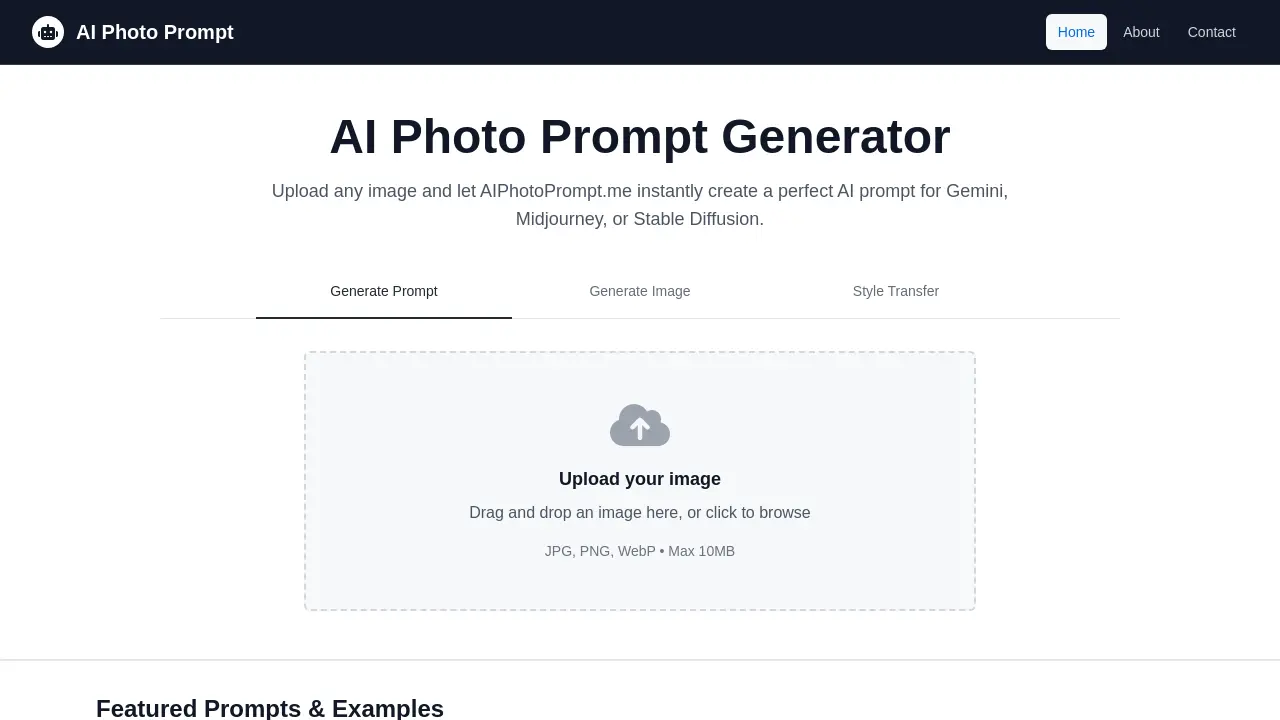
FAQs of AIPhotoPrompt.me
What is AIPhotoPrompt.me?
AIPhotoPrompt.me is an online AI photo prompt editor and generator tool that allows users to upload images and instantly create detailed AI prompts for various AI image generators such as Gemini, Midjourney, or Stable Diffusion. It also features image generation, style transfer, and direct editing capabilities.
How does the AI photo prompt generator work?
Users can upload any image to AIPhotoPrompt.me. The AI then analyzes the image content and generates a descriptive AI photo prompt, which can be copied and used with popular AI art platforms. This facilitates recreating similar styles or content.
What are the main features of AIPhotoPrompt.me?
AIPhotoPrompt.me offers three primary features: Generate AI Prompt, which extracts detailed prompts from uploaded images; Style Transfer, which applies the artistic style from a reference image to a target image; and Direct Edit Mode, allowing image transformation solely through text descriptions without a reference. These tools enhance creative workflows for users seeking an AI photo prompt editor.
Can AIPhotoPrompt.me generate images directly?
Yes, AIPhotoPrompt.me can generate images directly. Users can describe the desired image using specific details like art style, mood, lighting, and quality tags, and the platform will generate the corresponding AI art. This functionality is part of its comprehensive AI photo prompt generator tools.
What is the Style Transfer feature?
The Style Transfer feature allows users to combine the artistic characteristics of one image (the style reference) with the content and composition of another image (the target image). This advanced capability enables precise blending of aesthetics, offering customizable prompts for refined results in AI photo creation.
How does Direct Edit Mode function?
Direct Edit Mode enables users to transform images using only text prompts, eliminating the need for a reference image. Users describe their creative vision, and the AI processes the image based on the textual input, offering unlimited creative possibilities for editing and transforming images.
Is AIPhotoPrompt.me concerned with user privacy?
Yes, AIPhotoPrompt.me prioritizes user privacy. All uploaded images are processed temporarily, and the platform adheres to a strict zero data retention policy. This ensures that user content remains private and is not stored after processing.
How to use AIPhotoPrompt.me
AIPhotoPrompt.me serves as an AI photo prompt editor and generator, enabling users to transform images and generate creative AI prompts for various platforms. This free AI photo prompt generator facilitates detailed style analysis, text-to-style transformations, and style transfers to achieve specific artistic effects.
- To generate an AI photo prompt, navigate to the "Generate Prompt" tab and upload an image by dragging and dropping it or by clicking to browse.
- Once the image upload is complete, the AI Photo Prompt editor will analyze the image and display the generated prompt.
- Copy the generated prompt for use with AI image generators like Gemini, Midjourney, or Stable Diffusion, or use it as a style reference.
- To create AI art from imagination, select the "Generate Image" tab, then describe your desired image in the text field, including style, mood, and quality descriptors.
- Initiate image generation by clicking the "Generate Image" button; the AI will process your description to produce a corresponding image.
- For style transfer, select the "Style Transfer" tab, then upload a "Style Reference" image followed by your "Target Image."
- Utilize the default style transfer prompt or customize it to add specific details before clicking "Transfer Style" to apply the artistic characteristics.
- To apply direct edits without a reference image, choose the "Direct Edit" mode and describe the desired transformation in the prompt field, then generate the image.
- Review the generated or transformed images in the "Generated Image" or "Transformed Result" sections, which can then be downloaded or re-analyzed.
- Explore "Featured Prompts & Examples" for inspiration, viewing full prompts and directly generating images or using them as style references.
