
Video to Text FAQs
This AI transcription tool converts video and audio files into text with speaker labels, timestamps, and support for 99 languages, ideal for subtitles, meetings, and content creation.

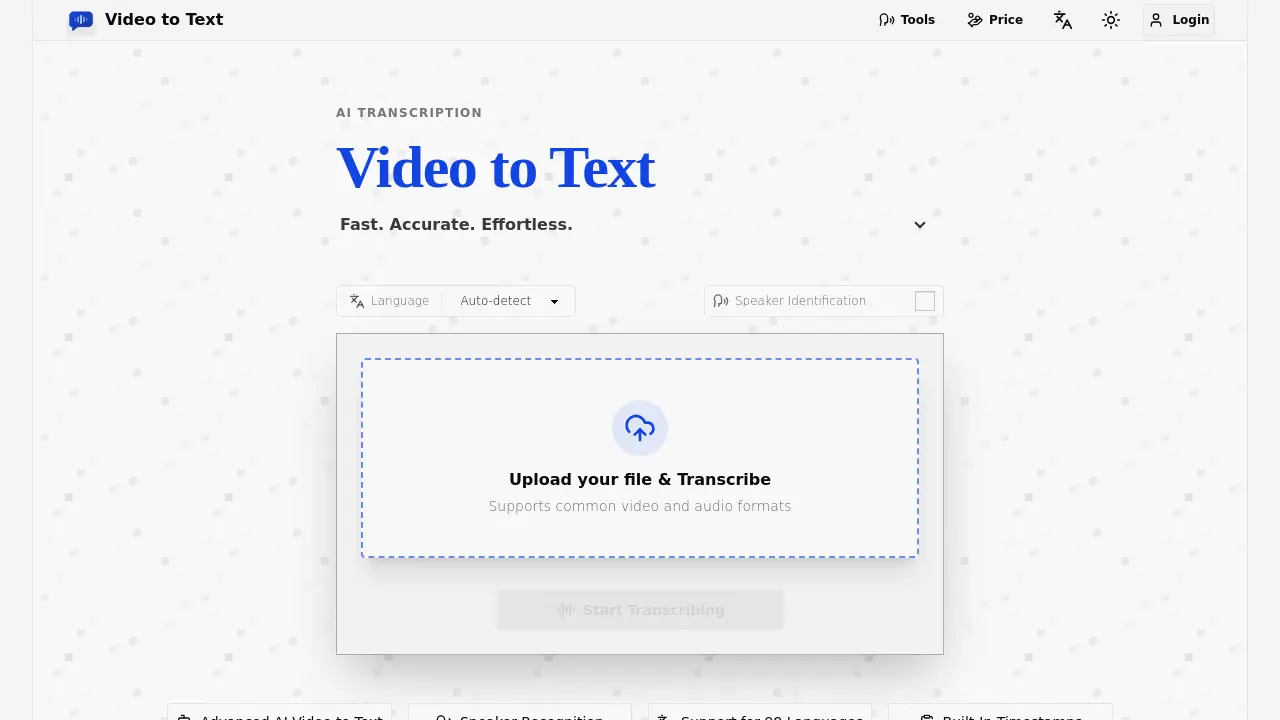
FAQs of Video to Text
What is Video to Text?
Video to Text is an AI transcription tool that converts video and audio files into text, subtitles, and timestamped transcripts. It supports 99 languages, speaker identification, and multiple export formats.
How accurate is the transcription?
Video to Text uses advanced AI to provide high-accuracy transcriptions. While accuracy can vary based on audio quality, accents, and background noise, the tool is designed to deliver reliable results for most content types.
What languages does Video to Text support?
Video to Text supports 99 languages, including English, Spanish, Portuguese, French, German, Italian, Chinese, and Japanese. It also offers automatic language detection and multi-language recognition for mixed-language recordings.
Can I transcribe videos with multiple speakers?
Yes, Video to Text includes speaker diarization, which identifies and labels different speakers in the transcript. This feature is ideal for interviews, meetings, and discussions.
What file formats are supported for upload?
Video to Text supports common video formats like MP4, MOV, MKV, WEBM, and M4V, as well as audio formats such as MP3, WAV, M4A, FLAC, OGG, AAC, and OPUS.
What export formats are available?
You can export your transcript as TXT, SRT, VTT, or CSV. These formats are compatible with text editors, subtitle tools, spreadsheets, and content management systems.
Is there a free trial available?
Yes, new users receive 30 free transcription minutes after signing up. This allows you to test the full workflow before purchasing additional minutes.
How much does Video to Text cost?
Video to Text offers pay-as-you-go pricing. Plans start at $9.9 for 200 minutes, $19.9 for 600 minutes, and $99 for 6000 minutes. Each plan includes 30 free minutes for new users.
How long does the transcription process take?
Transcription is typically very fast. A one-hour audio file can often be processed in under a minute, though final speed depends on file size, upload time, and network conditions.
What happens if there’s an error during transcription?
If an error occurs during file upload or transcription, your balance will not be deducted. Charges are only applied after the transcription is successfully completed.
Is there a file size limit?
Yes, each file can be up to 5 GB, with a maximum media length of 10 hours.
Can I use Video to Text for subtitles?
Yes, Video to Text is ideal for creating subtitles. It supports timestamped transcripts and exports in SRT and VTT formats, which are standard for subtitles.
Who can benefit from using Video to Text?
Video to Text is useful for content creators, educators, journalists, researchers, teams, and language learners. It helps create subtitles, searchable notes, study materials, and more.
How do I get started with Video to Text?
To get started, upload a video or audio file, let the AI transcribe it, and then export the result in your preferred format. The process is simple and straightforward.
How to use Video to Text
- Navigate to the Video to Text website and click the "Upload your file & Transcribe" button.
- Select your video or audio file from your device and upload it to the platform.
- Choose the appropriate language settings for your content, or let the tool auto-detect the language.
- Initiate the transcription process and wait for the AI to process your file.
- Once the transcription is complete, review the generated transcript for accuracy.
- Export the transcript in your preferred format, such as TXT, SRT, VTT, or CSV.
