
HappyHorse FAQs
HappyHorse is an AI video generator that turns prompts and reference images into polished short videos for marketing, storytelling, and content creation, offering text to video and image to video capabilities.

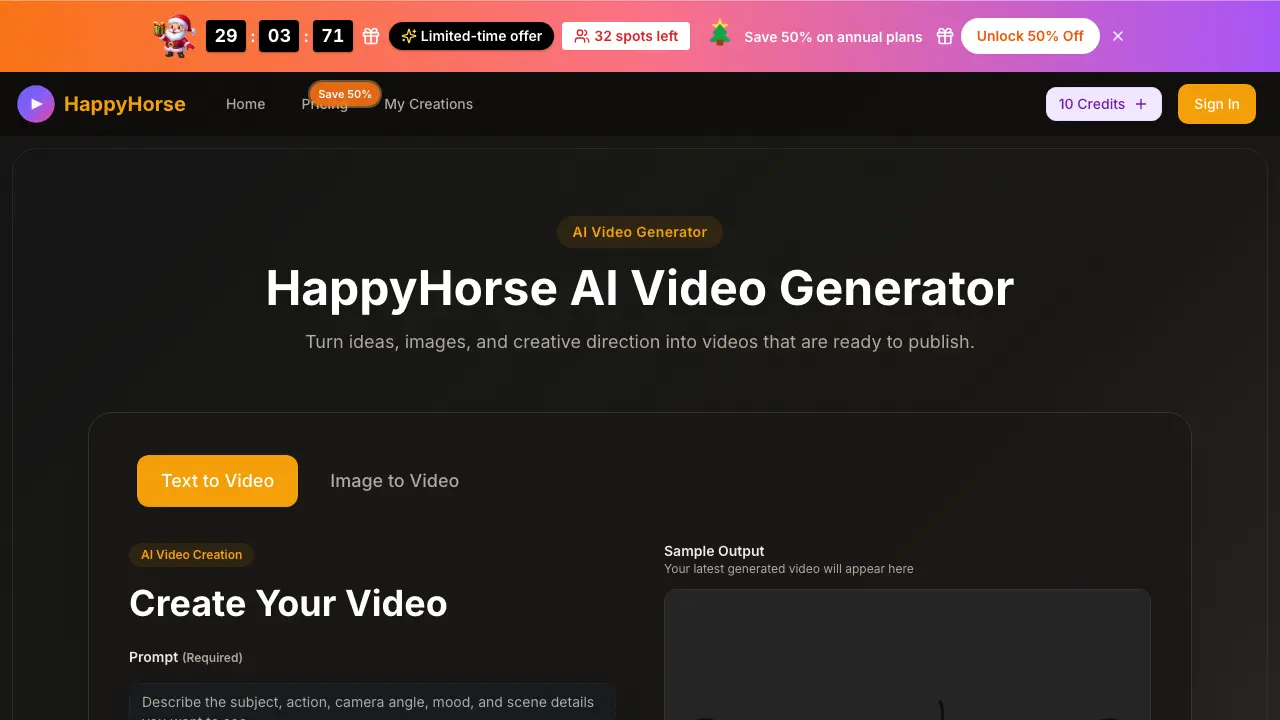
FAQs of HappyHorse
How do I start creating a video with HappyHorse?
To start creating a video with HappyHorse, describe the scene, action, and mood you want in the text prompt field (up to 800 characters), or upload an image if you already have a visual reference. Choose your preferred aspect ratio, video quality, and duration settings, then click "Start Generation" to render your first clip.
What video formats and qualities does HappyHorse support?
HappyHorse allows you to generate videos in multiple aspect ratios including 16:9, 9:16, 4:3, 3:4, 21:9, and 1:1. You can select either 720p HD or 1080p Full HD quality, with durations of 5 or 10 seconds per clip.
Can I use my own images to generate videos with HappyHorse?
Yes, HappyHorse offers an image-to-video feature. You can upload a still image and add motion direction text, and the platform will animate the scene while keeping the original visual as the starting reference.
What is the difference between text-to-video and image-to-video modes?
Text-to-video lets you generate an entirely new scene from a written prompt, offering more creative freedom. Image-to-video starts with an uploaded still image and adds motion while staying closer to the original composition, ideal when you already have specific product shots or visuals.
How to use HappyHorse
- Open the HappyHorse website and click on the "Sign In" button to create a new account or log into an existing one.
- Once logged in, select "Text to Video" or "Image to Video" depending on your source material for the AI video generation.
- If using text, input your prompt describing the scene, action, and mood. For images, upload the reference file to guide the video style.
- Choose the aspect ratio, video quality, and duration settings that suit your publishing platform and content needs.
- Review the settings preview and make adjustments to motion, pacing, and framing before initiating the generation process.
- After the video is generated, preview the output to ensure it matches your creative direction, then download the final clip.
- You can iterate by adjusting the prompt or settings to refine the result for higher-quality, conversion-focused content.
