
Youtube to PPT FAQs
GenPPT AI, powered by Gemini 3 Flash, converts YouTube videos to professional PPT slides by analyzing content and extracting key points with customization and multi-language support.

FAQs of Youtube to PPT
What YouTube URLs are supported?
The tool processes publicly available YouTube video URLs exclusively. Private, unlisted, or age-restricted videos are not supported due to access limitations. Ensure the video is set to public visibility before attempting to generate a presentation from its content.
How many slides can I generate?
Users can customize the slide count between 5 and 40 slides per presentation. This range allows adaptation to video length and content complexity, with the AI structuring key points into a coherent sequence within the selected limit.
How long does generation take?
Processing time depends on video duration and the chosen AI model. Typically, generation completes within a few minutes. The interface provides real-time progress updates, and the final PPTX file is available for instant download once processing finishes.
Can I edit the generated PPT?
Yes, the output is a standard PPTX file fully compatible with Microsoft PowerPoint and Google Slides. After downloading, you can modify all elements including text, layout, formatting, and design to suit specific presentation needs.
Does this work with private videos?
No, the service only functions with public YouTube videos. Private or unlisted videos cannot be accessed due to platform API restrictions and privacy policies, limiting usage to openly shared content.
How many credits does it cost?
Credit deduction varies based on your subscription plan, number of slides, and selected AI model. Specific credit pricing per generation is detailed on the pricing page, with costs applied each time a presentation is created.
What AI models are used?
The primary AI model is Gemini 3 Flash, which handles video content analysis and key point extraction. Users can also opt for Claude Opus 4.6 for enhanced language processing and slide structuring during the generation setup.
Can I add AI-generated images?
Yes, by enabling the "add illustrations" option during setup, the AI generates relevant images to complement slide content. Without this option, slides are produced with text-only formatting as specified in the customizable settings.
How to use Youtube to PPT
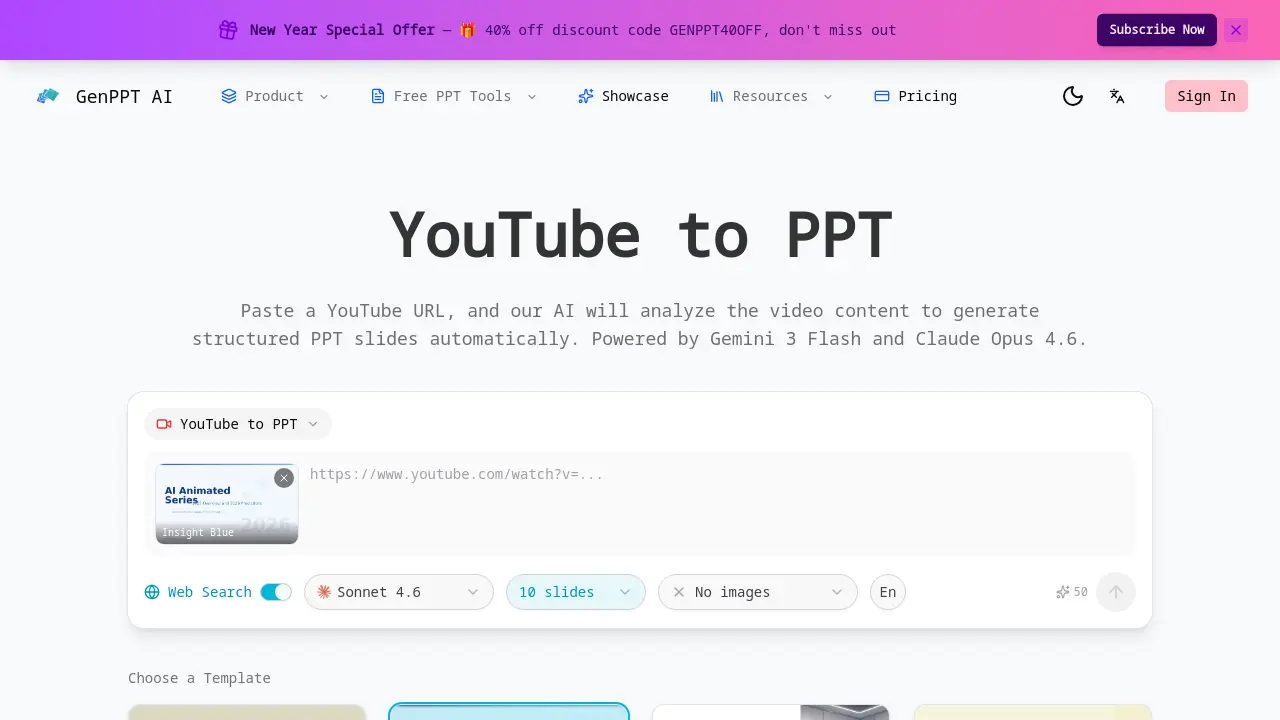
- The user begins by opening a web browser and navigating to the YouTube to PPT page at genppt.ai/youtube-to-ppt to access the conversion interface.
- A publicly accessible YouTube video URL is pasted into the designated input box; private or unlisted videos are not supported by the AI analyzer.
- From the template gallery, the user selects a design such as Insight Blue, Clarity Glass, or Sandstone Pro to define the slide aesthetics.
- In the settings panel, the user sets the desired number of slides (from 5 to 40), chooses one of 31 languages for output, and toggles web search for additional data if needed.
- The AI model selection is made: Gemini 3 Flash for quicker generation or Claude Opus 4.6 for more comprehensive video content analysis and detailed slide creation.
- To incorporate visual elements, the user enables the AI-generated images option, which adds illustrations to enhance the presentation's appeal and clarity.
- Upon clicking the generate button, the tool initiates the process, and a real-time preview shows each slide being built with structured titles and bullet points.
- After generation completes, the user examines the previewed slides to ensure key video insights are accurately extracted and logically organized for the intended audience.
- Using the built-in editor, the user can adjust slide text, reorder content, or modify bullet points directly in the preview interface before finalizing.
- The completed presentation is downloaded as an editable PPTX file, compatible with Microsoft PowerPoint and Google Slides for further editing or immediate use.
