
Excel to PPT FAQs
GenPPT's AI converts Excel spreadsheets to PowerPoint presentations with automated data visualization and fully editable slides.

FAQs of Excel to PPT
How does the Excel to PPT converter work?
The Excel to PPT converter uses artificial intelligence to process uploaded spreadsheet files. It automatically analyzes data tables, charts, and metrics, then structures this information into a coherent PowerPoint presentation with applied design templates. The process requires no manual data entry or formatting from the user.
What Excel formats are supported?
The tool accepts both .xls and .xlsx file formats, covering standard Excel workbooks from various software versions. Users can upload files with these extensions directly through the web interface. This ensures compatibility with most commonly used spreadsheet data.
Can I control the number of slides?
Slide generation is automated based on the content volume and structure within the Excel file. The AI determines an appropriate slide count to present the data clearly. However, users can freely add, remove, or reorganize slides after conversion using the editable PowerPoint output.
Is the Excel to PPT converter free?
Yes, the Excel to PPT conversion service is provided at no cost without requiring user registration or subscription. There are no hidden fees for converting individual files, though premium features or higher usage limits may be offered through paid plans.
Does it preserve my Excel data accurately?
The converter aims for high data fidelity by extracting numerical values, formulas, and chart data precisely. Visual formatting may be adapted for presentation purposes. Any minor discrepancies can be corrected manually in the fully editable PowerPoint file post-conversion.
What templates are available for Excel to PPT conversion?
Several professional design templates are offered, including Insight Blue, Clarity Glass, and Sandstone Pro. These templates provide consistent typography, color schemes, and layout structures. Users select a template before initiating the conversion to apply its style to the generated slides.
Is my Excel data secure during the conversion process?
Files are uploaded to secure servers with standard encryption during transmission and processing. The service does not retain user data permanently; uploaded files are typically deleted from servers after a short period. For specific details, users should consult the platform's privacy policy.
How quickly does the AI generate the PowerPoint slides?
Conversion typically completes within a few minutes, depending on spreadsheet size and complexity. The AI processes data efficiently to deliver a ready-to-use PowerPoint presentation. Larger files with extensive charts or multiple sheets may require slightly longer processing times.
Can I access and edit the PPT after conversion?
The output is a standard .pptx file that is fully editable in Microsoft PowerPoint or compatible software. Users can modify all elements, including text, charts, layouts, and design aspects, after downloading the file. This allows for final customization to meet specific needs.
Does the tool handle Excel files with multiple worksheets?
Yes, the converter supports workbooks containing multiple worksheets. It intelligently distributes content from each sheet across separate slides or grouped sections. This ensures data from complex, multi-sheet Excel files is organized logically in the resulting presentation.
How to use Excel to PPT
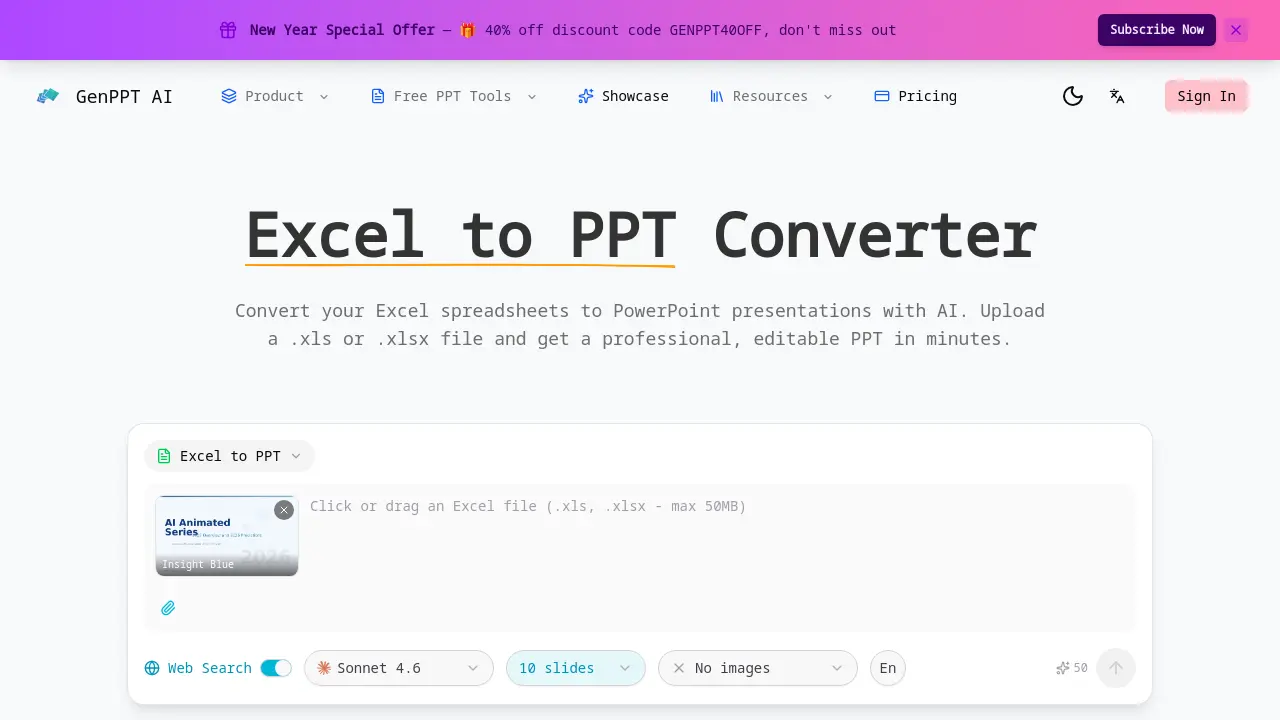
GenPPT AI provides an Excel to PPT converter that uses artificial intelligence to automatically transform spreadsheet data into structured PowerPoint presentations. The tool extracts tables, charts, and metrics from Excel files, applies design templates, and outputs fully editable slides for data storytelling.
- Access the GenPPT Excel to PPT converter by navigating to its dedicated webpage using a web browser to reach the conversion interface.
- Upload an Excel file in .xls or .xlsx format via drag-and-drop or the file selection button to provide data for processing.
- Select a presentation template such as Insight Blue or Clarity Glass from the available options to define the slide aesthetics.
- Adjust optional settings including slide count, language preference, and image inclusion based on specific presentation requirements.
- Initiate the conversion by clicking the convert button, prompting the AI to begin analyzing the uploaded spreadsheet data.
- The system processes the file, typically taking a few minutes, by extracting data tables, charts, and formulas from all sheets.
- Download the generated PPTX file upon completion, which contains the AI-designed slides ready for immediate use.
- Open the presentation in Microsoft PowerPoint or compatible software to review content, edit layouts, and modify data as needed.
- Utilize the final slides to effectively communicate data insights in business reports, academic presentations, or meetings.
