
Image to Video FAQs
Image to Video AI Generator transforms images into engaging videos using advanced AI. It's designed for creators to enhance content without editing skills.

FAQs of Image to Video
What is Image to Video AI Generator?
Image to Video AI Generator is a platform that transforms static images into dynamic, engaging videos using artificial intelligence. It allows users to upload an image, enter a prompt describing the desired animation, and then generates a video based on that input. This image to video process utilizes advanced AI to create motion and effects, bringing still images to life.
How does the Image to Video AI generator work?
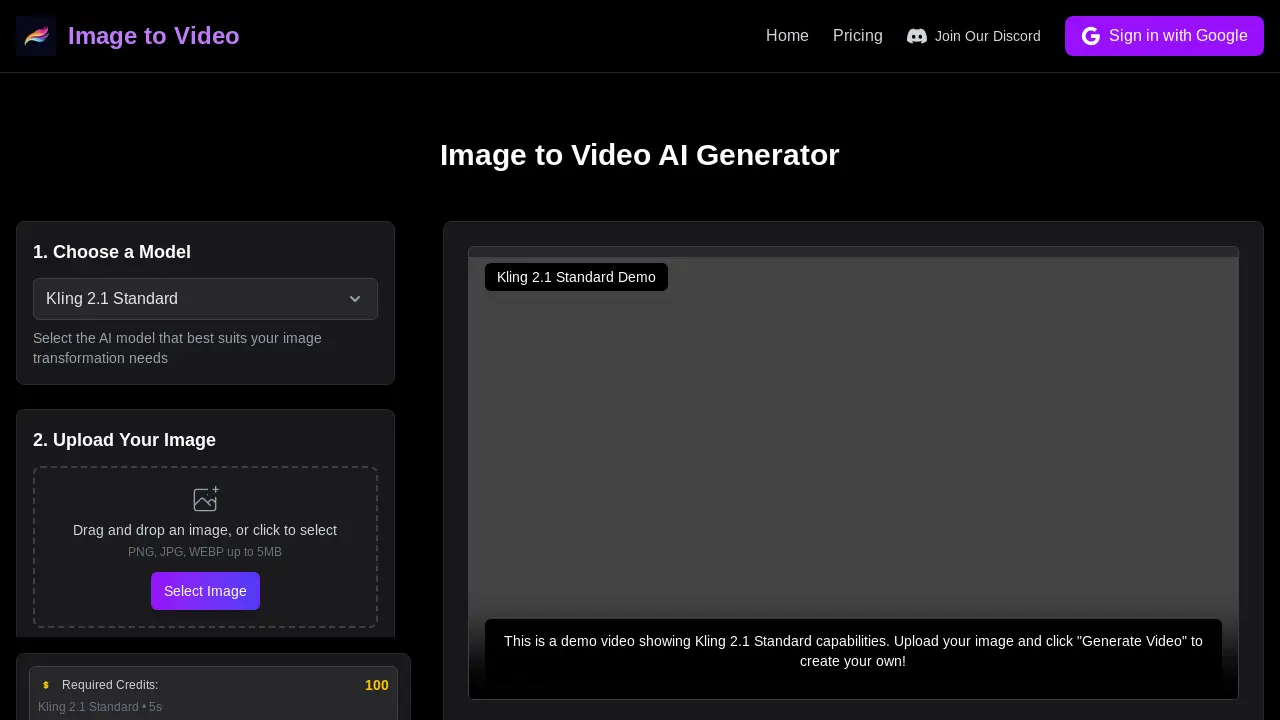
The Image to Video AI generator requires the user to upload an image (PNG, JPG, WEBP up to 5MB), select an AI model, and enter a prompt detailing the desired animation. The AI then analyzes the image and the prompt to generate a short video. Users can customize the video duration before generating the final output.
What AI models are available for image to video generation?
The Image to Video platform provides access to several industry-leading AI models. These include Veo 3, Kling AI, SeedDance AI, Runway, Hailuo AI, Vidu AI, Luma AI, PixVerse, Pika AI, Wanx AI, Hunyuan, and Seedance. Each model offers unique capabilities for image to video transformation.
Can I try the Image to Video AI generator for free?
Yes, the Image to Video platform offers a free plan that allows users to generate videos. However, this free plan comes with limitations, such as a limited number of credits per day, fewer AI models, shorter video lengths (up to 5 seconds), and standard video quality. Paid plans offer more credits, longer video durations, higher quality outputs, and access to more AI models.
What are some expert tips for optimal image to video results?
To achieve the best quality image to video transformations, it's recommended to start with high-resolution, well-lit images. Be specific when writing prompts to guide the AI, detailing desired motion and camera movements. Experiment with different AI models to find the best fit for the specific image and desired style. For social media content, consider using shorter video durations to create eye-catching loops.
What file formats are supported?
The Image to Video AI generator accepts images in PNG, JPG, and WEBP formats, with a maximum file size of 5MB. The platform allows users to download the generated video in various formats for use across different platforms.
How to use Image to Video
- First, navigate to the Image to Video AI generator at imagetovideo.dev and sign in with Google.
- Then, choose an AI model, such as Kling 2.1 Standard, suitable for your image transformation needs. Image to video AI model selection is key.
- Next, upload your image (PNG, JPG, or WEBP, up to 5MB) using the drag-and-drop feature or by selecting it from your files.
- Enter a descriptive prompt detailing how you want the image to animate, specifying motion, speed, and effects. Be clear.
- Select the desired video duration from the options provided, such as 5, 8, or 10 seconds.
- Optionally, add a negative prompt to exclude unwanted elements from the generated video, improving the image to video result.
- Click "Generate Video" to initiate the image to video conversion process, which will consume credits based on the model and duration.
- Review the generated video; a demo showcases Kling 2.1 Standard. If satisfied, download the video for use.
- Experiment with different AI models like Veo 3, Runway, or Pika AI to explore various image to video styles and capabilities.
- Consider subscribing to a paid plan for increased credits, longer video durations, and higher quality output for your image to video projects.
