
AI Speech Notes FAQs
AI Speech Notes from PPT uses AI to analyze PowerPoint slides and generate professional speaker notes, talking points, and scripts with timing for engaging presentations.

FAQs of AI Speech Notes
How does AI Speech Notes from PPT work?
AI Speech Notes analyzes each slide of an uploaded PowerPoint file, extracting text, charts, and visual cues. It then generates a natural‑conversational script that aligns with the slide content, includes suggested speaking durations, transition phrases, and key‑point highlights, all tailored to help presenters deliver a polished performance.
What format are the speech notes generated in?
The generated notes are delivered as a downloadable text file (e.g., .txt or .docx) that can be opened in any word processor. The format preserves the slide order and includes timestamps, transition markers, and emphasis cues for easy editing.
Can I customize the speech style and tone?
The AI produces a conversational tone by default, but users can edit the script after download to adjust formality, add personal anecdotes, or tailor language to a specific audience. Direct style settings are not currently exposed in the interface.
Do I need to sign in to use this tool?
No sign‑in is required to generate speech notes. Users can upload a PowerPoint file, receive the script, and download it immediately. Signing in is optional and may enable additional features such as saving projects or accessing past outputs.
What file formats are supported for upload?
The tool accepts standard PowerPoint files, including .ppt and .pptx. Files larger than 50 MB are rejected; otherwise, any typical presentation format is supported.
How many slides can this tool handle?
There is no explicit slide limit, but the 50 MB file size cap typically accommodates presentations with dozens of slides. Very large decks may be truncated or require splitting into smaller files.
Are the generated speech notes editable after creation?
Yes. After generation, the script can be downloaded and edited in any text editor or word processor. Users can add personal stories, adjust timing, or refine wording to suit their style.
What makes this better than writing notes manually?
AI Speech Notes saves hours of preparation by automatically producing slide‑by‑slide talking points, timing suggestions, and smooth transitions. The output is consistent, professional, and ready for immediate use, reducing the risk of forgetting key points or exceeding allotted time.
Is my PowerPoint data secure?
All uploads are processed on secure servers, and the tool does not store files after the session ends. Users can review the privacy policy for detailed information on data handling and retention.
What is the pricing for AI Speech Notes?
The service is available under GenPPT’s subscription plans, which start at a monthly fee. A free tier may be available for limited usage, while paid plans offer higher file size limits and additional features such as project saving.
Can I use the tool for commercial presentations?
Yes, the generated scripts can be used for any professional or commercial presentation. Users should review the terms of service to ensure compliance with licensing and usage rights.
Does the tool support multiple languages?
The current implementation focuses on English. Future updates may introduce multilingual support, but for now, the AI generates scripts in English only.
How long does it take to generate speech notes?
Generation typically completes within a few seconds to a minute, depending on the size of the presentation and server load. Users can download the script immediately after processing.
How to use AI Speech Notes
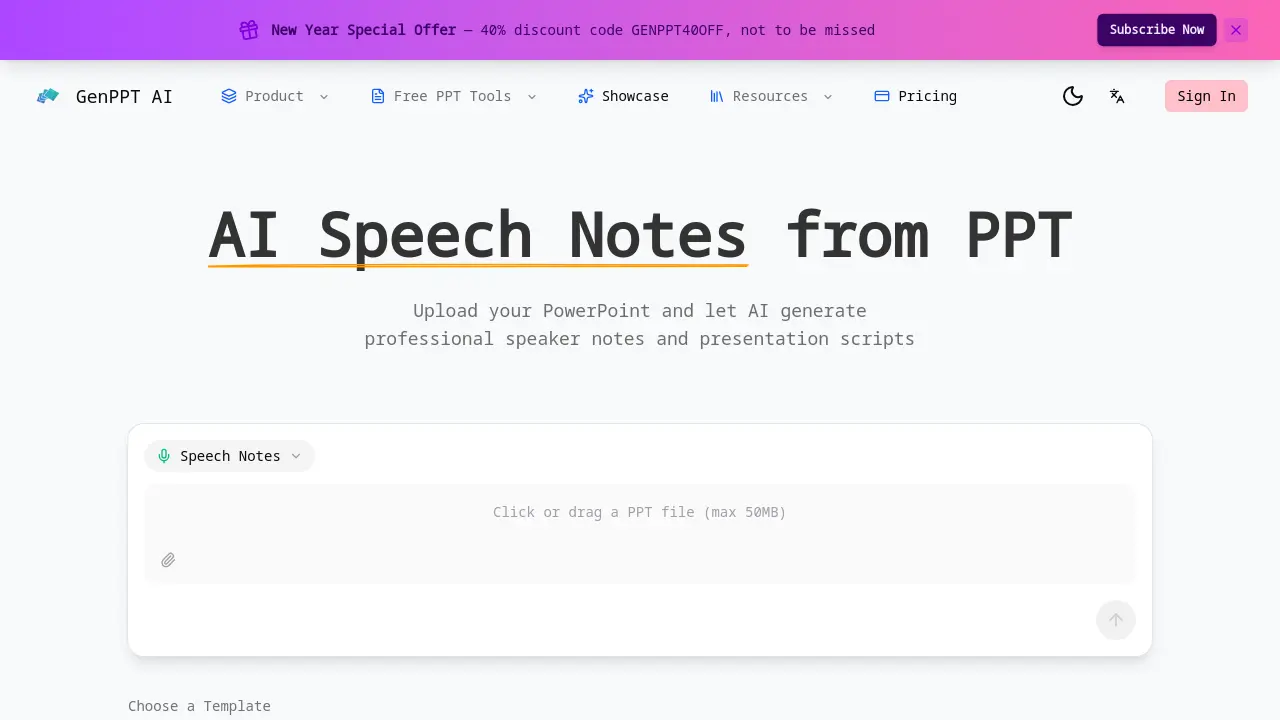
- Upload the PowerPoint file by clicking the upload button or dragging the file into the designated area, ensuring the file size does not exceed 50 MB.
- Select a presentation template from the available options—Insight Blue, Clarity Glass, or Sandstone Pro—to set the visual style for the generated notes.
- Click the “Generate Notes” button; the AI processes each slide, producing speaker notes with talking points, timing suggestions, and transition phrases.
- Examine the generated script, noting slide‑by‑slide talking points, suggested durations, and highlighted key messages for clarity and audience engagement to refine.
- Use the built‑in editor to add personal anecdotes, data references, or audience‑specific details, ensuring the script reflects your unique presentation style.
- Click the download icon to save the finalized speaker notes in PDF or editable text format for offline use or sharing with collaborators.
- Follow the AI‑suggested speaking durations per slide to maintain pacing, keeping the overall presentation within the allotted time for your session.
- Check the automatically generated transition phrases between slides to ensure smooth flow and avoid abrupt topic changes during delivery for.
- Once satisfied, export the script and integrate it into your presentation deck or rehearsal materials for effective delivery sessions and.
- Share the finalized notes with team members or stakeholders via email or cloud storage to align everyone on the presentation narrative.
