
Meigen AI FAQs
Meigen AI is a free web platform that lets creators browse, reuse, and generate AI image prompts for art, logos, portraits, and wallpapers using GPT‑powered models.

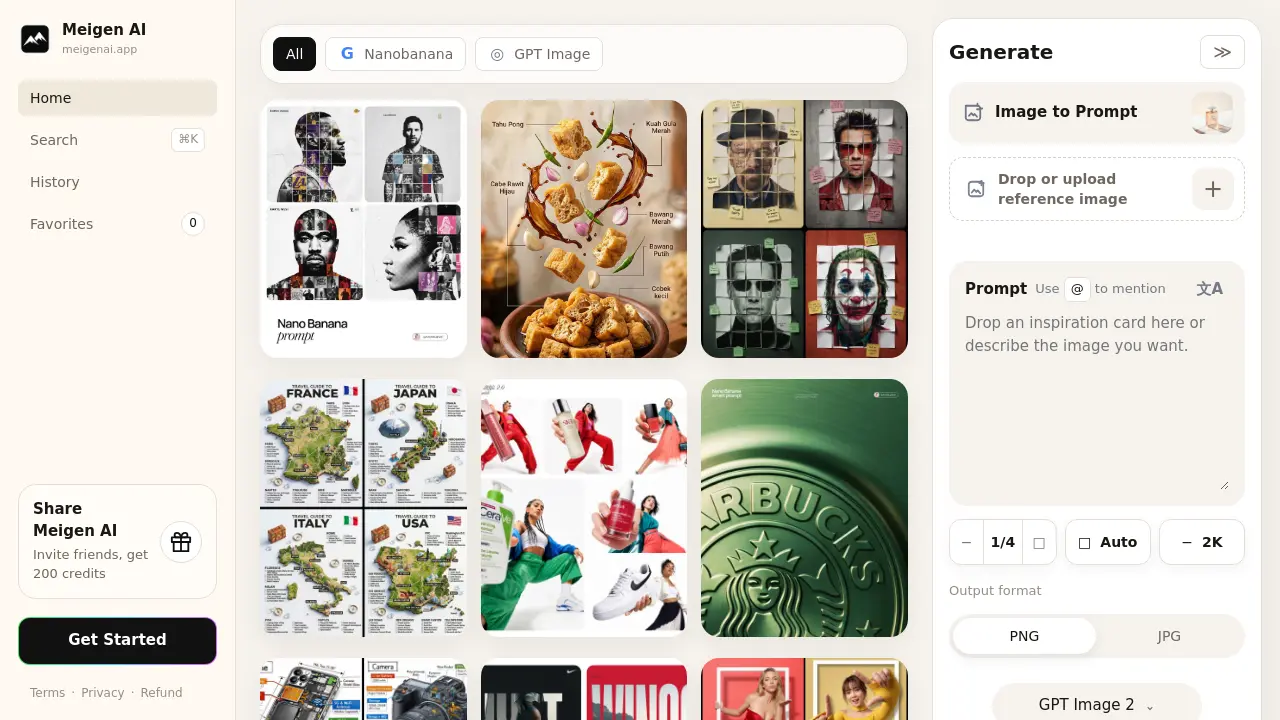
FAQs of Meigen AI
What is Meigen AI and how does it work?
Meigen AI is an online platform that provides AI‑driven image generation and prompt tools. Users upload reference images or enter textual prompts, select model and aspect ratio, and the service outputs high‑resolution visuals. The system tracks usage through a credit system, with credits earned via invites or purchased via subscription plans.
How can I generate images with Meigen AI?
To generate images, a user must sign in and have available credits. After logging in, submit a prompt or upload a reference image, choose desired resolution (2K/4K), aspect ratio, and model. Clicking “Generate” will process the request, consuming the appropriate number of credits per image. Batch generation is available for subscribed plans.
What are the credit options and how do I acquire them?
Meigen AI offers several credit acquisition methods:
- Invite friends: Receive 200 credits for each friend who completes a purchase.
- Purchase plans: Starter ($9.9), Pro ($19.9), and Ultimate ($49.9) include fixed credit bundles with additional features.
- Free tier: 20 daily credits are available to all users, refreshed each day.
Credits do not expire once earned through a plan or invitation, and can be used toward any image generation task.
What subscription plans are available and what features do they unlock?
Meigen AI provides three paid tiers:
- Starter ($9.9): 1,000 credits, unlimited model access, up to 4K resolution, batch generation, image-to‑prompt, reference image generation, commercial license, non‑expiring credits.
- Pro ($19.9): 2,200 credits, all Starter features plus multi‑reference generation, priority queue, and further commercial usage rights.
- Ultimate ($49.9): 6,000 credits, largest batch capacity, smart enhance & prompt reverse, priority queue, all previous benefits, and best long‑term value.
All plans unlock premium models and higher‑resolution outputs.
How does the image generation credit system work for different outputs?
A single image at 2K resolution consumes one credit, while higher‑resolution images (4K) cost more credits. Batch mode multiplies the credit cost per image in the batch. Models such as GPT‑Image‑2 Nano Banana 2, Seedream 5 Lite, and other premium models may also alter the credit requirement. Users should check the credit counter next to each generator before submitting.
(Supplementary) What formats can I download generated images in?
Generated images are available for download as PNG or JPG files. The selection button near the generate area allows users to choose the desired format before exporting the final image.
(Supplementary) Can I use the images commercially?
Yes. All paid plans (Starter, Pro, Ultimate) provide a commercial license for each generated image. The free tier offers usage primarily for personal or non‑commercial projects; commercial usage is not guaranteed.
(Supplementary) How do I restore or transfer credits?
Credits earned through invites or subscriptions are stored in your Meigen AI account profile and cannot be transferred between users. If a credit is lost due to technical issues, contact support via hello@meigenai.app for recovery assistance.
(Supplementary) What safeguards exist against generating copyrighted or inappropriate content?
Meigen AI’s content policy restricts the creation of copyrighted material and disallowed imagery. The platform filters prompts and reference uploads for compliance and may refuse to generate content that violates these terms.
(Supplementary) Is there a limit to how many images I can generate per day or session?
The free tier provides 20 daily credits, replenished each day. Subscribed users have credit‑based limits tied to their purchased bundle but have no hard per‑day or session quotas beyond the available credits.
How to use Meigen AI
- Sign into the Meigen AI web dashboard using the provided login link; verify your account via email if prompted.
- On the home screen, click Generate to open the image creation panel; choose the desired model and resolution presets.
- For reference‑image generation, drag and drop a photo into the drop zone or click + to upload from device; the system will analyze the content.
- Enter a descriptive prompt in the text box; use the auto‑suggestion dropdown to refine language and incorporate specific visual details.
- Select image quality (1K, 2K, 4K) and aspect ratio from the provided presets; higher options are unlocked with paid plans.
- Press Generate to submit the request; monitor the progress indicator and wait for the rendering queue to complete.
- View the generated image preview; if satisfied, download in PNG or JPG format or click Copy Prompt to reuse the generated prompt later.
- Navigate to the Community Prompt Gallery to browse popular examples, rate them, or save favorites for future projects.
- Manage credits in the header; purchase a plan from Starter, Pro, or Ultimate tiers to unlock batch creation, commercial licenses, and priority queues.
- Utilize the Invite Friends feature to earn 200 credits per referral; share the link on social media or via direct messaging to expand your credit pool.
