
AI Beautify PPT FAQs
AI Beautify PPT uses AI to redesign PowerPoint slides with professional styling and layouts, preserving original content for a polished presentation.

FAQs of AI Beautify PPT
How does AI Beautify PPT work?
AI Beautify PPT analyzes each slide in a PowerPoint file using machine‑learning models trained on professional design principles. It automatically selects optimal layouts, adjusts typography, color schemes, and spacing, and applies a cohesive theme while preserving the original text, data, and structure. The process is fully automated and requires no design expertise from the user.
What file formats are supported for upload?
The tool accepts standard Microsoft PowerPoint files in .ppt and .pptx formats. These are the most common formats for presentations and are fully compatible with the AI redesign engine, ensuring that all slides, charts, and embedded media are processed correctly.
Will my original content be preserved?
Yes. AI Beautify PPT focuses exclusively on visual enhancement. All original text, tables, charts, and slide order remain unchanged. The AI only modifies colors, fonts, spacing, and layout to improve aesthetics while keeping the message intact.
Can I provide specific design instructions?
Users can specify preferences such as color palettes, design styles, or particular elements to emphasize. The AI incorporates these custom instructions into the redesign, allowing tailored visual outcomes that align with brand guidelines or personal taste.
How long does the beautification process take?
The redesign typically completes within a few minutes, depending on the number of slides and file size. The system is optimized for speed, enabling quick turnaround for both short decks and larger presentations.
Is AI Beautify PPT free to use?
Yes. The service is available at no cost, with no sign‑up required. Users can upload any PowerPoint file, receive a professionally styled version instantly, and download the result without paying a fee.
What design elements are improved?
The AI enhances typography, color harmony, layout balance, spacing, and overall visual hierarchy. It also applies consistent themes across all slides, ensuring a unified look that improves readability and visual impact.
What makes AI Beautify PPT better than manual redesign?
Manual redesign requires design skill, time, and iterative feedback. AI Beautify PPT delivers consistent, professional styling automatically, reducing effort and ensuring that every slide follows best‑practice design guidelines without the need for manual adjustments.
How many slides can I upload at once?
The platform supports entire PowerPoint decks of any length, from a single slide to hundreds of slides. The AI processes each slide individually, so the total number of slides does not affect the quality of the redesign.
Does AI Beautify PPT support images and graphics?
Yes. Images, charts, and other embedded media are retained and repositioned as needed to fit the new layout. The AI ensures that visual elements remain clear and properly aligned within the updated design.
Can I download the redesigned presentation?
After the beautification completes, users can download the updated PowerPoint file directly. The download link is provided on the results page, allowing immediate use of the professionally styled deck.
Are there any privacy or data security measures?
All uploads are processed on secure servers, and the original file is deleted from the system after the redesign is completed. No user data is stored or shared, ensuring confidentiality for sensitive presentation content.
How does the tool handle custom fonts or slide masters?
Custom fonts embedded in the original PPT are preserved during the redesign. If a slide master is present, the AI respects its structure while applying the new theme, maintaining consistency with the user’s existing design framework.
How to use AI Beautify PPT
- The tool’s purpose is to automatically redesign PowerPoint slides, applying modern typography, balanced layouts, and cohesive color schemes while keeping the original text and data intact.
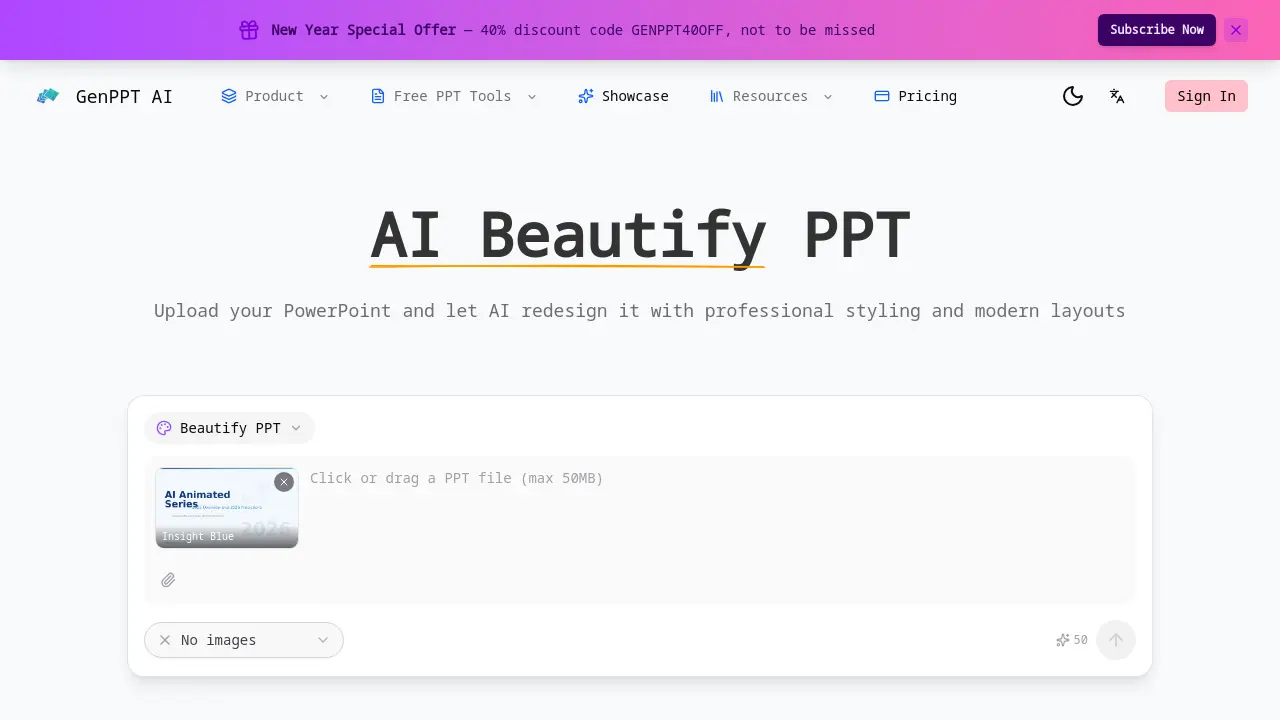
- Users begin by navigating to the AI Beautify PPT page and uploading their .pptx file through the prominent “Upload PPT” button.
- After upload, the interface displays a template selection panel; choose a preset such as Insight Blue or Clarity Glass to set the visual theme.
- Optionally, click “Custom Design Instructions” to specify color preferences or layout tweaks, ensuring the AI aligns with brand guidelines for your.
- Initiate the beautification process; the AI analyzes each slide, rearranges elements, and applies the chosen theme within seconds to maintain consistency.
- Once completed, review the preview; the tool highlights changes such as font updates, spacing adjustments, and layout shifts to ensure clarity.
- Download the redesigned .pptx file; the original file remains untouched, allowing easy comparison or rollback if needed for future revisions.
- Interpret the results by assessing visual hierarchy, color harmony, and slide consistency; adjust custom instructions if further refinement is desired.
- Use the polished deck in meetings, academic talks, or client presentations to convey information more effectively and professionally for your.
