
GanttPilot FAQs
AI project scheduling tool that generates editable Gantt charts from prompts, templates, or imported files, checking dependencies and revision impact.

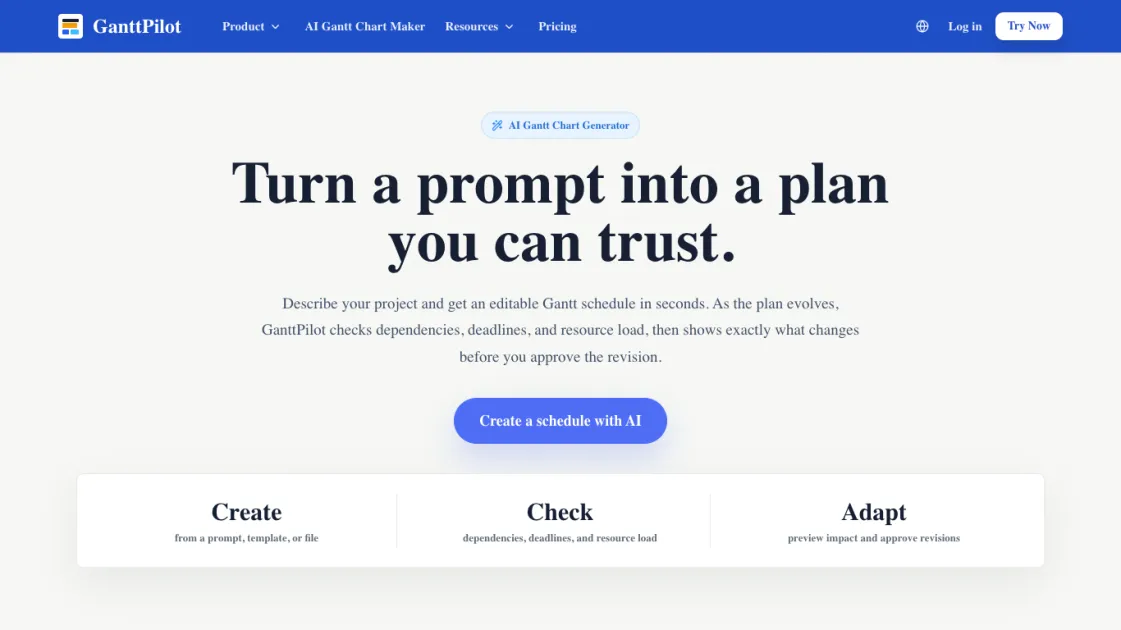
FAQs of GanttPilot
What is GanttPilot?
GanttPilot is an AI Gantt schedule workspace for project teams. It helps you create a schedule from a prompt, check the plan for logic and risk, and adapt the schedule when dates, scope, or resources change.
Is GanttPilot just an AI Gantt chart generator?
No. GanttPilot can generate a Gantt chart from a prompt, but the schedule stays editable. You can review dependencies, preview changes, and approve revisions before the plan is updated.
Can I import Excel, Microsoft Project XML, or MPP files?
Yes. You can start from Excel, CSV, XLSX, Microsoft Project XML, or MPP schedules, then continue editing and reviewing the plan in GanttPilot.
Does AI update my schedule automatically?
No. GanttPilot shows a revision preview first. AI suggests the update, but you choose what gets applied.
What types of projects can I plan with GanttPilot?
GanttPilot works for project schedules with tasks, dates, dependencies, and revisions, including product launches, client delivery, marketing campaigns, events, construction, installation, and operations work.
Does GanttPilot replace Microsoft Project or Primavera P6?
Not exactly. GanttPilot can work alongside traditional planning tools: import or review schedule files, use AI checks and revision previews, then export Project XML when a handoff is needed.
Can I export my schedule?
Yes. You can keep the schedule editable in GanttPilot, then export Project XML or share the plan when it is ready.
How to use GanttPilot
- Describe your project in a prompt, or choose a template that matches your project type, such as product launch, client delivery, or event planning.
- Review the generated Gantt schedule, including tasks, dates, dependencies, and milestones displayed on a timeline.
- Import an existing schedule file if you already have one in Excel, CSV, XLSX, Microsoft Project XML, or MPP format.
- Run a schedule check to identify missing dependencies, deadline risks, resource pressure, or tasks that may affect the final date.
- Make changes to dates, scope, or resources and review the revision preview to see which tasks move and by how much.
- Approve the revisions and export the updated schedule as Project XML or share it with your team.
