
PixBulk FAQs
Generate hundreds of AI product images in bulk from a CSV. PixBulk helps ecommerce sellers automate product photography with AI models like Nano Banana and GPT Image 2.

FAQs of PixBulk
Can I sell product images generated with PixBulk commercially?
Yes. All paid plans include a commercial usage license, so users can use generated images on storefronts, in advertising, and in marketing materials. The free tier images are for testing purposes.
Do failed image generations cost credits?
No. When an image fails to generate, the credits spent on that attempt are refunded automatically. Users only pay for images that are successfully delivered.
How many images can I generate in a single batch?
PixBulk supports up to 200 product images per batch. Users upload a CSV of their SKUs and prompts, and the entire batch runs in the background. Results are delivered as a ZIP file when processing completes.
Does PixBulk offer a free tier?
Yes. New accounts receive free starter credits without requiring a credit card. These credits refresh daily, allowing users to test the bulk generation workflow before committing to a paid plan.
Can I match my existing brand style across bulk generations?
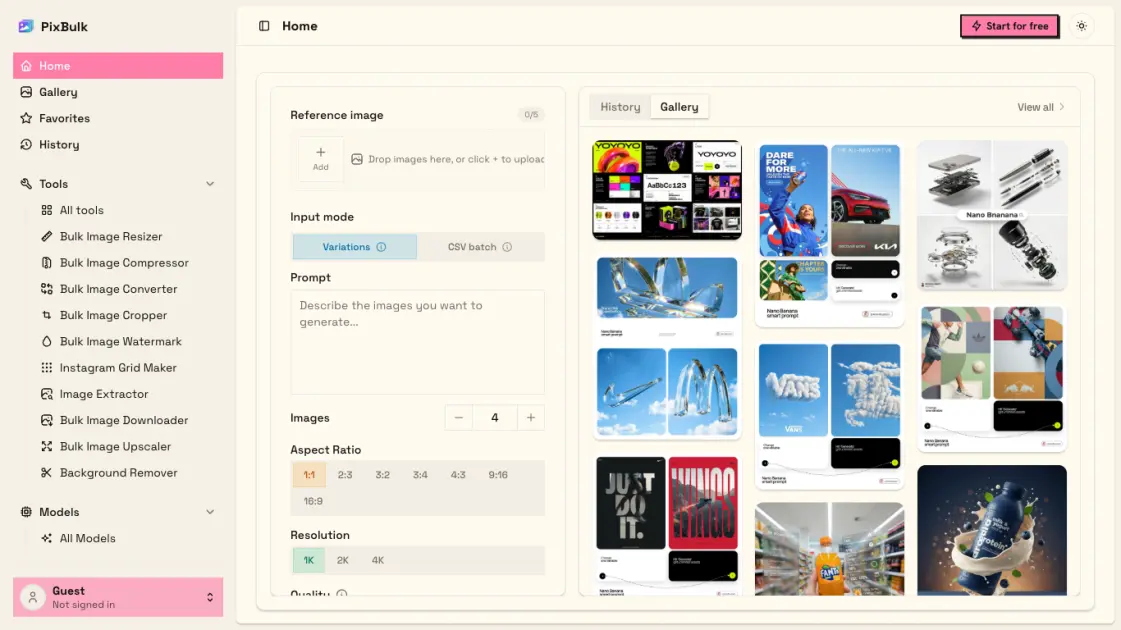
Yes. PixBulk allows users to upload up to five reference images per batch. The AI models follow the style, color palette, and composition of those references, producing consistent output across all images in a run.
Can I generate multiple images for the same product SKU?
Yes. PixBulk supports a variations mode that produces multiple takes per prompt, or users can repeat the same SKU row in their CSV file to get several images for one product.
Are AI-generated product images allowed on Shopify, Etsy, and Amazon?
Generally yes for product and marketing imagery, though each marketplace has its own image and authenticity policies. PixBulk offers platform-specific aspect ratios and white-background generation to help meet marketplace requirements.
How to use PixBulk
- Sign up for a PixBulk account to receive free starter credits that refresh daily, with no credit card required for initial testing of the bulk workflow.
- Prepare a CSV file with a "prompt" column containing image descriptions for each SKU, plus optional columns for SKU identifiers or custom file names.
- Upload the CSV to PixBulk and choose an AI model, aspect ratio, and output resolution, optionally providing up to 5 reference images for style consistency.
- Review the batch settings and start generation — PixBulk processes up to 200 product images per batch in the background, notifying users upon completion.
- Download the completed ZIP archive containing all generated images, with file names mapped from CSV fields such as SKU for direct catalog integration.
