
LivePhoto.video
LivePhoto.video: Turn Videos into LivePhotos & Images

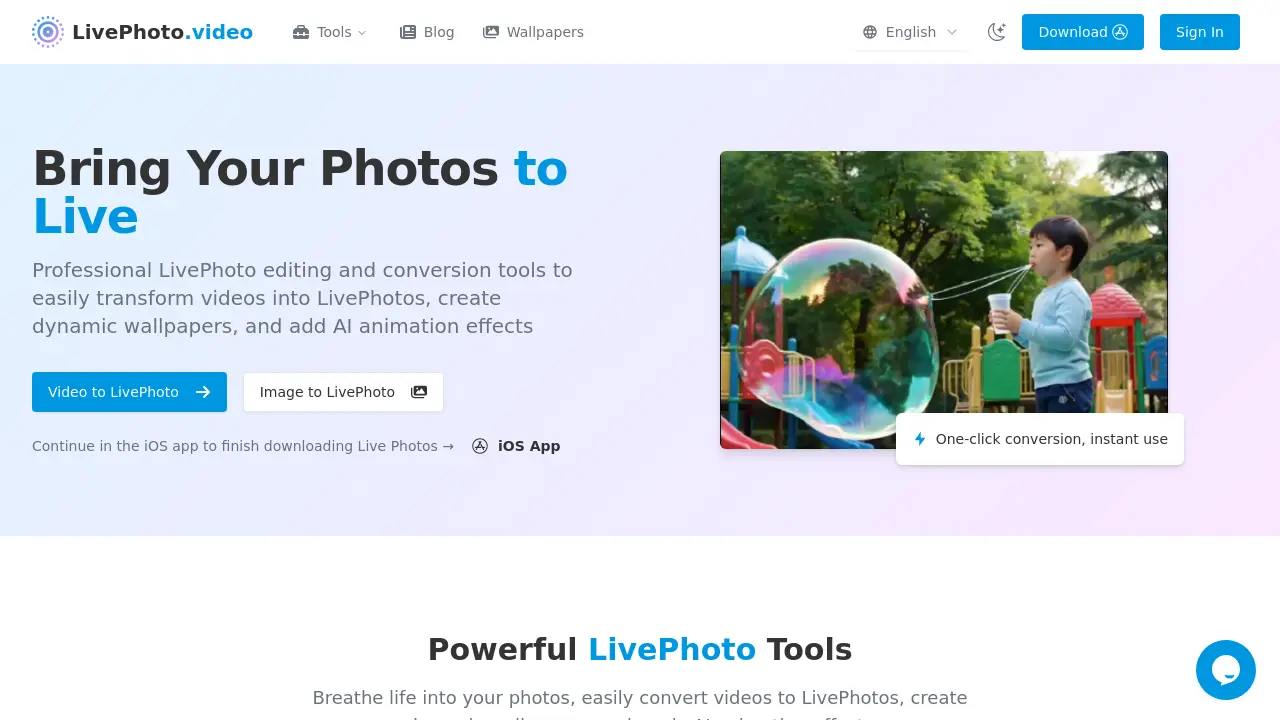
What is LivePhoto.video
LivePhoto.video is a web‑based toolkit that simplifies the creation and conversion of Apple Live Photos. Its Video to Live Photo feature lets users upload short clips, trim them, and export a fully functional Live Photo in seconds. The Live Photo to Video converter supports reverse conversion, allowing easy sharing beyond iOS. Image to Live Photo and picture to live video transform stills into animated experiences, while the Live Photo Viewer (Windows 10) delivers a native viewing option for non‑Apple devices. AI animation effects add natural motion to static photos, and dynamic wallpaper creation customizes lock screens. Additionally, a dedicated Live Photo Viewer for Windows allows users to preview and adjust Live Photos directly on desktop systems. One‑click optimization for social platforms ensures the tools support diverse formats and provide an intuitive workflow for photographers and content creators.
How does LivePhoto.video work
livephoto.video supplies a web‑based suite that permits the conversion of short videos to live photo files and the reverse operation, allowing users to convert live photo to video for platforms that lack native support. An upload interface accepts common video codecs, trims to 1.5‑second clips, and packages the result with required metadata so the file is compatible with iOS devices. Additionally, the site offers a live photo viewer windows 10 module that renders live photo files directly in the browser before download. AI‑driven animation modules can augment still images with movement prior to stamping them as live photos.
Benefits of LivePhoto.video
LivePhoto.video is a web‑based toolkit that lets users easily convert videos into LivePhotos, transform LivePhotos to GIFs or videos, and apply AI animation to still images. The platform supports video formats, automatic size optimization, and cropping, making it simple to create lock‑screen wallpapers for iPhone. With one‑click tools for video‑to‑live‑photo, live‑photo‑to‑gif, and live‑photo‑to‑video, creators can share animated content on social media in multiple formats. Its AI animation feature brings portraits and landscapes to life, while live‑photo‑viewer utilities allow quick preview on Windows and Windows 10.
Pros and Cons of LivePhoto.video
Pros
- One-click video to LivePhoto conversion on livephoto.video.
- Supports multiple formats with automatic display optimization.
- AI animates photos, recognizing subjects via livephoto.video.
- Generates dynamic lock-screen wallpaper from converted LivePhotos.
- Converts LivePhotos to GIFs for social platforms.
Cons
- Browser cannot create true LivePhoto; requires iOS app.
- Only compatible with Apple devices; other platforms need conversion.
- No batch processing; single file only.
- Limited editing beyond animation and format conversion.
- Requires iPhone to view LivePhotos; non-Apple users need workarounds.
Core Features of LivePhoto.video
Video to LivePhoto Conversion
Converts brief video clips into LivePhoto format, adjusting duration and quality, enabling immediate use as lock‑screen wallpapers or shared content on iPhone.
LivePhoto to GIF Conversion
Transformed iPhone LivePhotos into GIF animations, preserving motion and sound data while producing universally compatible, looped files optimal for social media sharing.
GIF to LivePhoto Conversion
Converts GIF files sourced from the web into interactive LivePhotos, allowing users to customize playback, set as wallpapers, or embed in iOS media libraries.
AI Animation of Still Photos
Applies AI‑driven animation effects to static images, intelligently recognizing subjects to generate smooth, lifelike motion, suitable for portraits, landscapes, or photo restoration.
Dynamic Wallpaper Creation
Enables creation of interactive wallpapers by converting videos or LivePhotos, offering cropping, size adjustments, and automatic optimization for dynamic lock‑screen effects on iPhone.
LivePhoto to Video Conversion
Converts existing LivePhotos into standard video formats, retaining motion and audio, to facilitate editing, sharing, or use on non‑Apple platforms.
Image to LivePhoto Conversion
Transforms still photographs into LivePhotos by adding motion overlays, allowing instant use as animated images or lock‑screen wallpapers on iOS.
Use Cases of LivePhoto.video
- Photographers: Convert short event videos into Live Photos using livephoto.video, then upload to clients as interactive portfolio showcase.
- Bloggers: Generate GIFs from Live Photos with livephoto.video and embed them in blog posts for engaging visual content.
- Digital artists: Convert user‑uploaded videos to Live Photos online with livephoto.video for creating dynamic art wallpapers.
- iPhone users: Apply AI animation effects in livephoto.video to bring static portraits to life on an iPhone lock screen.
- Windows users: Browse LivePhoto.video using the live photo viewer windows 10 extension to preview and convert Live Photos on PC.
FAQs of LivePhoto.video
What exactly is a Live Photo and how does it work?
A Live Photo is an Apple feature that records 1.5 seconds of video and audio before and after a still image is taken. On compatible devices the image animates when pressed, revealing the surrounding context and sound.
Can I use Live Photos on non‑Apple devices?
Live Photos are native to Apple hardware, but LivePhoto.video converts them into universally compatible formats such as GIF and MP4, allowing playback on all platforms.
How do I set a Live Photo as my iPhone wallpaper?
Open Settings → Wallpaper → Choose a New Wallpaper → select a Live Photo album, pick the photo, adjust, and set it as a lock‑screen wallpaper. Press the screen to view the animation.
What's the difference between a Live Photo and a GIF?
Live Photos include audio and higher‑resolution video triggered by touch; GIFs are silent, loop automatically, and are larger in file size but work across any device.
How do I turn a regular video into a Live Photo?
Upload the video to the Video → Live Photo tool, adjust duration and quality, then convert. The resulting file can be saved to the camera roll as a Live Photo.
Can I turn off Live Photos on my iPhone camera?
Yes, tap the Live Photo icon (concentric circles) in the camera app, or disable it permanently in Camera → Settings → Live Photo.
Which video and photo formats are supported by LivePhoto.video converters?
LivePhoto.video accepts MP4, MOV, AVI, GIF for video conversion, and JPG, PNG, HEIC, and HEIF for image input when creating Live Photos or animated wallpaper.
How does the AI animation feature create motion from a still image?
The AI system uses a depth‑aware generative model that detects subjects, estimates a virtual camera path, and generates realistic frames, producing smooth motion in seconds.
What is the maximum length of video that can be converted to a Live Photo?
A Live Photo can store no more than 2.5 seconds of video/audio. The converter automatically trims longer clips to fit this limit while preserving the core content.
Can I convert a Live Photo back to its original video or image format?
Yes, LivePhoto.video’s “Live Photo → Video” tool extracts the embedded media, exporting the audio‑video stream as MP4 or GIF for cross‑platform use.
Is there a desktop or web version of live photo viewer for Windows 10?
LivePhoto.video provides a dedicated iOS app; however, exported GIFs or MP4s can be viewed on Windows 10 using the native Photos app or third‑party players.
How to use LivePhoto.video
- LivePhoto.video is a web‑based toolkit that transforms videos and images into Apple Live Photos, converts Live Photos to GIFs, restores GIFs back to Live Photos, and offers AI animation for dynamic wallpapers.
- From the home page, choose “Video to LivePhoto” in the top menu or click the direct link under “Tools.”
- Click the “Convert Now” button and upload a short video (≤ 10 seconds) via the file picker; an upload animation confirms receipt.
- Adjust optional settings—set duration, select frame‑rate, and apply cropping or resize under the “Advanced” tab to fit lock‑screen dimensions.
- Press “Start Conversion”; a progress bar appears, and the system renders the Live Photo bundle (.mov + .jpg) automatically.
- After processing, the preview thumbnail shows the result; click “Download” to save the bundle to your device or cloud storage.
- Import the downloaded bundle into the iPhone Photos app; iOS will recognize and tag it as a Live Photo with motion and audio.
- To use as a lock‑screen wallpaper, open Settings → Wallpaper → Choose a New Wallpaper, select the Live Photo album, preview, and set it.
- For sharing, open “LivePhoto to GIF” in the app, upload the Live Photo bundle, pick output resolution, and download the GIF file.
- Interpret results: high‑quality Live Photos can be saved, shared, or used as dynamic wallpapers; GIFs work across platforms; AI animation can breathe life into still photos for social‑media posts.
LivePhoto.video Website Traffic Analysis
Latest traffic information
- Monthly Visits145.42K
- Bounce Rate41.05%
- Pages Per Visit2.67
- Visit Duration00:00:41
- Global Rank278.39K
- Country/Region Ranking32.37K
Top Keywords
| Keyword | Traffic | Volume | Cost Per Click |
|---|---|---|---|
| video to live photo | 3.94K | 3.35K | $2.49 |
| mp4 to live photo | 690 | 920 | -- |
| how to turn a video into a live photo | 300 | 290 | $2.31 |
| video to live photo converter | 290 | 290 | $0.18 |
| live photo | 280 | 3.06K | $0.87 |
Top Regions
| Region | Percentage |
|---|---|
| United States | 18.99% |
| Indonesia | 8.88% |
| Russia | 6.32% |
| Vietnam | 6.17% |
| India | 5.47% |
LivePhoto.video Alternatives
OmniEnhancer is an AI image enhancer and photo editor that improves photo quality, clarity, color, and resolution online, with free daily credits.
Upload 5‑20 selfies and receive 80‑180 AI‑generated, realness‑scored dating photos across 40+ scenes in about 20 minutes, optimized for Tinder, Bumble and Hinge.
AIKissify offers an AI video generator that lets users upload photos and instantly produce lifelike kissing animations, providing a fast, free solution for romantic social media content and personal gifts.
Nano Banana 2 Pro is a Google Gemini‑powered image generator for creators and marketers, offering prompt creation, reference‑led edits, Search grounding, 1K/2K/4K output.

Spark Robin is a Gemini‑based AI model that delivers rich visual responses and multimodal image understanding for creative teams, marketers and designers seeking fast, structured visual AI output.
AI Image Translator is an online AI tool that converts text in images to over 130 languages while maintaining original fonts, layout and background, ideal for marketers, designers and e‑commerce teams needing instant or batch visual localization.
Image 2 is an AI image generator for creative teams, delivering 2K‑resolution visuals with accurate multilingual text and consistent style for ads.
AI Image Editor provides AI-powered tools for background removal, upscaling, and creative transformations, enabling fast and easy photo editing for all users.
Nano Banana Pro is a free AI image editor for photographers and designers, enabling fast photo edits via natural language prompts with advanced AI technology.
Image to Image AI is a free online AI image editor offering 12+ tools for creators to transform, restore, and enhance photos instantly with AI technology.
Nano Banana 2 is an AI-powered image editing platform for photographers and designers, featuring background replacement, style transfer, and text-to-image generation to streamline creative workflows.
Nano Banana, powered by Google's Gemini AI, enables text-based image editing with consistent character preservation and natural scene integration for creative professionals and everyday users.