
ImageVids AI FAQs
ImageVids AI turns still images into AI videos using motion prompts. Offers free trial credits, multiple AI models, HD exports, and paid plans from $8/mo.

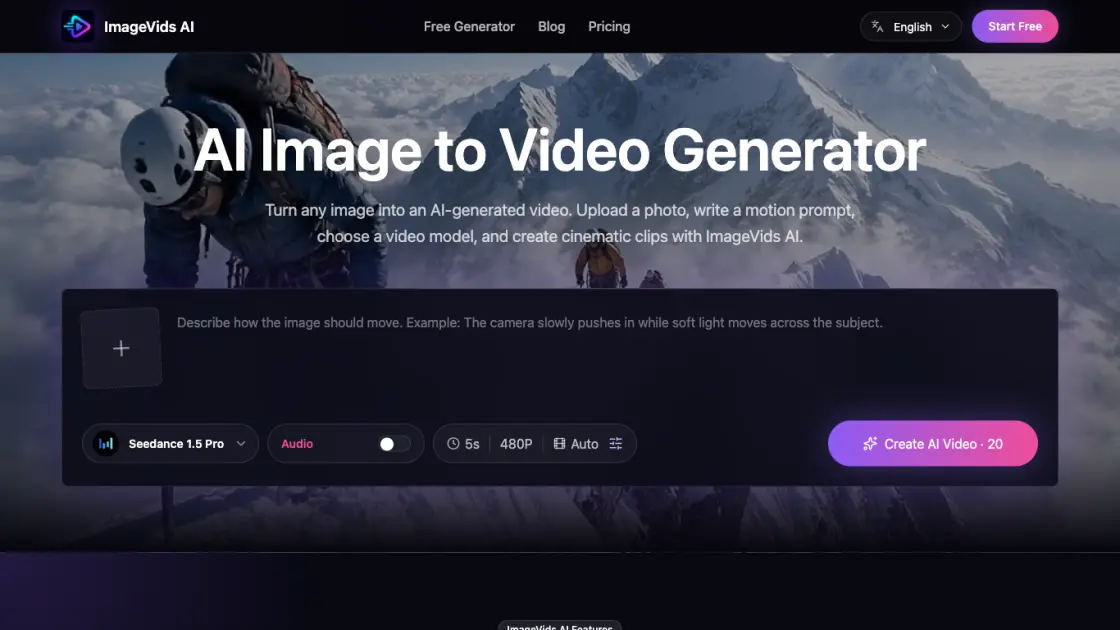
FAQs of ImageVids AI
What types of images can I use with ImageVids AI?
ImageVids AI accepts product photos, portraits, anime artwork, landscapes, concept art, real estate shots, and general photography. The tool works with most standard image formats as reference input.
Do I need video editing experience to use this tool?
No. ImageVids AI replaces manual keyframing and timeline editing with text-based motion prompts. Users describe the desired movement in natural language, and the AI handles frame generation.
How does the free trial work?
New users receive free trial credits upon signing up. These credits allow testing of different motion prompts, AI model comparisons, and output evaluation before committing to a paid subscription plan.
Which AI video models are available?
ImageVids AI supports multiple models including Seedance, Kling, Wan, and Veo. Each model interprets motion prompts differently, offering trade-offs between generation speed, motion quality, and visual polish.
Can I use the generated videos commercially?
Commercial use is available on eligible paid plans. The specific terms depend on the subscription tier selected. Free trial videos may have usage limitations.
What are the available pricing plans?
Paid plans start at $8 per month and scale up to $80 per month. Higher tiers include HD exports, watermark-free downloads, and increased generation quotas.
Is there a watermark on exported videos?
Free tier exports may include watermarks. Watermark-free exports are unlocked on eligible paid plans, providing cleaner video output for professional and commercial projects.
How to use ImageVids AI
- Upload a reference image in a supported format, such as a product photo, portrait, or landscape shot.
- Write a motion prompt describing the camera movement, subject action, lighting changes, or mood you want.
- Choose an AI video model from options like Seedance, Kling, Wan, or Veo based on your preferred output style.
- Click generate and wait for the platform to render the AI video from your image and motion prompt.
- Preview the result and either export it directly or adjust the prompt and model settings for a different output.
