
Flux2 FAQs
Flux2 is an AI image generator from Black Forest Labs, offering text-to-image and image editing with multiple aspect ratios, requiring no download.

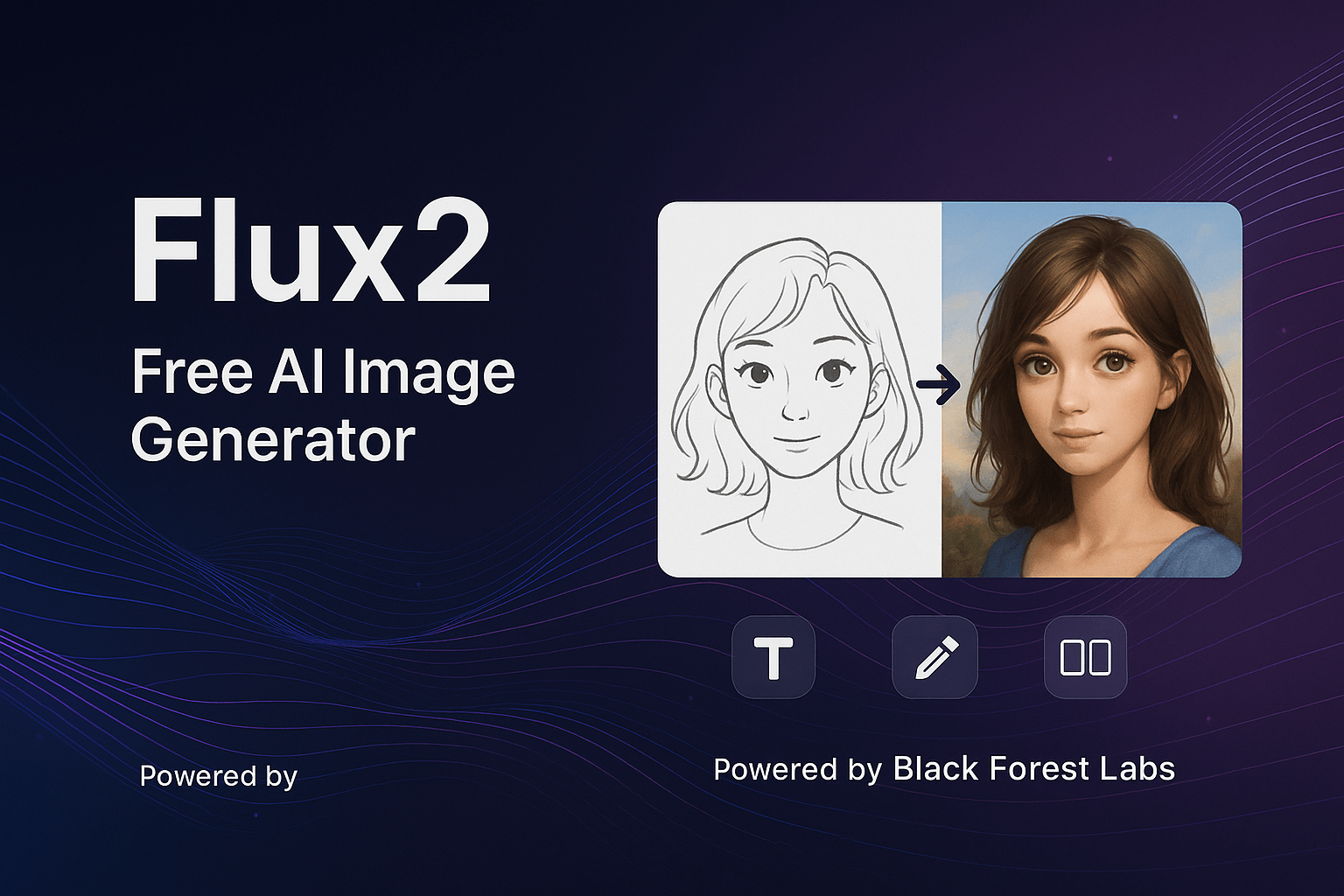
FAQs of Flux2
What is Flux 2?
Flux 2 is Black Forest Labs' next-generation AI image generation and editing model. It offers superior prompt following, photorealistic outputs, and natural language image editing capabilities, making it one of the most advanced AI image generators available for creating stunning images.
Is Flux 2 free to use?
Yes, the Flux 2 playground is free to use for generating and editing AI images without payment. Both Flux Kontext Pro (balanced) and Max (advanced) models are available for various use cases, providing flexibility for Flux2 users.
How do I use Flux 2 for image generation?
To use Flux 2 for image generation, users simply enter a text prompt describing the desired image, select the preferred aspect ratio, choose between the Pro or Max model, and click "Generate." The AI image will be ready within 30-60 seconds, offering a quick way to create visuals with Flux2.
What's the difference between Flux Kontext Pro and Max?
Flux Kontext Pro is a balanced model designed for most use cases, offering faster generation times, typically around 30 seconds. In contrast, Flux Kontext Max is an advanced model specifically for complex scenes requiring higher quality and greater detail, though it may take slightly longer to process.
Can I edit existing images with Flux 2?
Yes, Flux 2 allows users to edit existing images. By uploading an image and describing the desired changes using natural language, Flux 2 will modify the image according to the instructions while maintaining the original context and overall quality.
What aspect ratios does Flux 2 support?
Flux 2 supports a variety of aspect ratios, including 21:9 (ultra-wide), 16:9 (landscape), 4:3 (standard), 1:1 (square), 3:4 (portrait), and 9:16 (mobile/stories). This comprehensive support ensures the tool can be used for diverse applications from desktop backgrounds to social media content.
What output formats are available for Flux 2 images?
Flux 2 supports JPEG as an output format for generated and edited images. This widely compatible format ensures that users can easily download and use their AI-created visuals across various platforms and applications.
How detailed can prompts be for Flux 2?
Flux 2 excels in superior prompt following, understanding complex and detailed prompts better than many other models. Users are encouraged to be specific about style, subject, colors, and composition to achieve accurate and desired renderings, leveraging the full capabilities of Flux2.
How to use Flux2
Flux2 is an advanced online AI image generator and editing suite developed by Black Forest Labs. It enables users to create photorealistic images from text prompts, edit existing images using natural language instructions, and blend multiple references with superior prompt following and high-resolution output. This powerful tool offers both text-to-image generation and image editing functionalities, making it versatile for various creative needs.
- To begin AI image generation, navigate to the Flux2 playground.
- Enter a detailed text prompt in the designated field, describing the desired image (e.g., style, subject, colors, composition) for optimal Flux2 results.
- Select the desired aspect ratio (e.g., 16:9, 1:1, 9:16) from the available options to suit your output requirements.
- Choose between the "Pro" model for balanced, faster image generation or the "Max" model for complex scenes requiring higher quality and detail.
- Click "Generate" to initiate the image creation process; the AI will render the image within approximately 30-60 seconds.
- For image editing, upload an existing image to the platform using the "Image Edit" tab.
- Provide natural language instructions in the prompt field, describing the desired changes to the uploaded image.
- After the AI processes your request, review the generated or edited image.
- Download your high-resolution, watermark-free AI-created image directly from the platform.
- Utilize the "Compare" feature for image editing to visually assess the transformations between the original and the Flux2 output.
