
Image to Video AI FAQs
Image to Video AI, a free online AI video generator, lets creators, marketers and storytellers turn any JPG, PNG or WEBP image into HD, watermark‑free video clips by adding a text prompt, delivering cinematic motion in seconds without sign‑up.

FAQs of Image to Video AI
Is there an image to video AI free option?
Yes, Image to Video AI offers a free tier that allows users to generate up to 10 videos per day without any credit‑card requirement. The free plan includes HD output, no watermarks on the preview, and access to the core motion styles, making it suitable for students and hobbyists who need quick video prototypes.
What is the best image to video AI tool?
Image to Video AI is positioned as one of the leading image‑to‑video generators because it combines a user‑friendly drag‑and‑drop interface, customizable text prompts, and fast AI processing that delivers cinema‑quality clips in seconds. Its ability to handle PNG, JPG, and WEBP formats up to 20 MB and output up to 1080p resolution without hidden fees distinguishes it from many competing services.
Do you integrate Veo 3 model or other AI engines?
The platform supports multiple AI back‑ends, including the Veo 3 model alongside its own proprietary motion‑style engine. By integrating these models, Image to Video AI can provide a variety of motion effects—ranging from realistic physics simulations to stylized animations—ensuring that creators have flexible options for different project requirements.
How to create video with images?
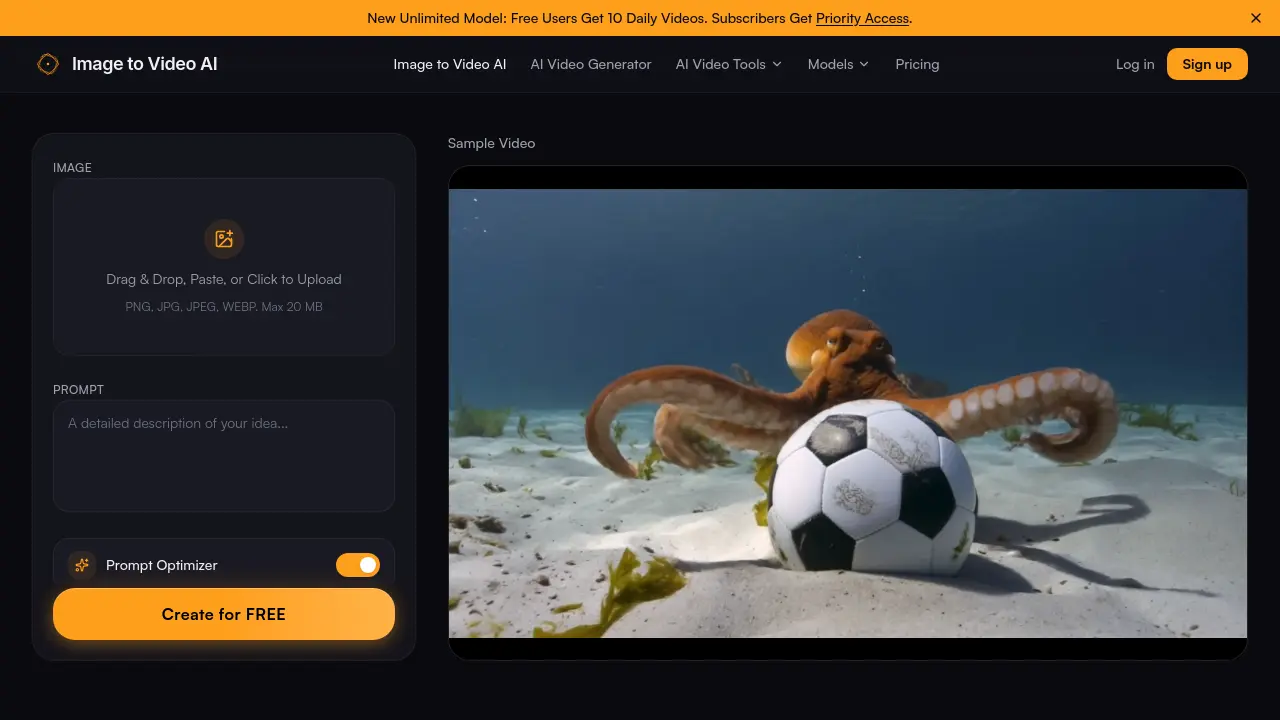
Users start by uploading a photo (JPG, PNG, or WEBP) via drag‑and‑drop or file‑select, then enter a descriptive text prompt that defines the desired motion (e.g., “slow zoom in” or “wind blowing through trees”). After clicking Generate, the AI engine synthesizes a short video (typically 4–6 seconds) which can be previewed, edited, and downloaded directly from the website.
Is there an AI image to video no account option?
Image to Video AI allows visitors to generate videos without registering an account, but the free, no‑account usage is limited to a single video per session and does not retain history. Creating an account unlocks daily credits, priority processing, and the ability to manage previously generated clips in a personal dashboard.
How can I create professional results with free image to video AI?
To achieve professional‑grade results, users should upload high‑resolution images, craft precise prompts that specify camera movements and environmental effects, and select the appropriate duration (4 s or 6 s). Additionally, reviewing the preview, adjusting the prompt for smoother motion, and exporting the final clip at 1080p resolution helps ensure that the video meets quality standards for platforms like YouTube, Instagram, or TikTok.
Can I use Image to Video AI for commercial projects?
Yes, the generated videos can be used in commercial contexts such as marketing ads, product demonstrations, or real‑estate tours, provided that users comply with the platform’s licensing terms. Paid subscription plans remove any residual watermarks and grant broader usage rights, which is advisable for businesses that require unrestricted distribution.
What file formats and size limits are supported?
The service accepts PNG, JPG, JPEG, and WEBP files with a maximum file size of 20 MB per upload. These formats preserve image detail, allowing the AI engine to render realistic motion and maintain high visual fidelity throughout the generated video clip.
How to use Image to Video AI
Image to Video AI converts uploaded photos into short, HD videos by combining visual input with a text prompt, enabling creators to generate motion‑rich content quickly.
Upload a JPG, PNG, or WEBP file (max 20 MB) via drag‑and‑drop or the browse button; the interface crops to the desired aspect ratio automatically.
Enter a concise prompt describing the desired motion—e.g., “slow zoom toward the horizon” or “gentle wind across trees”—to guide the AI video generation engine.
Select the video duration (e.g., 4 seconds or 6 seconds) and click Generate; the AI processes the image and prompt, producing a preview within seconds.
Review the preview, adjust the prompt or duration if the motion is unsatisfactory, then download the final video file in HD resolution without watermarks.
Analyze the output by comparing motion smoothness, framing, and relevance to the prompt; use these observations to refine future prompts for more precise AI video results.
